
In this guide we are going to clarify common issues and questions related to MS Teams integration with the LMS imc Learning Suite. The issues/questions are grouped into appropriate sections as they are related to the same cause.
General Information
For general information for Azure and LMS administrators regarding MS Teams integration, refer to MS Teams Configuration.
Configuring Client Secret Key in LMS
Actions described below are provided for LMS administrators that have experience in the relevant area. Do not perform any kind of changes if you are not sure of the consequences of your actions or if you are not sure if Client Secret key has expired. Incorrect settings will break MS Teams integration. Please contact our Scheer IMC Support team or your consultant if you are not sure about the cause of the issue or not familiar with certain settings.
Client Secret key is essential for running MS Teams integration as it provides the LMS with the access to MS Teams tenant used by your organisation.
The LMS administrator can set/change the key in the External service providers function by editing appropriate provider (provider’s name depends on the system):
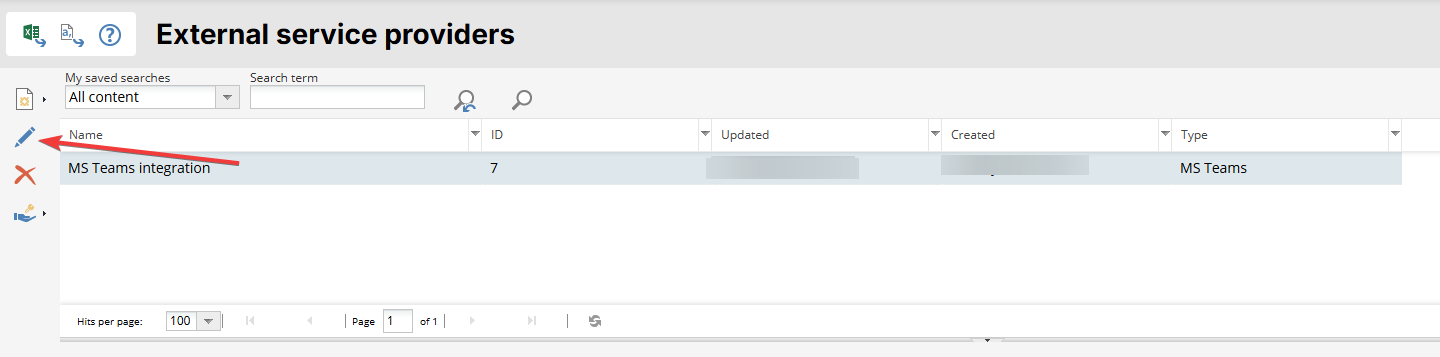
First of all, you need to get the Value for your Secret key. It can be obtained by Azure administrators, usually IT department of your company has access to it.
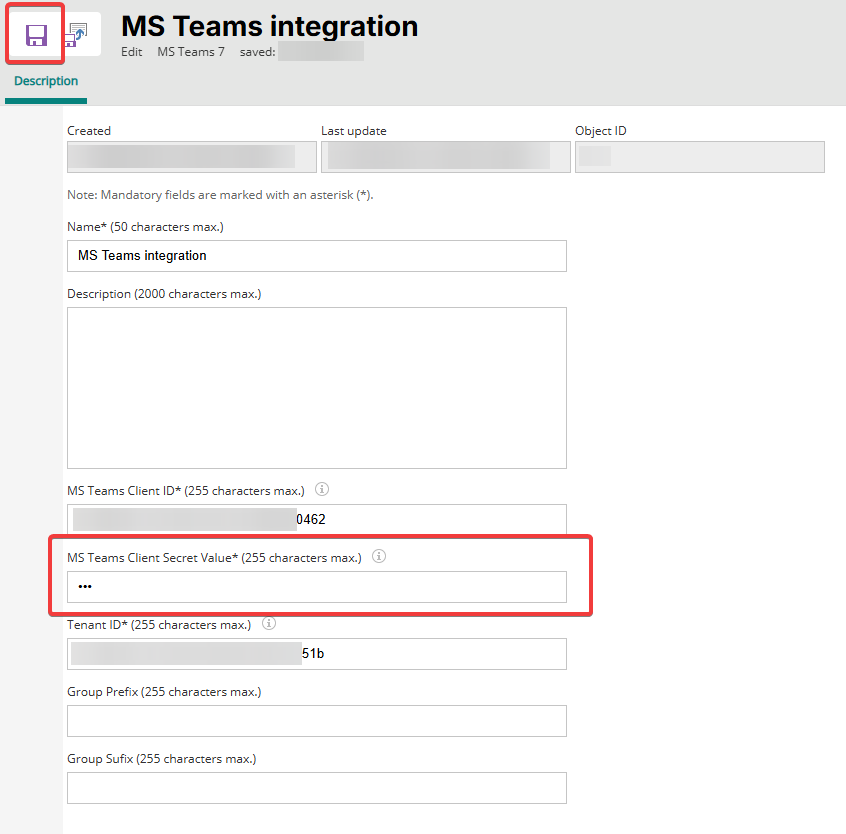
IMPORTANT: LMS administrators often provide incorrect data to the MS Teams Client Secret Value field (Secret ID is provided instead of the actual key). Be sure to specify the Value (this information can be obtained by Azure administrators):

Provide the Client Secret key (the key you obtained in the Value field of your client secret, see the screenshot above) in the appropriate field and save changes.
Common Issues Related to MS Teams Integration
Expired MS Teams Client Secret Key
This is the most common issue. It happens not often, but when it does, MS Teams integration stops working. For example, you may not be able to save a course with the MS Teams component, new meetings cannot be created, and an error like this may appear during the saving process:
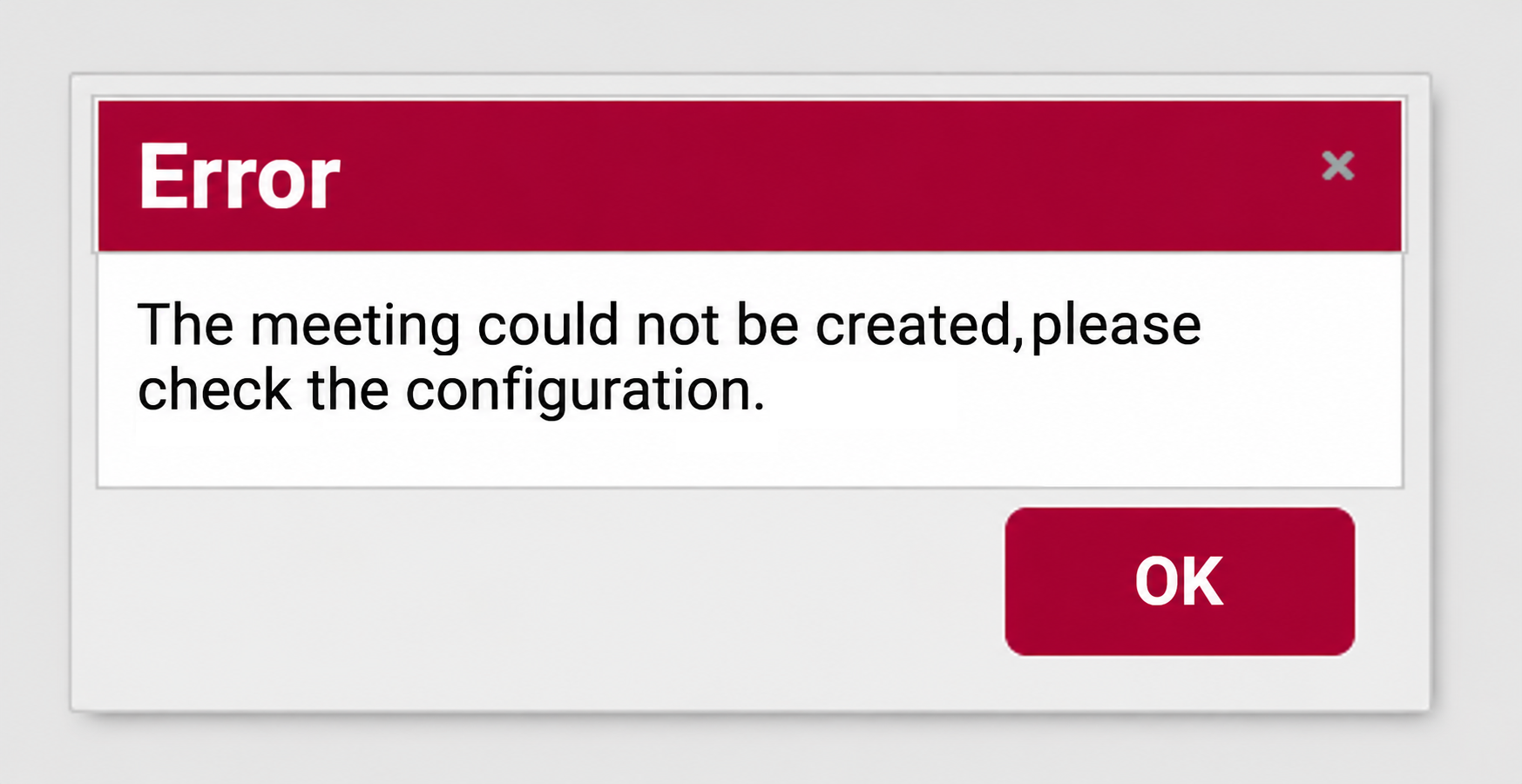
This kind of error message indicates that the MS Teams configuration is incorrect. If MS Teams integration worked properly for a long time, it usually indicates that the issue is related to an expired MS Teams Client Secret key. MS Teams Client Secret keys are issued for a limited time and should generally be renewed before they expire.
As a customer and LMS administrator, you can contact your IT department and make sure that the Client Secret key is not expired or was not renewed recently (this can be checked in Azure, in the application settings).
General information for Azure administrators regarding the Secret key can be found in the Application Credentials section of the MS Teams Configuration.
If you have not found any issues with the Client Secret key, please contact our Scheer IMC Support team.
Support and incident specialists usually retrieve information regarding the error from the log; in most cases, the log contains clear information regarding an expired key, if it is a cause of the error.
Common Requests Related to the Expired Client Secret Key
-
Link for the meeting is not available in the MS teams component
In some cases, the Link field is empty after creating a course-specific or system-wide MS Teams meeting: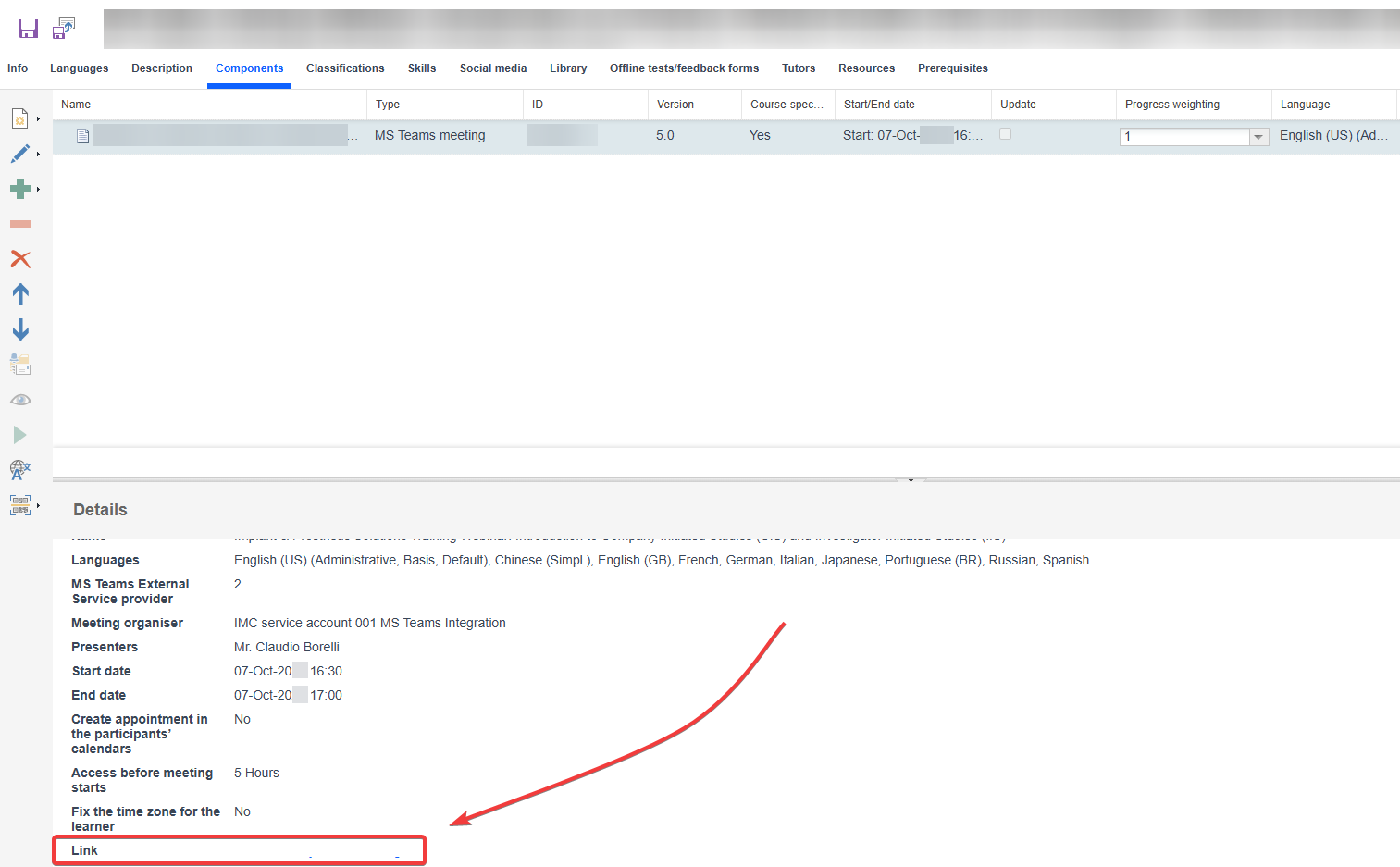
Missing link to MS Teams meeting
Such behaviour may indicate that MS Teams integration is not configured at all, or something is wrong with MS Teams integration. Usually, checking the LMS logs after creating MS Teams component/media helps to determine a reason of the issue.
Possible reasons:
-
-
Client Secret key is expired or not valid.
Information regarding this matter can be found at the beginning of this guide. -
Azure AD and MS Teams App may not be configured according to the requirements.
Additional information can be found in Functional Reference. -
Users/Organiser are not in the same organisation/same MS Teams tenant.
Such issue may occur if Organiser was not added to the appropriate MS Teams tenant or was removed from MS Teams tenant. Azure administrators of your organisation can help you to verify this.
-
-
The LMS administrator is informed by their IT that the Client Secret is expired
The customer contacts Scheer IMC Support and asks for further information. The message from Azure may look like the following:
The security for the Develop Application with Microsoft Teams (BS: Teams Integration) is due to expire on XX/XX/XX. "BS: Teams Integration | Production" with client id "b76erh7r7-9a6d-45ba-9774-fe398o5e0693".
Usually, Azure/MS Teams app administrators receive such notification beforehand and have time to renew the Client Secret. In such case, they generate a new Client Secret and provide it to the LMS administrator. This is how the Client Secret key looks in Azure:

If the Client Secret key has already expired and the Microsoft Teams integration is no longer working, an error message similar to the following may appear in the Azure portal or in the Notifications:
“App registration 'BS: Teams Integration | Production' has expiring credentials”
This means that the MS Teams Client Secret key has already expired. You need to renew it and provide the updated key in the LMS configuration.
Solution: A new Client Secret key can be set by LMS administrators according to the Configuring Client Secret Key in LMS section of this guide.
Error Upon Saving a Course
Error message: ‘Unable to modify Organiser for Microsoft Teams Meeting. The organiser field is immutable, and changes to the organisers are not supported.’
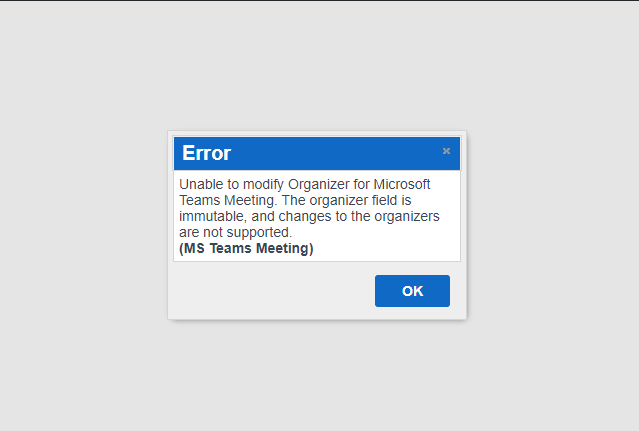
Such error occurs upon updating a course that has MS Teams component. It may occur if the meeting organiser's email address is changed in the LMS after the meeting has been created. When the administrator attempts to save changes to the course, the meeting cannot be updated because the organiser's email address has changed since the meeting was initially created.
Other typical reasons for such an error include an expired MS Teams Client Secret key that prevents saving the course, an incorrect user set as organiser (the user that does not have appropriate permissions in MS Teams tenant), or a changed email address of meeting organiser. The organiser’s email address must be registered within the Azure organisation users.
This error can also be caused by the issues with the Social Integration service (the service may not run properly). The LMS administrator can check the LMS logs after receiving the error. In such cases, there should be an error that points that the service is not reachable by the system.
Organiser Field - Common Questions and Answers
-
Can the Meeting Organiser and Presenter have the same permissions (i.e. ability to create and control breakout rooms)?
This is not possible. Only Organisers can create and control breakout rooms; Presenters can not do this. -
Is there an ability to have more than one Meeting Organiser?
It is possible to select only one user as the Organiser; selection of multiple organisers is not allowed. -
Can Facilitators (tutors) have sharing capabilities without the Presenter role?
No, the Facilitator (tutor) should be set as a presenter to have sharing capabilities. -
Users added as Organisers do not show up in the selection list for Organiser field in LMS:
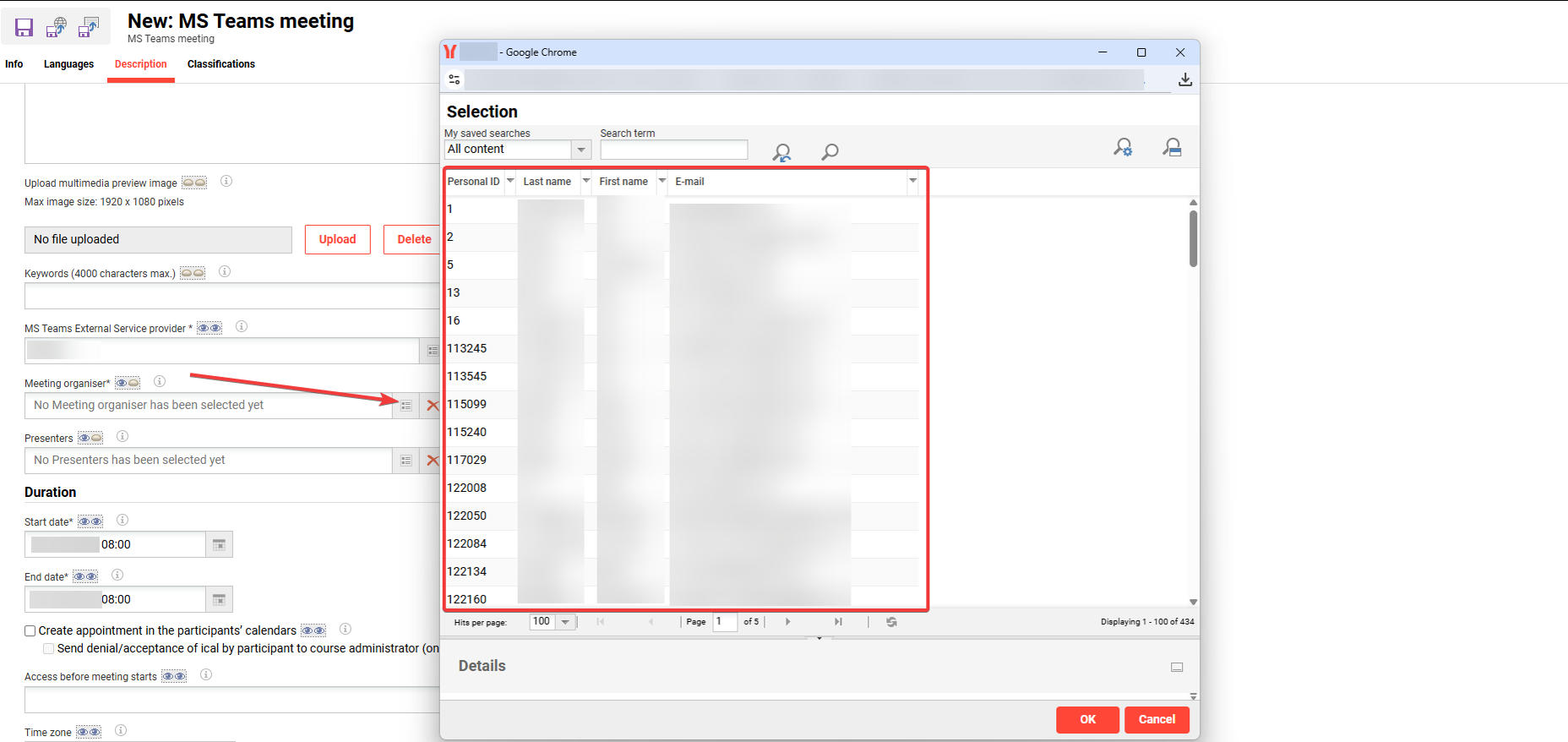
Selecting organisers
Make sure that the users in the LMS were added to the group used to define Organisers in the LMS. Usually, such a group is called MS Teams Organisers (the group name can be different in your system). You can add users automatically via the import or assign them manually in the Organisational Structure And Groups function (this depends on the configuration of the system).
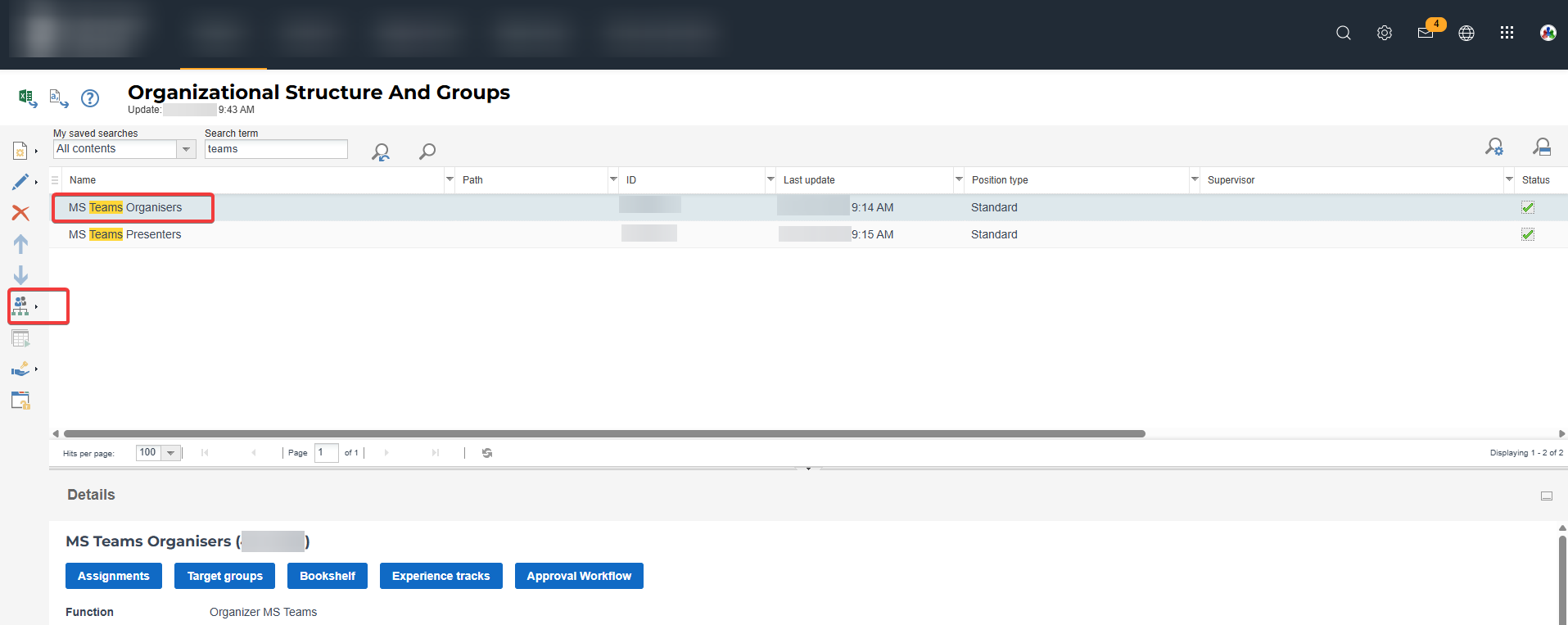
You should also make sure that appropriate users were added to the correct access group in Azure for the MS Teams app. It is not enough just to add the user to the group with Organisers in the LMS, as organisers should also be added to the organiser's group in Azure. The customer’s IT team can check or add this. Organisers should be assigned to the MS Teams tenant used by the MS Teams app in the LMS. The right approach is to add the user to the organiser’s group in Azure first and then add this user to the group with organisers in the LMS.
MS Teams Session Attendance Time Tracking
-
No tracking information for the MS Teams meeting
-
-
If Attendance tracking was not activated on your system initially, appropriate changes should be performed. This includes adding and configuring the MSTeamsStatusSynchronize job as well as setting the value in the Required attendance time field for MS Teams meetings. Typically, the job should be configured to run every 30 minutes.
Cron expression for running the job every 30 minutes: 0 0/30 * ? * * *
A fully configured job looks like the following screenshot: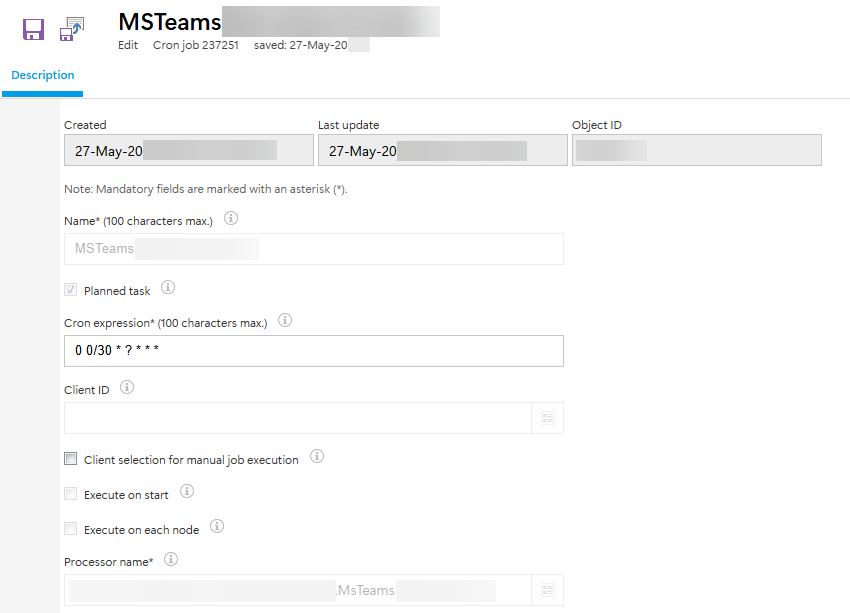
Cron schedule
-
-
-
If Required attendance time is not set for the meeting. Usually, such an issue is caused by a missing value in the Required attendance time field. Each MS Teams meeting has the Required attendance time (in min.) field. An appropriate value is required if you need the attendance tracking for this meeting. The field is empty in the screenshot below, that is why attendance tracking will not be available for this meeting:
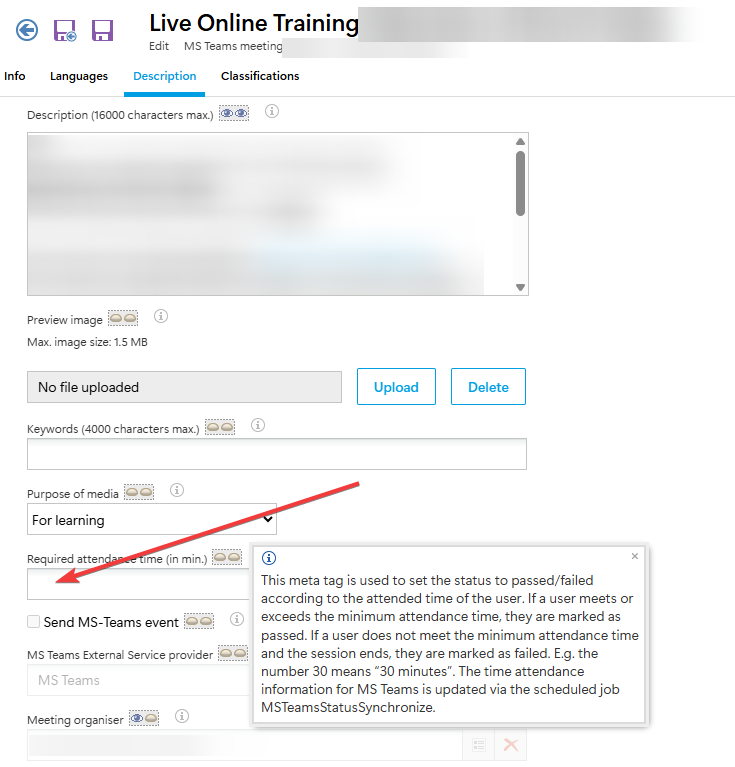
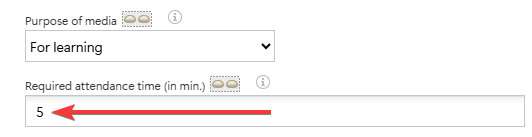
Required attendance time For example, you should set the value to 5, and the system will consider 5 minutes as the required time for this meeting:
-
-
-
Participants do not have correct status. Attendance tracking works only for participants that have Enrolled or In progress statuses. If the course administrator manually changes the status of the course to Passed in the Course instruction, the attendance tracking will not be updated because participants no longer have the Enrolled or In progress statuses. If you need to get participation time for participants set as Passed manually, you need to change the status to In progress in the Participant administration for all affected users, save changes, access the Course instruction of the course, go to the Syllabus tab, select the meeting, and update the MS Teams status manually by clicking on this icon:
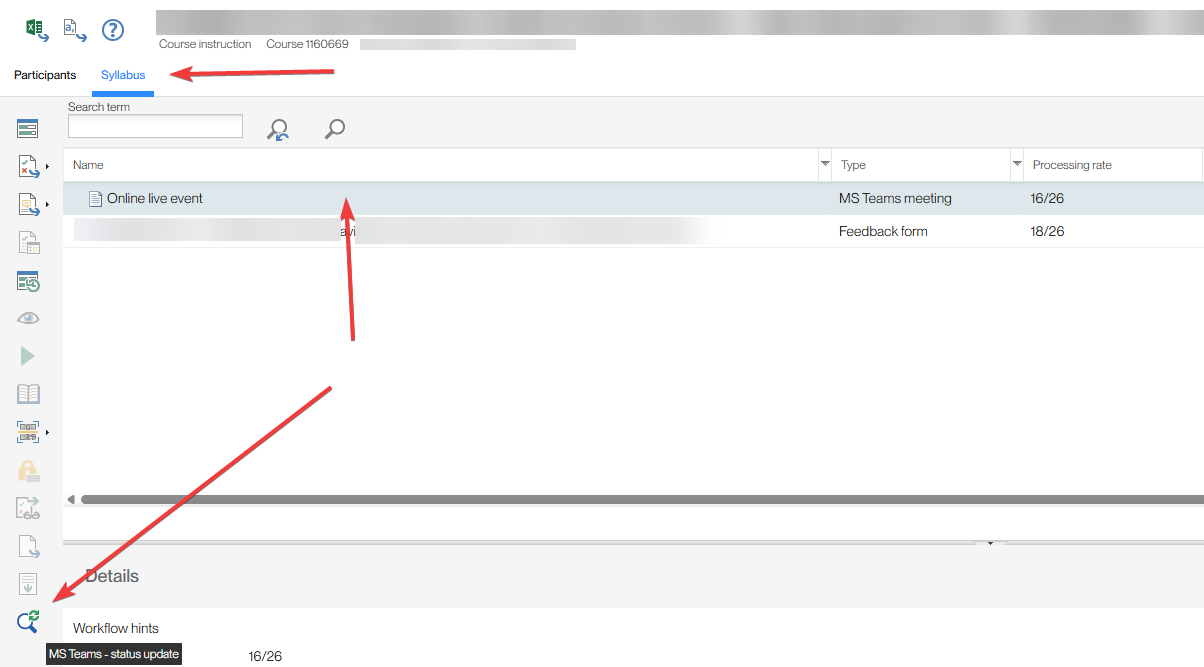
MS Teams - status update in Course instruction -
If the Allow guests option is disabled, users outside the organisation will not have attendance time tracking. The Social integration setting Allow guests must be enabled (set to true) for participants from another organisation to be created as guests in Microsoft Azure. Once they are available as guests in Azure, their attendance can also be tracked. If Allow guests is disabled (set to false) and participants from another organisation are added to a course, they will not be created as guests in Microsoft Azure. As a result, attendance will not be tracked for those participants.
-
-
Attendance Time tracking is provided with the delay, not immediately after the meeting. The MSTeamsStatusSynchronize job runs in your system every 30 minutes (typical configuration, you may have different configuration) and accesses reports of the meetings that have Required attendance time (in min.). It means that the job runs independently of your MS Teams meeting and will access the report during the next run. Additionally, MS Teams may provide the report data with some delay, which is why the report data may not be available even after executing the job after finishing the MS Teams meeting. In most cases, the LMS should gain access to the report within 30-60 minutes after the meeting has finished and will set the status to passed/failed based on data in the MS Teams report for the appropriate meeting. In urgent cases, you can trigger the status update for the specific course manually in the Attendance tracking (details regarding this process will be provided in the next paragraph).
-
How to trigger Attendance time tracking status update for the specific course?
You can request the status update manually, if your meeting is ended and the meeting had a value in the Required attendance time (in min.) field. You should go to the Course manager, access Course instruction function for the course,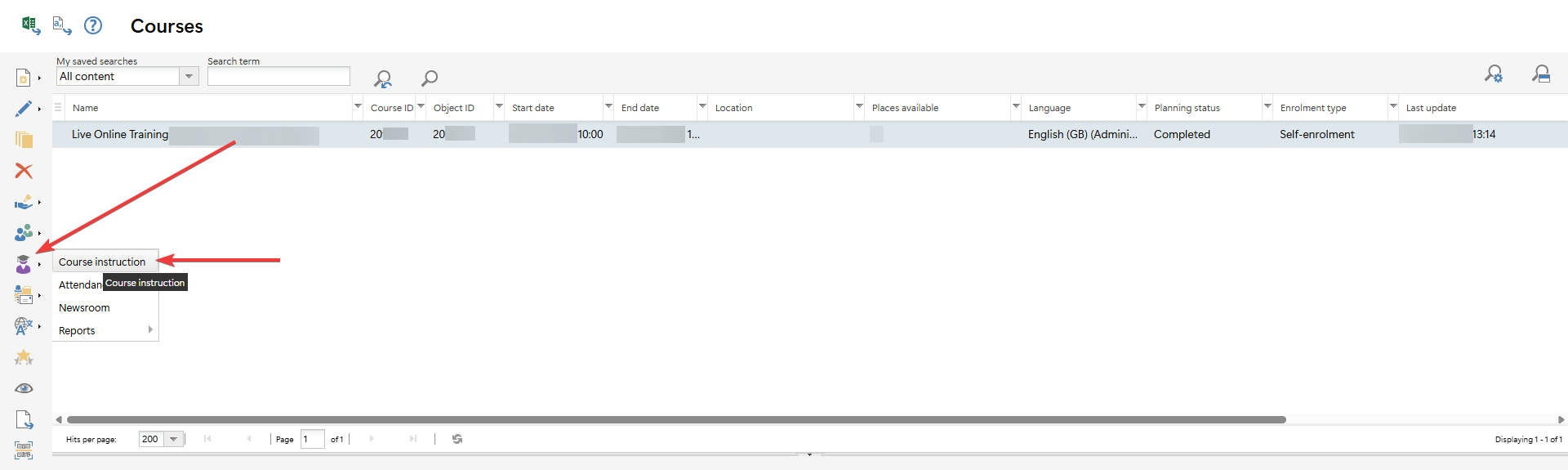
Course instruction go to the Syllabus tab, select your MS Teams meeting and click on the MS Teams - status update icon.
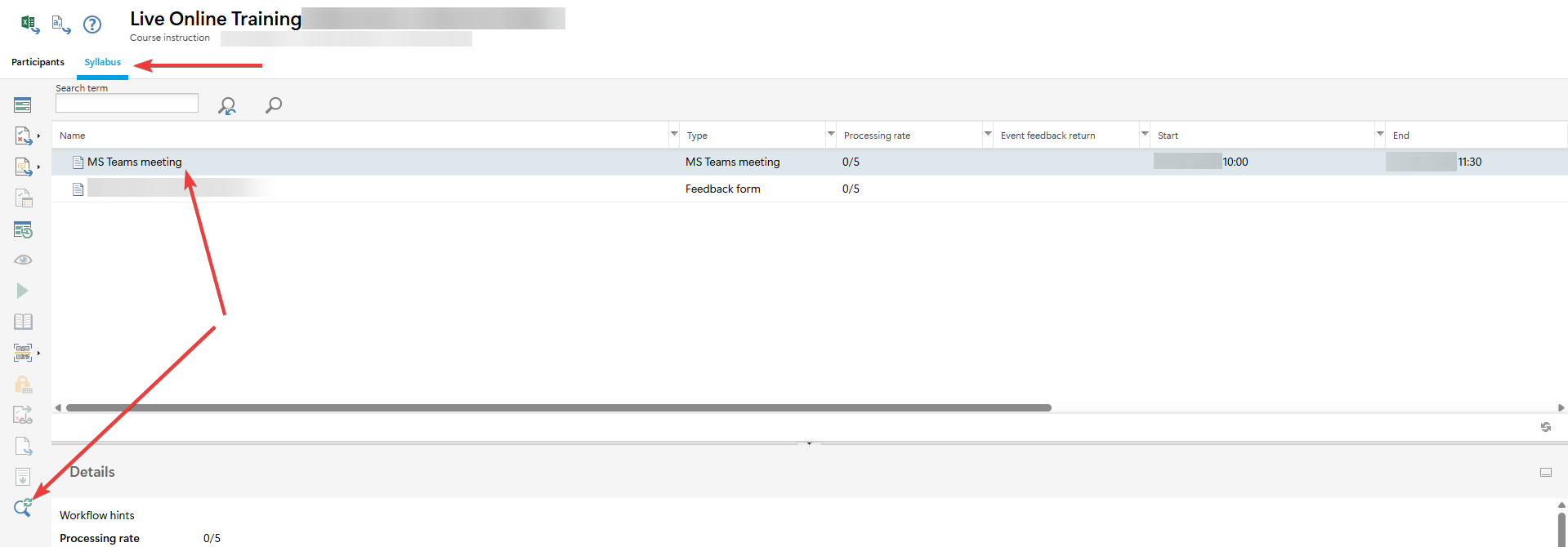
MS Teams - status update icon This action will lead to requesting the MS Teams report for this meeting with an appropriate status update for participants. Pay attention that MS Teams may provide the report data with some delay, which is why the report data may not be available right after finishing the MS Teams meeting.
-
Does Attendance tracking work if the meeting is accessed outside of the LMS (from the calendar, e-mail, meeting link)?
Absolutely, but only if MS Teams meeting has a value in the Required attendance time (in min.) field. The system checks only the report generated by MS Teams, which is why it does not matter from where the meeting was accessed. Just make sure that your meetings have an appropriate value in Required attendance time (in min.) field: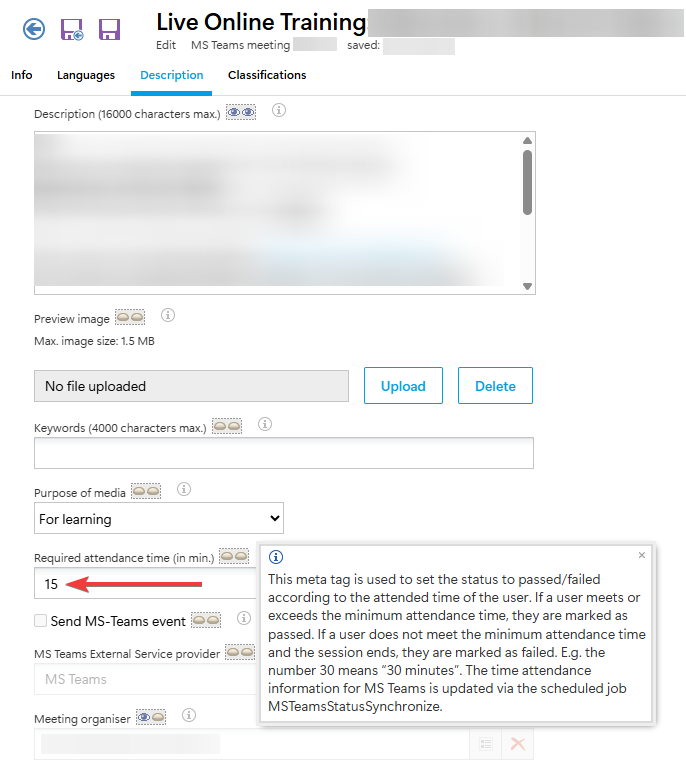
Required attendance time field
Design and Colours of MS Teams Meeting Invitation
Can the design/colours of the whole invitation and Join Teams meeting button be changed?
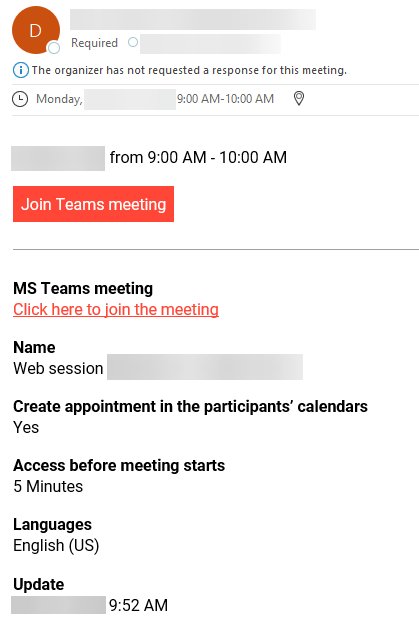
There is no possibility to change the design/colours of the elements in the invitation as the LMS does not have control over this process.
Breakout Rooms
This is how the meeting looks when the Rooms button is available in the meeting and allows you to manage breakout rooms:
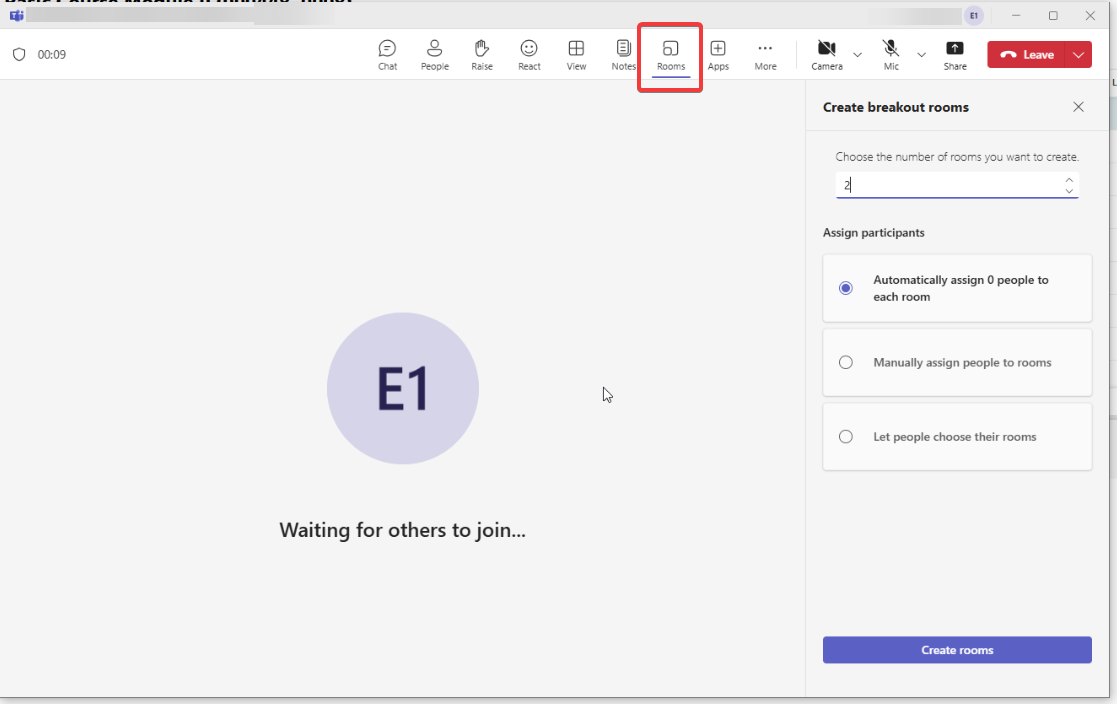
Breakout rooms can not be accessed. Rooms button is not available in the meeting.
-
Only the Organiser can manage breakout rooms. Make sure that the Organiser set in the meeting is trying to manage breakout rooms.
-
Contact your IT department and check if breakout rooms are still allowed for the MS Teams App in Azure. The allowBreakoutRooms policy should be set in Azure for the appropriate MS Teams App.
Session Recording Issues
-
Recording button is not available, the recording can not be started.
The meeting options available in Teams are controlled by appropriate policies and can be adjusted by Azure administrators for the specific tenant. First of all, please make sure that the Organiser used for meeting creation in the LMS is trying to record a session. If the Recording button is not available for the Meeting Organiser, the recording can be disabled in Azure. Please contact the Azure administrator and make sure that appropriate policies are set. -
Recording may not be available/may not work/saved properly.
Such issue may happen due to issues with OneDrive/SharePoint storage (no storage space left, issues with licenses, etc.). Such issues should be investigated by customer’s IT department.
License for MS Teams Connector Add-on
-
Do I need to have an additional license in order to be able to create meetings directly from the LMS?
Yes, the MS Teams Connector Add-on is required in order to be able to create MS Teams media with the link to the meeting, to have the ability to add MS Teams meetings to the courses as course-specific or use system-wide MS Team media. -
Can the courses be shared via Teams? Is a license required for this feature?
MS Teams share icon Yes, the courses can be shared via Teams; however, you will need to have a license for MS Teams Connector Add-on.
Best Practices
-
Keep track of the Client Secret expiration date and inform your Azure administrators to renew it before expiration, or make sure that your Azure administrators monitor the expiration dates for the Client Secret used in the LMS and renew it before the expiration. Azure administrators should coordinate this process with you. You will need to add a new Client Secret value according to the instructions specified in the Configuring Client Secret Key in LMS section of this guide.
-
UPNs and emails should have the same value in Azure portal. It means that the same email should be used as UPN and as user’s email. Such a process is controlled by Azure administrators and it is important to have the same email and UPN in order to ensure correct functionality provided by MS Teams integration.
-
New users/organisers in the LMS should use the same email as in the Azure portal and should be added to MS Teams tenant. When you add new users/organisers to the LMS that are supposed to participate in MS Teams meetings (manually or with the user import), you should make sure that such users were added to the appropriate MS Teams tenant with the same email as in the LMS. The correct process would be to add such users to the MS Teams tenant first (usually done by Azure administrators), and then add them to the LMS. This way you will avoid the situation when users added to LMS cannot participate in meetings.
-
Organisers should be added to Organiser group in MS Teams tenant. Usually, Azure administrators configure the specific group in MS Teams tenant that provides appropriate permissions that allow the user to be an Organiser of the meeting. Providing appropriate permissions in the MS Teams tenant to the user that is supposed to be an Organiser in MS Teams meeting is essential; otherwise, it will not be possible to create a meeting with this Organiser.
-
Organisers should be added to the appropriate group in the LMS (manually or automatically). When you add new users to the LMS manually or with the user import, be sure to assign the users that are supposed to be Organisers into the appropriate group in the LMS. Otherwise, you will not be able to select such users as organisers for MS Teams meetings.
-
Attendance tracking and Required/Default value. Setting up the default value for the Required attendance time (in min.) field or making such a field required can help you to avoid a situation when the person who made a meeting has not set the time and, as a result, the users were not automatically concluded based on Attendance tracking.
-
If you use Attendance tracking for all meetings, it makes sense to set this field as required on a Media type level in the Meta tags and attributes tab
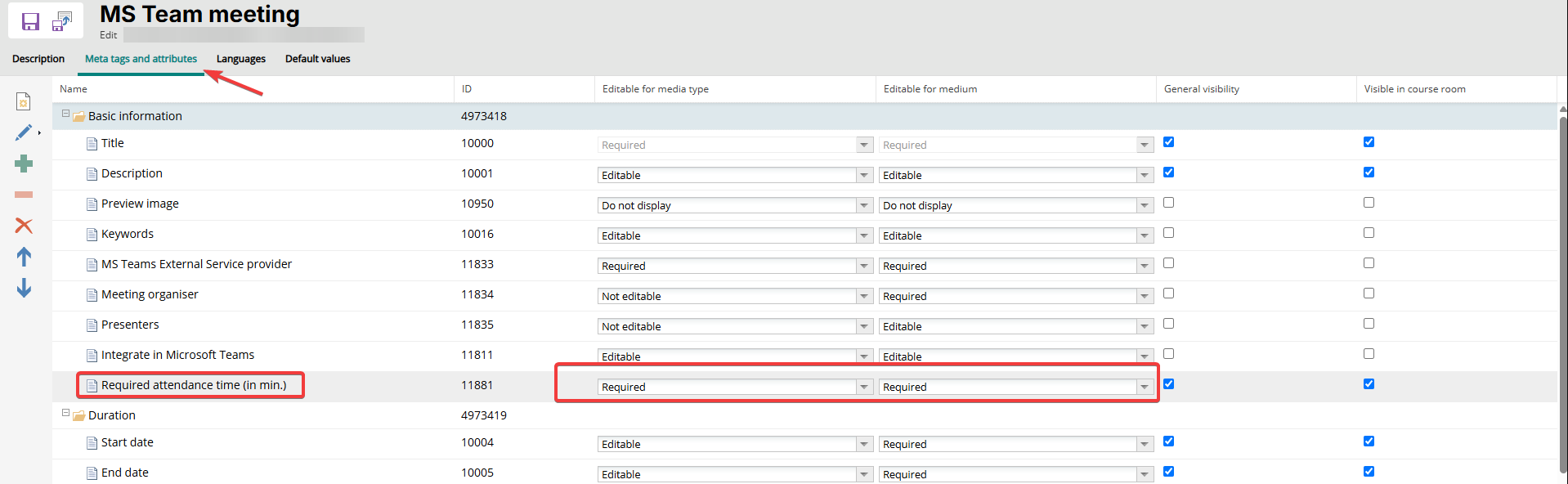
Settings for required attendance time metatag
and specify the standard value in the Default values tab:
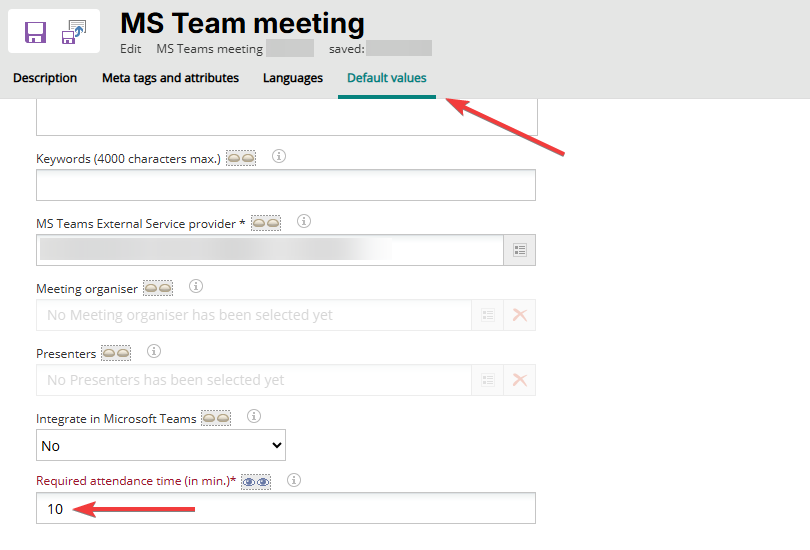
-
If you use Attendance tracking for most meetings (but not for all), you can set the metatag on a media type as editable
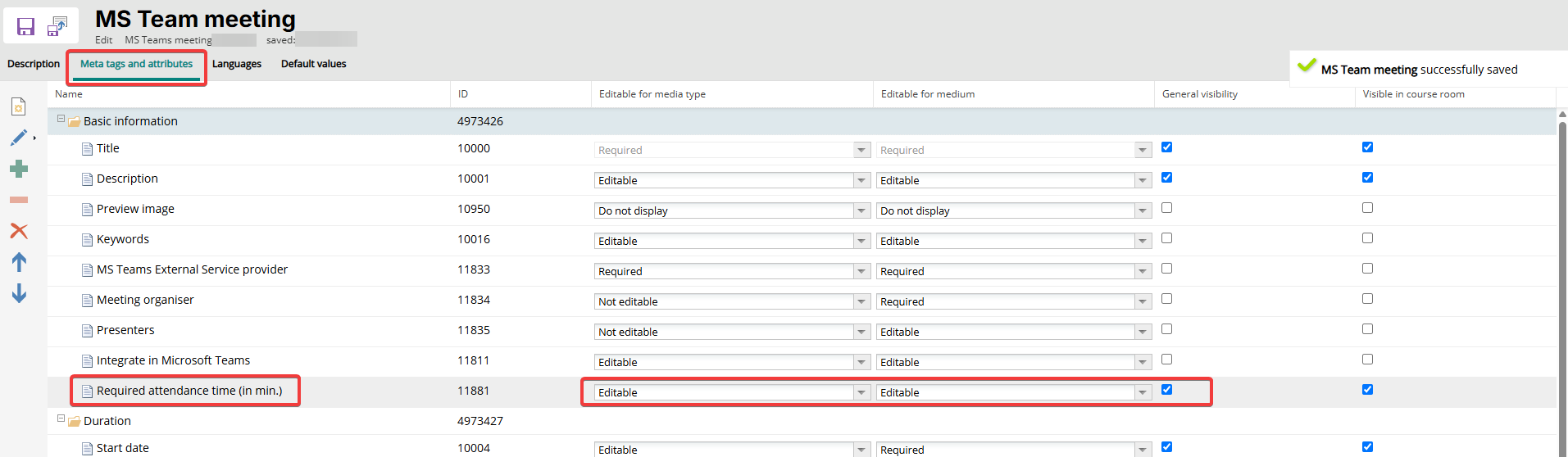
Settings for required attendance time metatag
and specify desired value in the Default values tab:
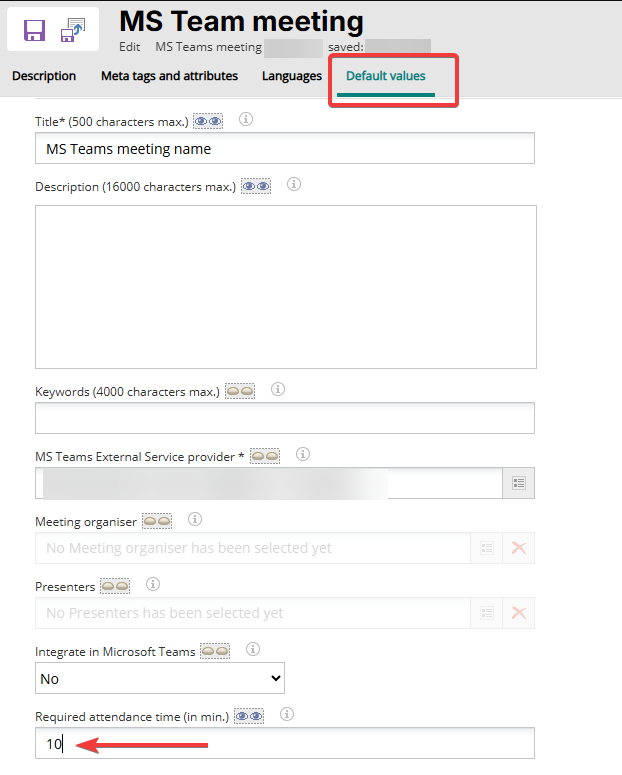
In such case, by default all new meetings will come with this standard value, however, the person who creates the meeting has a possibility to remove time in the Required attendance time field and this meeting will not use Attendance tracking feature.
Conclusion
In this guide we have gathered common issues related to MS Teams integration, clarified the most common reasons of the issues, provided best practices, and specified how the Client Secret key can be updated in the LMS.
We have also covered scenarios that help to determine whether particular issues are caused by the invalid/expired Client Secret key and provided general information regarding the issues related to the Organiser field and other functions provided by MS Teams integration.
Still Have Questions?
Feel free to contact our Scheer IMC Support team via the imc Service Desk or your consultant in order to discuss your specific issues and get help with your questions.