
In addition to the featured highlights, there are many more innovations and improvements to discover in the product core. Core updates are listed by their category in the tables below:
Content Management
Media Pages Redesigned with Improved UI & UX
Overview: Media pages have undergone a significant update to improve the UI and UX for learners. The changes impact media pages when accessed via a course, a catalogue, or the bookshelf. These changes can be enabled via a new setting in the Design function.
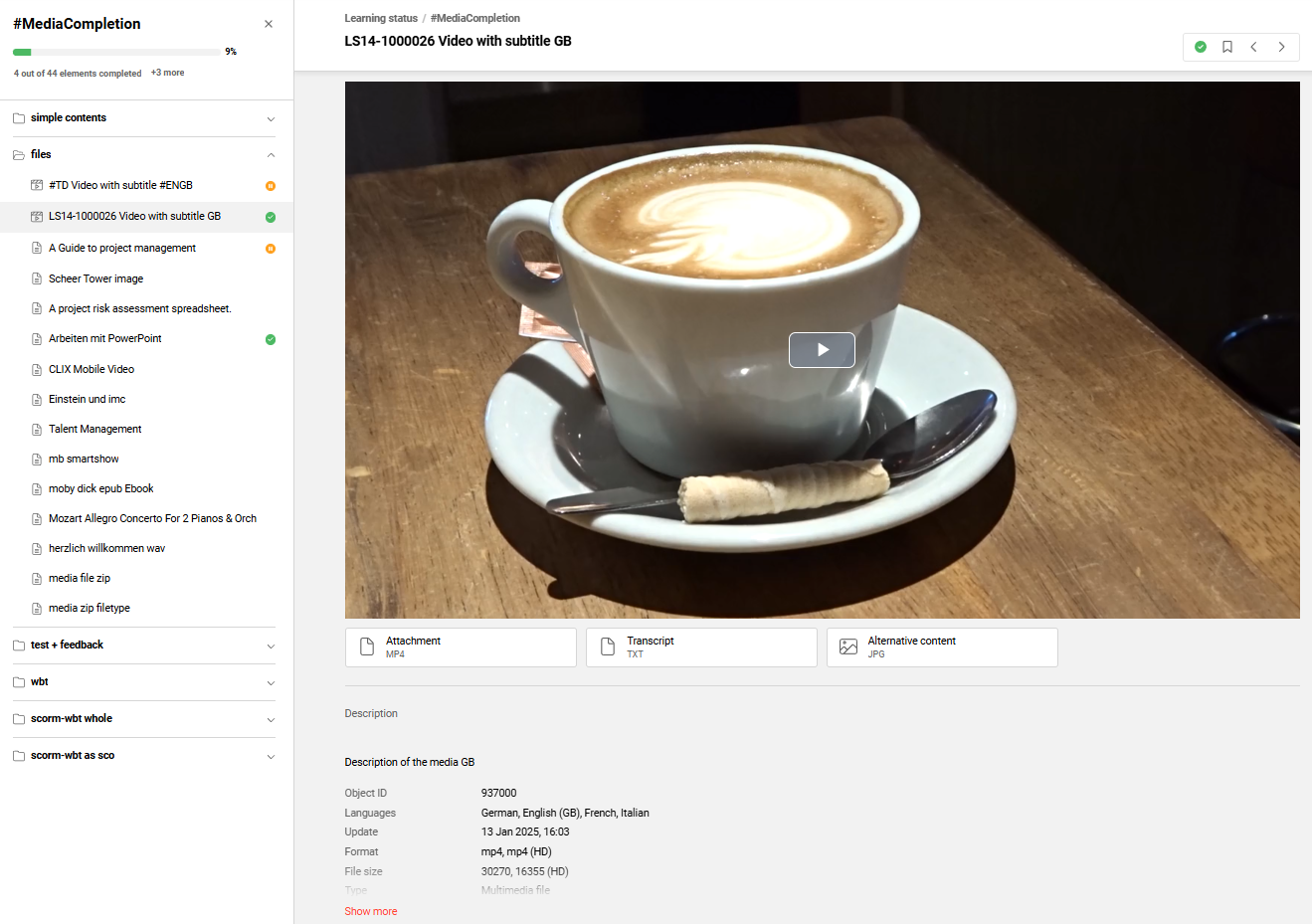
The updated media pages include:
-
Link
-
Multimedia file
-
Article (former Activity)
-
Event
-
External content
-
Feedback form
-
File
-
Forum
-
3rd-Party Content
-
External tool (LTI 1.1)
-
External tool (LTI 1.3)
-
WBT (SCORM)
-
WBT
-
WBT (AICC)
-
WBT (xAPI/Tin Can)
-
Adobe Connect Meeting
-
Adobe Connect Recording
-
GoToMeeting
-
GoToWebinar
-
LinkedIn Learning
-
MS Teams meeting
-
OpenMeeting
-
Virtual Classroom generic
-
Vitero Meeting
-
WebEx Broadcast Session
-
WebEx Meeting
-
Webex Video Conference Session
-
OJT
-
Tests
-
Feedback
When inactive the existing media page designs will remain.
Benefits and Use Cases: The redesigned media pages benefit the learner experience with:
-
Improved learner experience through a modernised UI and UX
-
Enhanced content overview with a new playlist component
-
Clearer progress tracking and easier navigation within courses
-
Flexible activation via simple opt-in/opt-out for administrators
-
Improved security with implementation using React
Audience: Learners
Setup & Access: As a System administrator, you can enable the new media pages in the Design function. When you edit a design there is now a Activate the new media pages checkbox. The checkbox is inactive by default and can be activated at any time to replace the legacy media pages.
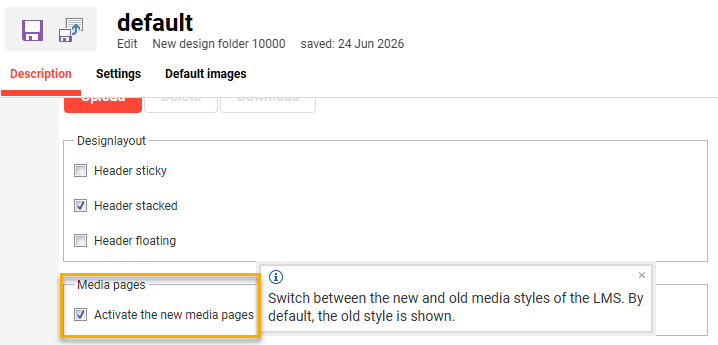
Considerations & Limitations: No migration required. Existing media pages remain functional and can be switched to the new experience at any time.
-
Library items accessed via the course room are not yet supported and continue to open in the legacy media pages.
-
Media preview from the course manager is not supported and still uses the legacy media pages.
-
The Multimedia type is now limited to audio and video; links and documents must use the Link or File types.
-
On-the-job training, tests, and feedback remain embedded and use the existing design.
Testing: To test the updates you can follow these steps:
-
As a System administrator go to the Design function:
-
Edit the design that is in use (linked to client),
-
Tick the Activate the new media pages checkbox, and
-
Click the Save button.
-
-
As a Learner go to the Learning Status function:
-
Open a course that has various media objects.
-
Check multiple media objects to ensure they load properly.
-
-
As a Learner open a Catalogue that has media assigned:
Open various media objects to ensure they load properly. -
As a Learner go to a dashboard that contains a Bookshelf panel:
Open the media objects assigned to the bookshelf.
Risk rating: Medium
Course Management
Time zone display for completed course
Overview: Administrators can enable a setting to show time zone information for completed courses. When enabled, your learners will see the completion date and also time zone (local and UTC) on course tiles, in the course room, and within the syllabus of learning paths.
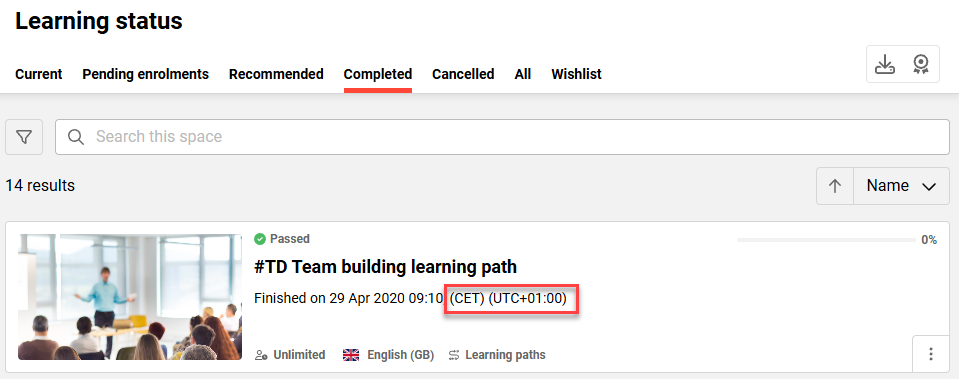
Benefits and Use Cases: This small update provides transparency on exact completion times across different regions. Supports accurate credit tracking for deadline-dependent certifications by showing local and UTC times.
Audience: Learners, Supervisors, and Administrators
Setup & Access: Requires activation in the Clients function. Edit a client, then in the Settings tab go the Course section and tick the Show time zone for completed courses checkbox.
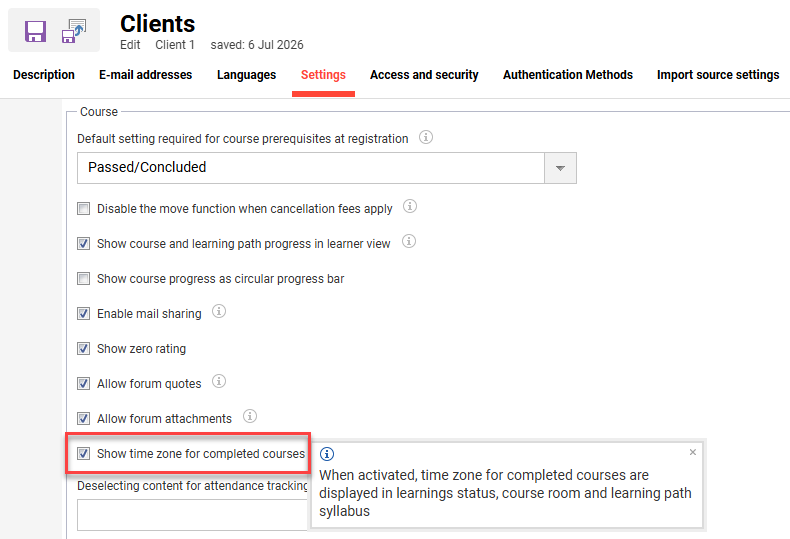
Considerations & Limitations: This update is intended for systems with users located and training delivered in multiple time zones.
Testing: As a System administrator, open the Clients function and edit a client. Go to the Settings tab and tick the Show time zone for completed courses checkbox the Course section.
Next, as a Learner open the Learning status function, go to the Completed tab and check the following:
-
Course tile: The completed course will display the end date with time zone on the tile.
-
Course room: Open a completed course where the end date with time zone will display.
-
Learning path: Check the syllabus where completed courses will display end date with time zone.
Risk rating: Low
Self-service Cancellation for Reserved Courses
Overview: An updated workflow now enables Learners and Supervisors to cancel Reserved status enrolment requests. Previously, only administrators were able to cancel users from the Reserved list. This can be optionally activated for the course description, syllabus, and learning status views.
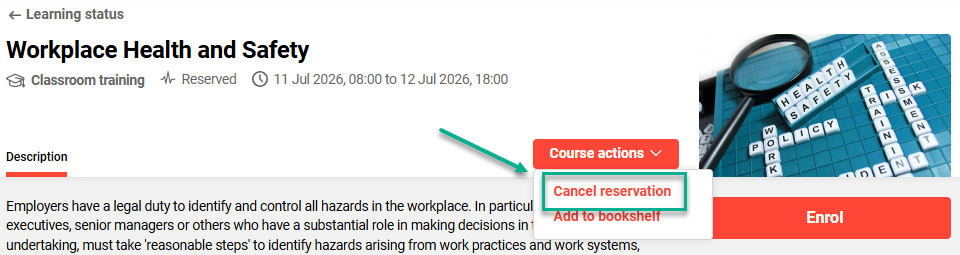
When cancelling reservations, learners will be able to select a reason for cancellation and enter a note.
Benefits and Use Cases: The update increases learner autonomy with improved self-service reservation management. Being able to self-cancel non desired reservations will clean up multiple learner views. Administrative effort will also be reduced by eliminating the need for cancellation requests. Furthermore, the processing will be consistent for both paid and unpaid enrolments.
Audience: Learners and Supervisors
Setup & Access: A new setting has been added to the Clients function in an inactive state. To enable, edit a client and go to the Settings tab. Here you will find a Reserved course bookings are cancellable checkbox that can be enabled.
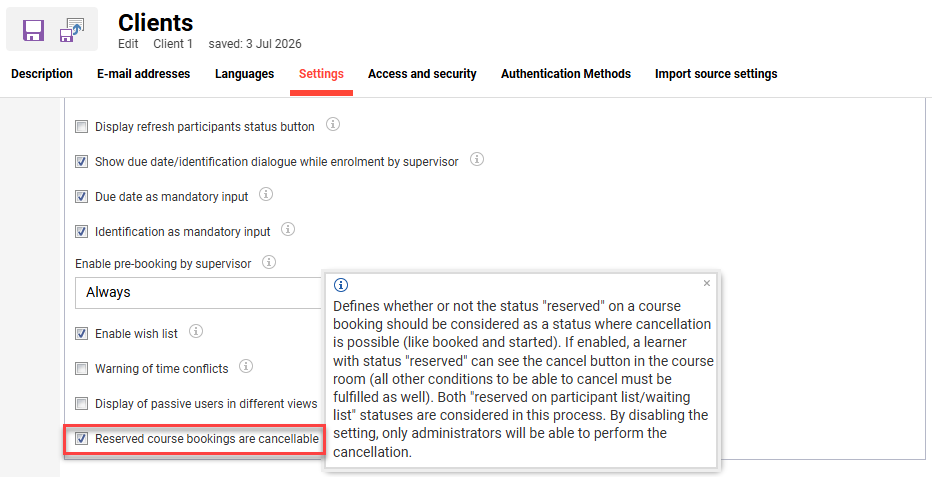
Considerations & Limitations: Both Reserved and Reserved for waiting list statuses are considered in this process. Cancellation will be possible by learners and their supervisors based on the following conditions:
-
The new Reserved course bookings are cancellable checkbox is active.
-
Self-cancellation is enabled.
-
The Cancellation period is still open.
After the defined period has passed, no cancellation is possible.
Testing: Log in as a System administrator and follow these steps:
-
Go to the Clients function:
-
Edit a client and open the Settings tab.
-
Activate the new Reserved course booking are cancellable checkbox,
-
Click the Save and close button.
-
-
Go to the Courses function
-
Locate and highlight a test course.
-
Edit the course and check the following:
-
Cancellation type is Self-cancellation.
-
The Cancellation period is blank or open.
-
-
Open the Participant administration function.
-
Go to the Participant list tab to add a user as Reserved.
-
Click the Save and close button.
-
-
-
Log in as the test user and follow these steps:
-
Open the Learning status function and go to the All tab.
-
Filter the courses by the Enrolment status Reserved.
-
Locate the course that was just reserved.
-
Confirm the Cancel option is available in the following views:
-
Leaning status tile
-
Description page
-
Syllabus page
-
-
Click the Cancel reservation button.
-
The Reservation will be removed.
-
-
Repeat the process with a Supervisor and the My staff function.
Risk rating: Low
Dashboard Management
Learner Panels Re-design with React
Overview: As part of the ongoing long-term project to re-design all panels, the following learner panels are now additionally updated:
-
Bookshelf panel (ID: 105)
-
Effectiveness Check (ID: 180)
-
Task Management (ID: 181)
-
Future Recertification (ID: 182)
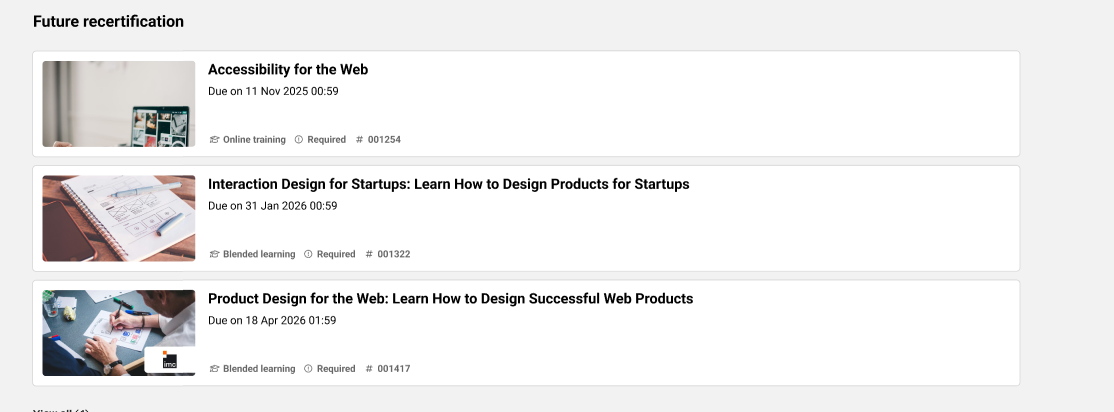
Benefits and Use Cases: The transformation delivers improved panel design options and security. This also enables the panel to be utilised on internal dashboards where the Opt-in for the new dashboard & panel design checkbox is activated.
Audience: Learners
Setup & Access: In the Dashboard pages function the internal dashboard requires the Opt-in for the new dashboard & panel design checkbox to be ticked. It must also be ensured that only panels with the New design support column value of “Yes” are added in the Contents tab.
Considerations & Limitations: When the Opt-in for the new dashboard & panel design checkbox is ticked, the panels with the old design will be listed in the administrator back office, but not be displayed to the learner frontend.
Testing: To test the updated panels you can follow these steps:
-
Go to the Dashboard pages function:
-
Edit the internal dashboard that you want to test.
-
In the Description tab tick the Opt-in for the new dashboard & panel design checkbox.
-
in the Contents tab add the updated panels,
-
in the New design support column the panels will now show as “Yes”,
-
Click the Save & close button once done.
-
Next, access the internal dashboard via the linked navigation menu.
The panels will be displayed in the React design.
-
Risk rating: Low
Booking Requests Based on Flexible Clearances
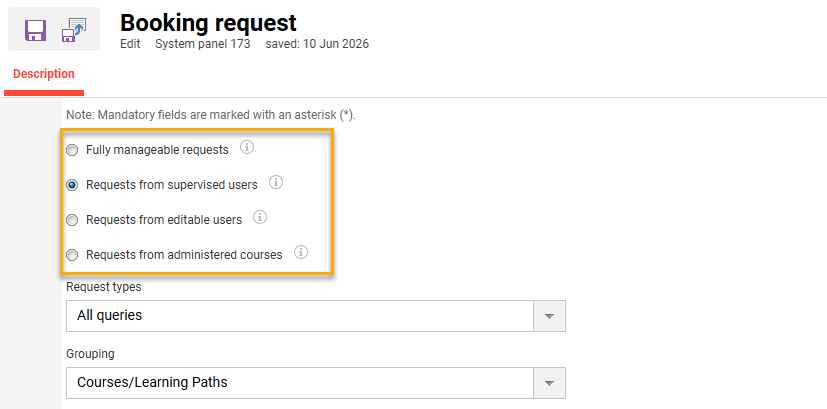
Overview: The Booking request panel (ID 173) has been updated with four new radio button options to filter requests. These options are single select radio buttons that replace the Display all visible registration requests as they are released checkbox. The new settings possibilities can now filter booking requests by:
-
Fully manageable requests: Allows supervisors or registration managers to access all enquiries.
-
Requests from supervised users: Enables supervisors to only see requests by their staff.
-
Requests from editable users: Enables administrators to view all requests of users for whom they have Edit clearance.
-
Requests from administered courses: Course administrators only see requests from their courses.
Benefits and Use Cases: Administrators can precisely control which booking requests appear in Booking request panels by selecting one of the four options. This enables providing a granular view of requests based on specific user, course, or supervisor clearances.
Audience: Supervisors and Administrators
Setup & Access: The radio buttons will be automatically assigned to the Booking request panel and any duplicate. The default value will be the Fully manageable requests button if the previous Display all visible registration requests as they are released checkbox was ticked. If the previous Display all visible registration requests as they are released checkbox was unticked, the Requests from supervised users radio button will be set. This can be changed in the Panels function by editing the Booking request panels.
Considerations & Limitations: The four radio buttons replace the Display all visible registration requests as they are released checkbox. The Booking request panel can be duplicated to using each option on different dashboards.
Testing: You can test the updates by following these steps:
-
In the Panels function edit your existing Booking request panel.
-
Ensure that the correct default settings have been applied.
-
Testing the new options is best done by duplicating the Booking request panel (ID: 173) and selecting one of the new filtering options:
-
Requests from editable users: Requests will only show for users the logged user has Edit clearances for.
-
Requests from administered courses: Requests will only display for courses the logged in user is responsible for.
-
-
-
In the Dashboard pages function edit an internal administrator dashboard.
-
add the duplicated Booking request panels,
-
click the Save and close button.
-
-
Access the internal administrator dashboard via the navigation menu it’s linked to.
-
The Requests from editable users option will show requests based on user clearances.
-
The Requests from administered courses option will show requests only for courses the logged in user is an administrator for.
-
Risk rating: Low
Global Search
Multi-language Handling in Global Search
Overview: The multi-language handling in the Global search has been improved with the following updates:
-
Search content is shown in your preferred language. If unavailable, the fallback is the content's default language, so you always see results in the most relevant language.
-
Filters and metadata on tiles are always displayed in the platform language of your session.
-
Details page opens in the same language the search result was shown in, avoiding a jarring language switch when clicking through.

Benefits and Use Cases: The updates deliver a user-friendly multilingual experience consistent with other areas of the system.
Audience: Learners
Setup & Access: Not required, the change is automatically applied.
Considerations & Limitations: The change will only be visible on multi-language systems that utilise the Global search.
Testing: Given that your system has multiple languages and Global search enabled, you can test the following:
-
Your preferred working language of content is returned if available, even if the content default language is another.
-
The default language of content is returned if there is a match in search term, but your preferred working language is not available.
-
The Global search advanced results page:
-
matches the language filter to the platform language,
-
displays sources of the search term in the platform language,
-
displays metadata on tiles in the platform language.
-
-
Where the search term is in a non-preferred working language and there is a match, the search item details page is displayed in the same language as the search result was displayed.
Risk rating: Low
Streamlined Multi-source Content Access
Overview: For results with multiple sources, a new toggle button provides quick access to all alternative sources in a simple dropdown list.
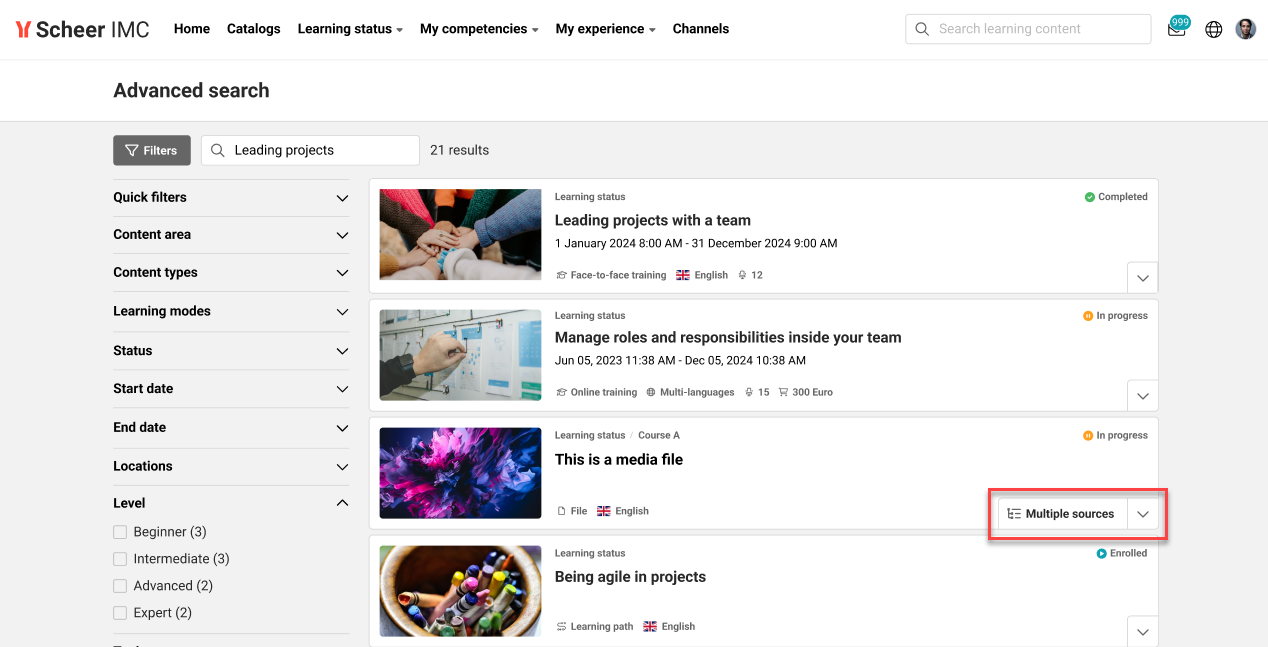
Benefits and Use Cases: Users can now open the first source of a search result with a single click to:
-
speed up content access by removing unnecessary clicks.
-
provide immediate clarity by displaying the first source title on the tile.
-
keep all source variants easily accessible without cluttering the interface.
Audience: Learners
Setup & Access: Not required as the change is automatically applied.
Considerations & Limitations: Requires activation of the Global Search. The semantic search option using AI must be enabled by Scheer IMC.
Testing: Providing that Global search function is enabled, you can test the update by:
-
Searching for a course or media object that has multiple sources; e.g. media assigned to multiple catalogues or channels.
-
If the search result returns an object with multiple sources then the Multiple sources toggle button will display.
-
Clicking the Multiple sources toggle button will show all the available sources.
-
Clicking on an available source will navigate you to the selected object.
Risk rating: Low
Context-aware Search Guidance for No Results
Overview: Users now receive smart suggestions when a search yields no results. Depending on whether the search is lexical or semantic, the system suggests either checking spelling, using broader terms, or expanding the search scope to all content and removing active filters.
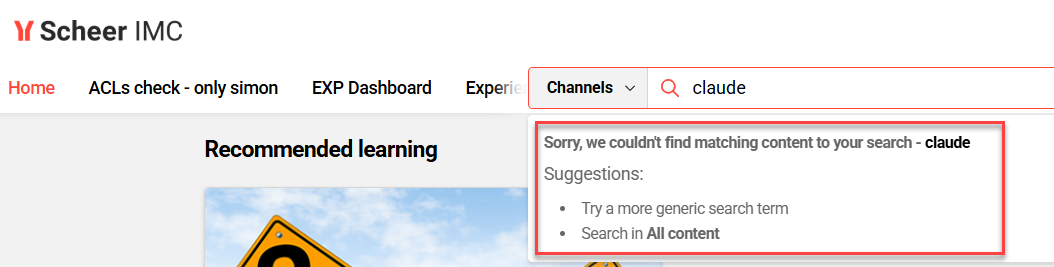
Benefits and Use Cases: The update is designed to minimise user frustration when no results are found by providing clear guidance. This will help increase search success through technology-specific advice.
Audience: Learners
Setup & Access: Not required as the change is automatically applied.
Considerations & Limitations: Requires the Global search to be activated. The semantic search option using AI must be enabled by Scheer IMC.
Testing: Given that you have the Global search configured, simply search for a term that is not found. The system will return suggestions to improve the search rather than displaying “No results”.
Risk rating: Low
Meaningful Recent Search History
Overview: The logic for saving global search terms has been updated. Search entries without following action or searches with no results are no longer stored. The search term will now only be saved when you:
-
click on one of the items displayed on the quick search
-
click on “See all results” on the quick search
-
click the Enter key on the quick search and are led to the Advanced search page:
-
in Advanced search when you click or expand filters
-
in Advanced search when yolu click on further pages
-
in Advanced search when you click on the tile, Dropdown button, Multiple Sources button, or one of the sources
-
-
click anywhere else on the page and the search field is out of focus
The search term will be preserved even if you choose a different browser or log out.
Benefits and Use Cases: The system now intelligently saves only relevant successful search queries to your recent searches. Benefits of the update include:
-
Eliminating confusion by removing accidental search terms from the history
-
Saving time by providing quick access to previously successful and relevant search topics
-
Ensuring data privacy compliance by automatically deleting search history after 90 days
Audience: Learners
Setup & Access: No configuration required as the logic change is automatically applied.
Considerations & Limitations: Searches with no results are not saved. The search history will be saved for only 90 days to align with GDPR regulations for the deleted users.
Testing: Activate the global search and search for a term with no results. When re-entering the term there will be no history of it.
Risk rating: Low
Improved Indexing for Global Search
Overview: Background indexing jobs for the Global Search have been improved. The updates include embedding generation only if Semantic search is enabled and improving background indexing jobs. The status of already created Courses, Course templates, Learning paths, Learning path templates is updated at an interval of 10 minutes. This is now performed without the need to run the context plugin job again.
Benefits and Use Cases: The change delivers faster indexing performance when lexical search is enabled. The resulting benefit is enhanced reliability, consistency, and scalability under different runtime conditions.
Audience: None
Setup & Access: Not required as the changes are automatically applied.
Considerations & Limitations: This update is for the semantic search which requires AI architecture. If semantic search is not activated, this must be requested via the Scheer IMC Support team.
Testing: Manual testing is not possible as this is a backend indexing process.
Risk rating: Medium
Usage of Read Replica Database for Global Search
Overview: If a read replica database is configured in your platform architecture, the data-connector plugins (catalogue and context) for Global search will automatically route its read queries to the read replica database instead of the productive database.
Benefits and Use Cases: Routing search queries to a read-replica database reduces load on the productive database. This will result in improved system performance when data connector plugins are running.
Audience: Technical administrators
Setup & Access: Not required
Considerations & Limitations: Requires activation of Global search and a replica database.
Testing: Not required
Risk rating: Low
Global Workforce Management
Bulk Translation Status Update for Multi-lingual Contents
Overview: Administrators can now update the translation status for multiple languages at once in multi-language content objects. A new Bulk edit of translation status icon is now available in the Languages tab of the object. The new option enables setting Language translation status dropdown to "Translated" to all selected languages in one action. Previously this would need to be performed one by one.
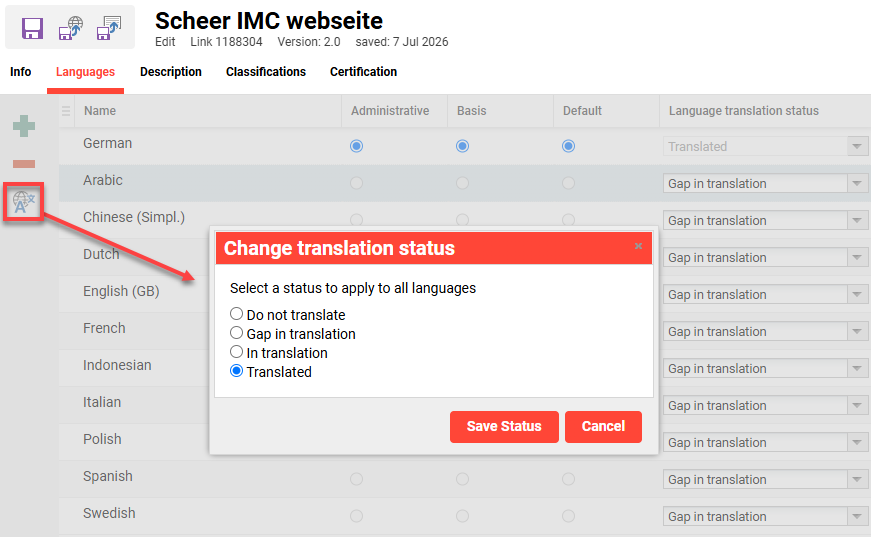
Benefits and Use Cases: The update is intended for content administrators who perform mass translations. Using the bulk edit of translation status will save you time; especially where AI translation is used for a large amount of languages. The benefits of the new setting include:
-
Eliminating repetitive manual updates for each language
-
Speeding up the publishing process for global content and templates
-
Ensuring status consistency across dozens of language versions
Audience: Content administrators
Setup & Access: No configuration is required as the new icon is automatically available.
Considerations & Limitations: This is limited to backend functionality. The frontend Easy Content Creation (ECC) functionality still only works with one language. The current AI translation just translates the Name and Description meta tags of the course; e.g. folders in the Component tab would not be translated (meaning if the bulk action sets the course to Translated, but the folder titles are not yet translated, it might lead to wrong information).
Testing: Given your system is configured to utilise multiple content languages, you can test the update with the following steps:
-
Log in as an administrator.
-
Go to the Media function (or Courses).
-
Create a new media object (e.g. Link).
-
In the Languages tab add multiple languages.
-
In the Description tab populate the fields for each language.
-
If AI translation is enabled this will be an efficient way to populate multiple language fields.
-
-
Go back to the Languages tab.
-
Highlight a language and click the Bulk edit of translation status icon.
-
In the pop-up Change translation status select the Translated option and click the Save status button.
-
-
Click the Save & publish button.
-
Risk rating: Medium
New Languages
Overview: Two new platform and content languages have been introduced. These are French (Belgian) and Chinese (Hong Kong).
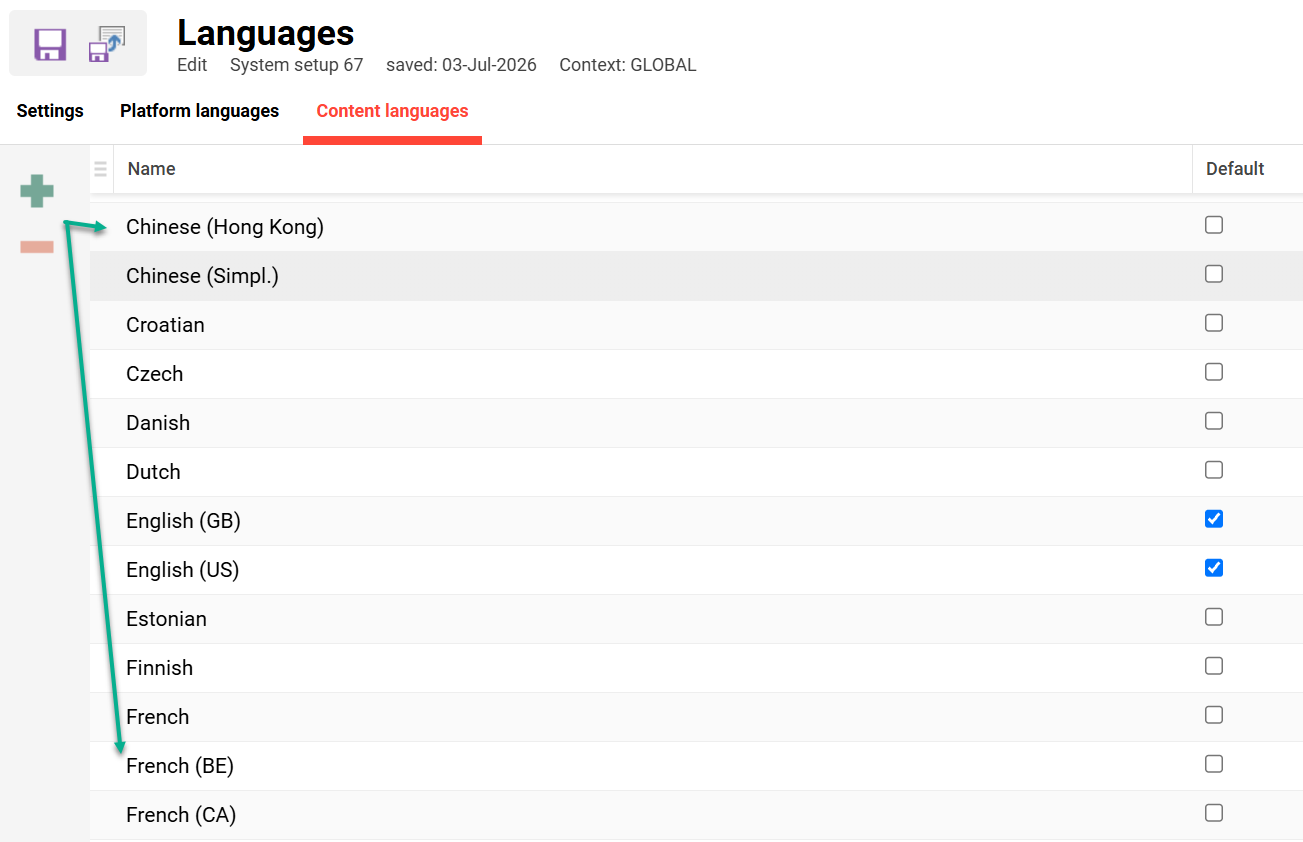
Benefits and Use Cases: The introduction of the new French (Belgian) and Chinese (Hong Kong) languages make it possible to run the learning platform entirely in the learners’ preferred language; this is for the platform interface, content and communication.
Audience: System administrators
Setup & Access: These languages can be enabled for content use via the Configuration function Languages menu. In the Content languages tab simply add the newly desired languages and save. Once language changes are saved click the Apply changes icon in the Configuration function.
To add the platform languages please contact Scheer IMC as this requires a licence update.
Considerations & Limitations: Platform languages are a licenced add-on and will need to be ordered. Please contact the Scheer IMC Support team or your Scheer IMC account manager for more information.
Testing: You can enable these content languages by following the steps above in Setup & Access.
Risk rating: Low
Notification Engine
Preview Images in Notifications & Enrolment Messages
Overview: New placeholders are now available in channel notifications and course enrolment message texts to insert preview images. Using the placeholders includes images directly to display inline according to their placement, not as attachments.
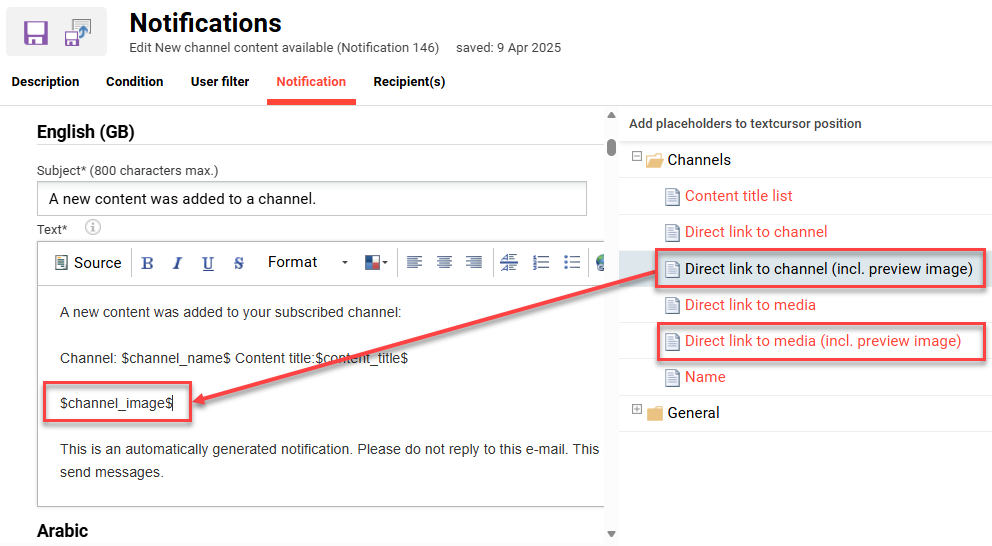
Benefits and Use Cases: Administrators can now add clickable preview images to notifications and enrolment messages via placeholders. These images are embedded inline, so they display immediately in mail clients like Outlook without needing extra authentication.
-
Provides an attractive, branded preview of content directly in the inbox
-
Boosts engagement by helping learners recognise topics visually
-
Ensures reliable image loading by removing authentication barriers
Audience: Learners
Setup & Access: The placeholders are automatically available in the placeholder folders and can be optionally added to existing notifications.
-
Channels:
-
Direct link to channel (incl. preview image):
$channel_image$ -
Direct link to media (incl. preview image):
$media_image$
-
-
Courses:
Preview image:$course_metatag10950$ $course_name$
Considerations & Limitations: Placeholders can not pre-show the final image in the editor.
Testing: To test you need to either update existing enrolment message texts or notifications to include the placeholders. Once the placeholders are added and notification/message saved, you need to trigger the notification so you receive a copy.
Risk rating: Medium
Course Cancelled by Placeholder in Notifications
Overview: All course notifications now enable inserting a new Cancelled by placeholder. With the Changes to a non-cancelled course notification (ID 1001) and new course notifications Notification (Course), there's also a new email recipient field to enter a fixed email address.
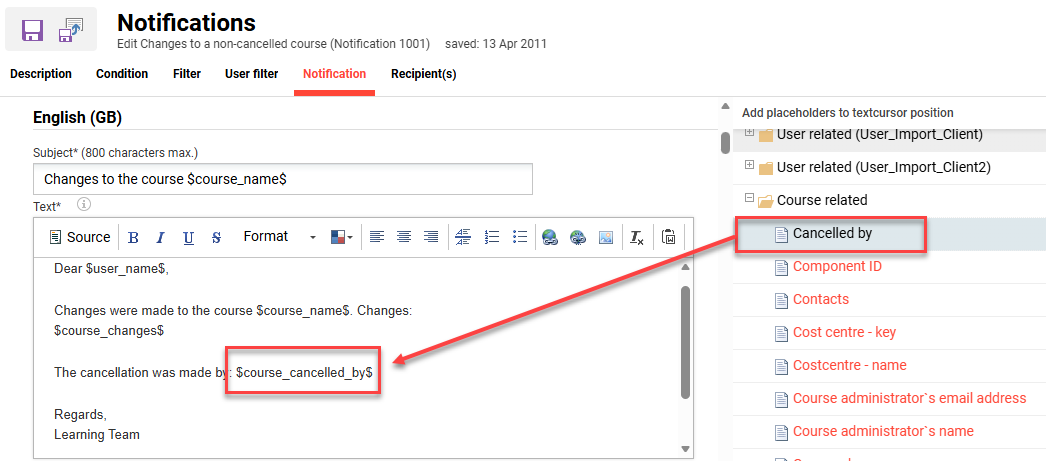
This notification is commonly used to create a single notification with multiple change conditions; for example, when the course Planning status meta tag changes.
Benefits and Use Cases: This notification can be used with many change conditions including Planning status meta tag changes such as Released to Cancelled. Now a specific recipient can now be directly notified when courses are cancelled, and it’ll now be possible to identify who performed the cancellation. The update will help ensure a central contact can be made award of all cancellations in a timely manner.
Audience: Administrators
Setup & Access: The new placeholder and field are automatically available in all course notifications. In the Notification tab the Course related folder contains the Cancelled by placeholder. For newly created course notifications and the Changes to a non-cancelled course notification (ID 1001), in the Recipient(s) tab there is now a The following e-mail address field.
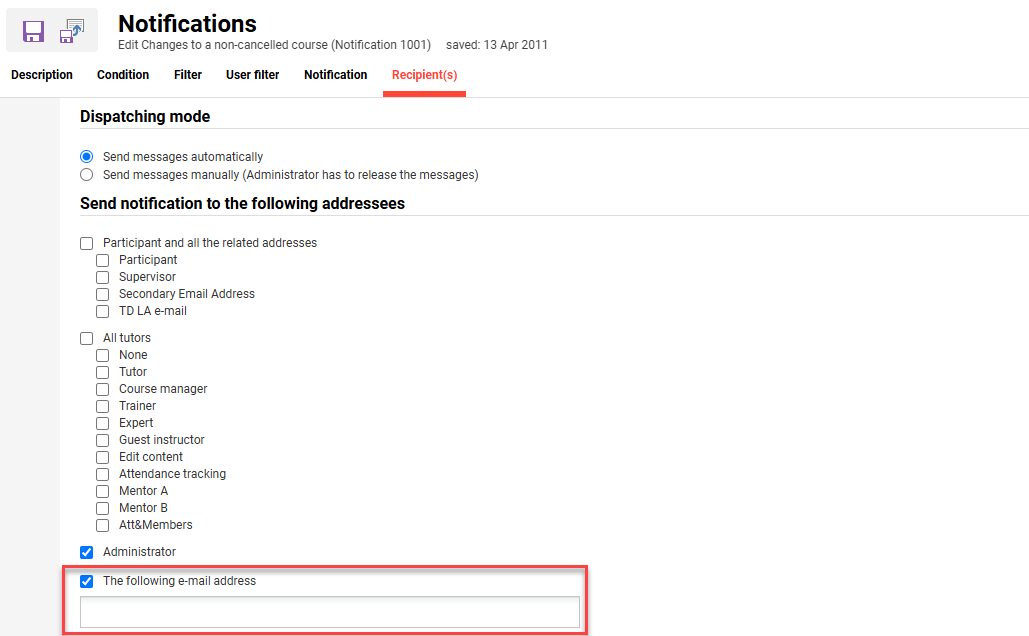
Considerations & Limitations: The Cancelled by placeholder can now be added to all course notifications, but is specific to conditions where the course Planning status meta tag changes from Released to Cancelled.
Testing: To test you can follow these steps:
-
Go to the Notification function.
-
Expand the Course folder.
-
Expand the Notification on planning status change folder.
-
Click the Create icon and select the Notification (course) option.
-
Name the notification to Course has been cancelled.
-
In the Condition tab click the Add icon and select Add attribute option.
-
Select “Planning status” and click the OK button,
-
Set the parameter to change from Released to Cancelled.
-
-
In the Notification tab populate the Subject field.
-
Then populate the Text field and use placeholders as required.
-
In the Course related folder add the new Cancelled by placeholder which will display in the text field as
$course_cancelled_by$.
-
-
In the Recipient(s) tab enter an email address in The following e-mail address field.
-
Click the Save and close icon.
-
Locate the new notification and tick the Active checkbox.
-
Next, you will need to trigger the notification by cancelling a test course.
Risk rating: Low
Open API (Web Services)
API Support
Overview: The available APIs have been increased to better support headless scenarios.
-
Implementation of required API calls to create the objects within the learning path (and template) import. Additional properties considered include:
-
Access rights
-
Topics / classifications
-
Course assignment
-
Test-out object assignment
-
Equivalencies
-
Automatic enrolments
-
Prerequisites
-
Completion rules
-
Recertification content
-
-
APIs required for learning path enrolments including certification properties and status
-
API endpoint to monitor the health of Search app, Indexing service, Subscription Service
Benefits and Use Cases: Enhanced API support is ideal for headless scenarios where external systems trigger many processes.
Audience: Technical administrators
Setup & Access: Not required as the APIs are automatically available and documented in Swagger.
Considerations & Limitations: None
Testing: Not required
Organisation Management
Training Calendar Classification Prefiltering
Overview: A new Prefilter column (checkbox) has been added to the classification filter configuration. When enabled, Training Calendar results are automatically prefiltered by classification. When disabled, all results are shown regardless of classification. This allows each organisation to adapt the filter behavior to its specific needs. Training Calendars have been updated with an option to automatically prefilter results by classification.
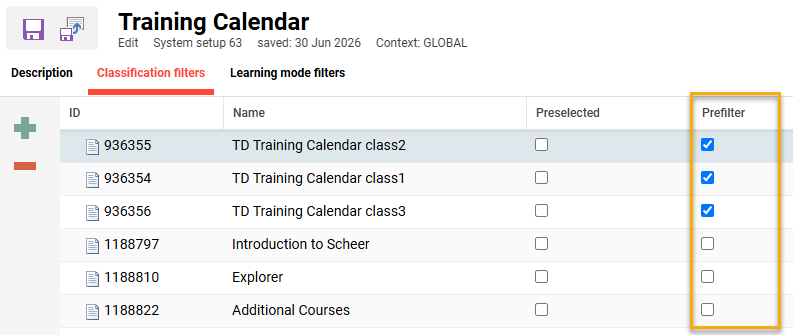
Benefits and Use Cases: As an administrator you can now manage Training Calendar filter behavior directly from the backend configuration. This ensures consistent and centralised control over what learners see in their Training Calendar.
Audience: Administrators
Setup & Access: The Prefilter checkbox in the classification filter configuration is enabled by default, preserving the existing prefiltering behavior. Administrators can disable it at any time via the configuration UI; the setting persists across sessions.
Considerations & Limitations: The Prefilter checkbox defaults to enabled for existing configurations, matching the pre-upgrade behavior. Further information on Training Calendar functionality is available at Training Calendar.
Testing: Given you are a System administrator, go to the Configuration function and open the Training calendar menu. Click on the Classification filters tab and there will be a Prefilter column. The default value will be ticked to match the previous hardcoded behaviour.
Risk rating: Low
Process Management
Supervisor Cancellation Workflow Update
Overview: An update to the Cancellation by supervisor Cancellation type meta tag workflow enables users who are a supervisor in their own BU group to cancel themselves. This update is possible in the following functions:
-
Catalogue: course room header
-
My staff: also batch enrolment/cancellation
-
Learning status: course room header
Benefits and Use Cases: Users who are Supervisors of their own BU Groups can now directly cancel themselves where Cancellation by supervisor is used. This can alleviate frustration with finding an administrator to perform the cancellation.
Audience: Supervisors
Setup & Access: Not required as the logic is automatically applied. This however does require the Configuration function Users manager to have the Line manager relationship type setting as Both.
Considerations & Limitations: Below the Line manager relationship type setting is another setting that when active will prevent BU Supervisors being able to approve or cancel themselves. This is the Only supervisor, who are only defined as their own supervisor in there user profile, can enrol/cancel themselves setting.
Testing: To test the update you can perform the following steps:
-
In the Courses function locate or create a course that has the Cancellation type meta tag (ID 10038) set to Cancellation by supervisor.
-
Locate or create a user who is a Supervisor of their assigned BU Group.
-
In the Participant administration function, enrol the supervisor onto the course.
-
Log in as the Supervisor and perform these checks:
-
Learning status: Locate the course and check that direct cancellation is possible rather than cancellation request.
-
My staff: Locate the supervisor’s own record and open the course. Check that direct cancellation is possible rather than cancellation request.
In the Clients function Settings tab of a client, the Show own user in the “My Staff” view checkbox must be ticked. -
Catalogue: If the course is assigned to a catalogue, search for the course. In the course details page it will be possible to directly cancel.
-
Risk rating: Low
Supervisor Self‑Enrolment Approval Logic Update
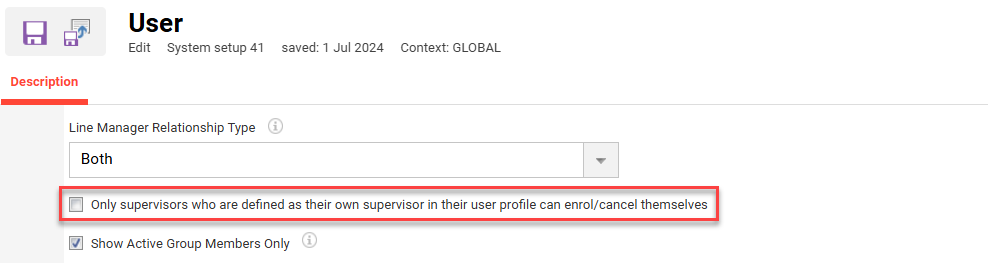
Overview: Supervisors who are defined as their own supervisor in their user profile can now be enabled to bypass enrolment and cancellation requests requiring supervisor approval. This is possible via new setting and is independent from being an own BU Group Supervisor.
Benefits and Use Cases: This new option allows to fine-adjust complex scenarios, in which enrolment and cancel privileges are restricted to a certain group of supervisors.
Audience: Supervisors
Setup & Access: The new Only supervisor, who are only defined as their own supervisor in there user profile, can enrol/cancel themselves setting is available in the Configuration function Users menu. The setting is defaulted inactive and requires the Line Manager Relationship Type setting to be set to Both to activate.
Considerations & Limitations: None
Testing: To test this update you need to follow the steps below:
-
Go to the Configuration function Users menu
-
Set the Line Manager Relationship Type setting to Both and activate the Only supervisor, who are only defined as their own supervisor in there user profile, can enrol/cancel themselves setting.
-
In the Users function edit a test user and enter the user’s email in the SUPERIOR_EMAIL personal attribute.
-
In the Courses function, identify a released course where the Self-enrolment type meta tag (ID 10008) is set to Enrolment request with direct enrolment by the supervisor and the Cancellation type meta tag (ID 10038) is set to Cancellation by supervisor.
-
Assign the course to a catalogue that the supervisor has clearance on.
-
Log in as the Supervisor and find the course in the catalogue.
-
You will be able to directly enrol to the course.
-
You will then be able to directly cancel from the course.
-
-
Repeat the process for a user who is a Supervisor of their assigned BU Group:
-
This user will not be able to directly enrol to the course.
-
This user will not be able to directly cancel from the course.
-
Risk rating: Low
Seat Limitation Enhancements
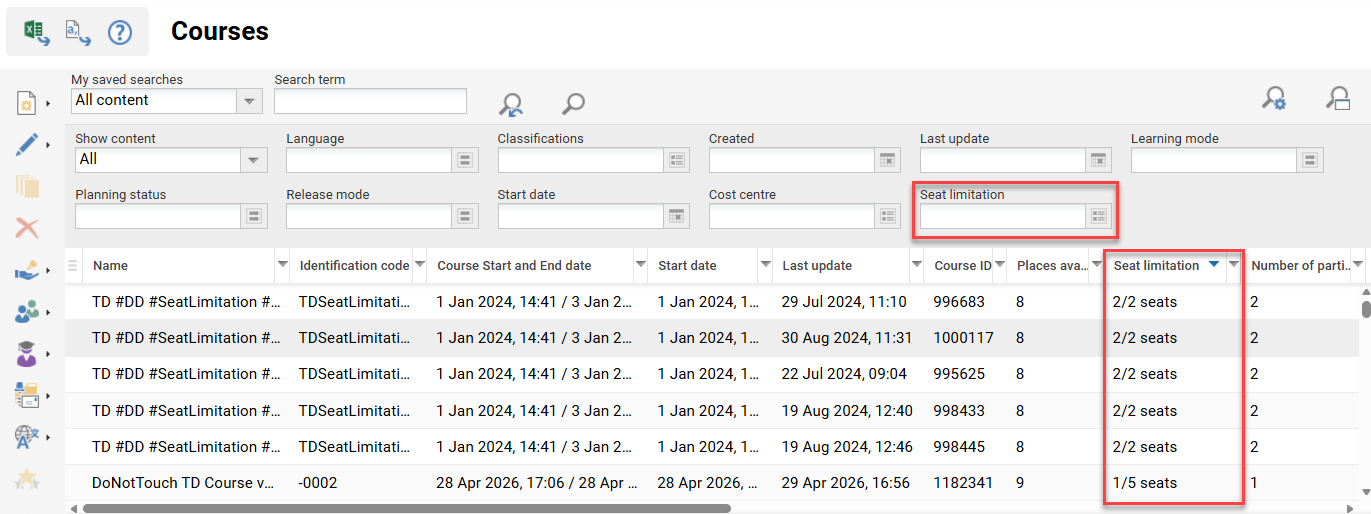
Overview: Administrators can now search, filter, and view seat occupancy in the Courses function and Learning paths function. A dedicated column shows real-time capacity (e.g. "7/10 seats"), with per-group breakdowns available in the Details section. Seat data can be exported to Excel. When seats are full, admins can overrule the limit with a tracked overbooking, ensuring critical enrollments are never blocked.
Benefits and Use Cases: Increases operational efficiency by surfacing seat availability directly in the manager list without opening each item.
-
Enables proactive capacity planning through real-time occupancy data per group
-
Ensures business continuity by allowing controlled overbooking for urgent enrollments
-
Maintains accountability with a full audit trail of who overbooked and by how many seats
Audience: Training administrators
Setup & Access: The new Seat limitation filter and column are automatically available to optionally add. To add the filter click the Manage search settings icon and select the Add search criteria option. The column can be found by clicking the drop-down arrow on any column.
Considerations & Limitations: Only Courses and Learning paths managers are affected by the changes. The Details section shows only the most recent person who performed an overbooking, not a full history of all overbooking actions.
Click here for further information on the Seat Limitations function.
Testing: To view the column and filter in the Courses and Learning paths functions, simply follow the steps in the Setup & Access section.
Risk rating: Low
Reporting Engine
Cancelled Reservations not in Course Progress
Overview: An update to reporting logic and enrolment statuses has been made to not display cancelled reservations in Course progress reports. Prior to the update, cancelled reservations were displayed with the new Reservation cancelled status.
Benefits and Use Cases: This update provides a clear distinction between users who were actually enrolled and then cancelled.
Audience: Course administrators, Report administrators
Setup & Access: Not required as the updated logic is automatically applied.
Considerations & Limitations: None
Testing: Log in as an administrator and create or edit a test course. In the Participant administration function enrol one user and reserve one user then click the Save icon. Next, cancel both the enrolled and the reserved user then click Save. Both users will move to the Cancellation list where the previously Enrolled user will have a Cancelled status and the Reserved user will have a Reservation cancelled status. In the Reports menu, open the Course progress (administrator) report and select the course in the Course filter. Only the user with the Cancelled status will be shown.
Risk rating: Low
Cancellation Change Notes in Course Progress Reports
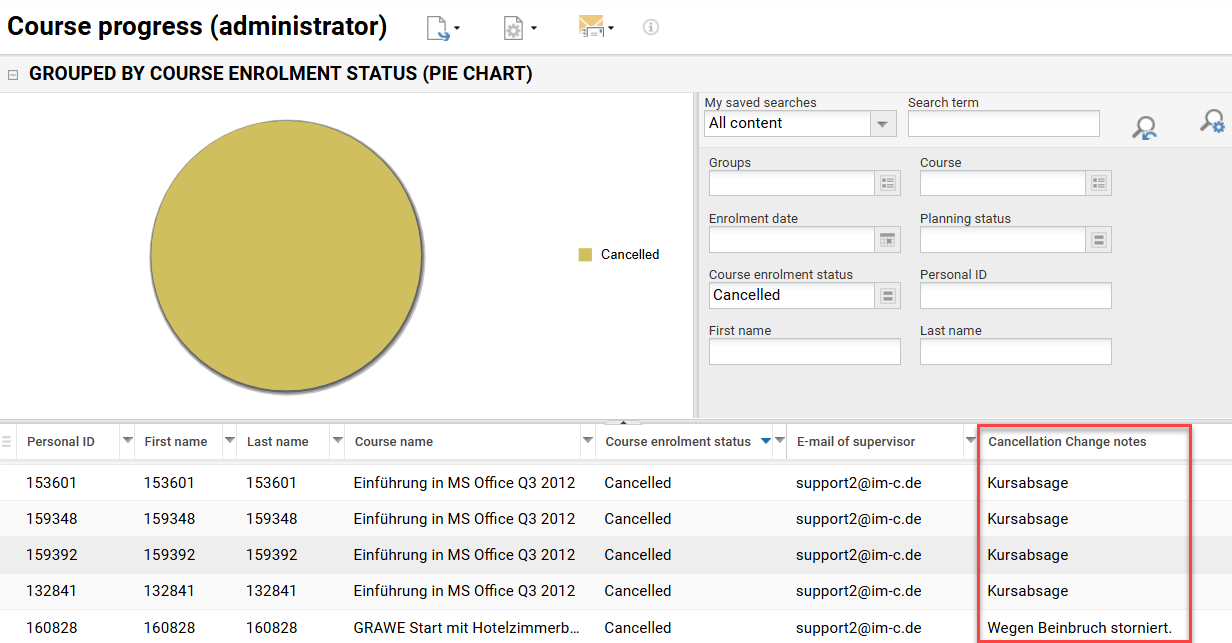
Overview: Three Course progress reports have been updated with an optional Cancellation change notes column. This new column displays the specific comments that can be entered during the cancellation process.
Benefits and Use Cases: Administrators, supervisors, and HR can now view Cancellation change notes column directly in Course Progress reports. This eliminates manual effort by centralising cancellation details in one place. By providing clear insights into specific cancellation reasons your team can benefit with improved decision-making and administrative processes.
Audience: Supervisors and Administrators
Setup & Access: The column is automatically available in an optional state in the Course progress.
Considerations & Limitations: The Course progress (learner) report is out of scope because the reasons specified by the administrator/supervisor should not be visible to the learner due to privacy/administrative concerns.
Testing: As an administrator, go to the Courses function and locate a test course.
-
Open the Participant administration function.
-
Cancel an enrolled user and enter a cancellation note.
-
Click the Save and close icon.
-
Go to the Admin category Reports menu.
-
Open the Course progress (administrator) report.
-
Click a column drop-down and add the Cancellation change notes column.
-
Use the Course filter to select the previously altered test course.
-
The previously entered cancellation note will be displayed.
Risk rating: Low
New Course Cancellation Report
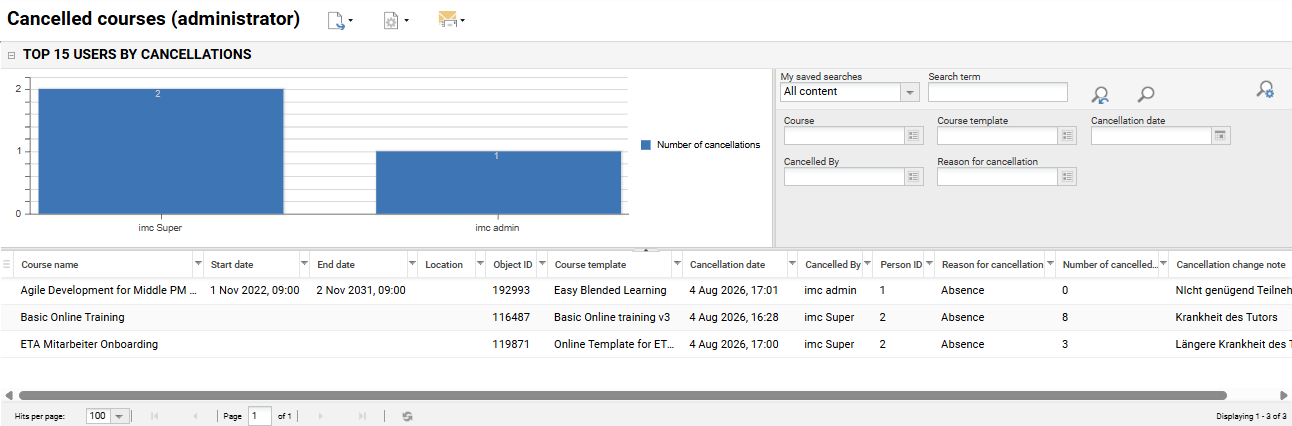
Overview: A new Cancelled courses (Administrator) report is now available that lists courses that have been cancelled. The report includes a Cancelled by column, a Cancellation reason column, and a Number of cancelled participants column.
Benefits and Use Cases: Administrators can now identify who cancelled courses, why the course was cancelled, and how many participants were affected. This report benefits administrators by:
-
Increasing visibility into why and by whom courses are being cancelled
-
Helping reduce short-notice cancellations through better management oversight
-
Providing flexible reporting to track cancellation trends and reasons
Audience: Course administrators
Setup & Access: The new Cancelled courses (Administrator) report is automatically added to the Settings category Reports function. The default clearance is granted to the System administrator group (ID 1). To utilise the report, you will need to go to the Report category function and add the report to a category. Provide clearance on the report to groups that will require access.
Considerations & Limitations: The following limitations on the report must be considered:
-
No SOLR report or report panel is available.
-
The report is only for courses and does not consider learning paths.
-
Courses and course templates with all planning statuses are actually shown.
Testing: As a System administrator, you need to follow these steps:
-
Make the report available by:
-
Go to the Report categories function.
-
Edit a report category (e.g. Activities).
-
In the Reports tab click the Add icon.
-
In the pop-up select the Cancelled courses (Administrator) report and click the Add button.
-
Save the change to make the report available in the Admin role Reports menu.
-
-
Test the report by:
-
Open the Cancelled courses (Administrator) report is in the Admin Reports menu.
-
Check that cancelled courses are displayed with new columns including:
-
Cancelled by column
-
Cancellation reason column
-
Number of cancelled participants column
-
-
If there are no cancelled courses, you can create a test course. Once created enrol some test participants, cancel the course using the Planning status meta tag (ID 10072), select a cancellation reason, and then recheck the report.
-
Risk Rating: Low
Testing & Assessment
Test-out Transparency: Audit Log & Reporting
Overview: This update provides Administrators full visibility into how learning path progress is achieved. The Audit log report now has a new Test-out column that considers where the course was completed by test-out. In this case, the Last updated column will state system and the new Test-out column will state yes.
Benefits and Use Cases: The update is important when courses are marked as completed not through active participation, but via a passed test-out assessment. This is because Administrators will need accurate access to test results to:
-
monitor the quality and adoption of the test-out feature.
-
gain full transparency into the usage and impact of the test-out feature.
-
build confidence in the integrity of learning progress data and provides the foundation for informed decisions about learning path configuration.
Audience: Learning path administrators
Setup & Access: The reports are automatically updated with the Test-out or Learning path columns and Last updated column entry system. The columns can be displayed or hidden as desired in the following reports:
-
Test question per user
-
SOLR test question per user
-
Test results (learner)
-
Test results (supervisor)
Considerations & Limitations: Requires activation of the Test-out functionality within Tests.
Testing: Given that the Test-out functionality has been activated (see IP28 Release Notes), you can simply check the mentioned reports for new columns. Testing the entire scenario to populate the columns would require setting up the entire Test-out workflow.
Risk rating: Medium