
In addition to the core updates that are accessible to all customers, there are also innovations and improvements to the licensed add-on modules. These updates are listed by their category below:
Certification Management
Personal End Date in Certification Export
Overview: Learners and administrators can now see the User end date value in the Certification history function and Print/PDF export. For date-dependent courses, both the personal and training end dates are shown, while duration-of-use courses display only the personal end date.
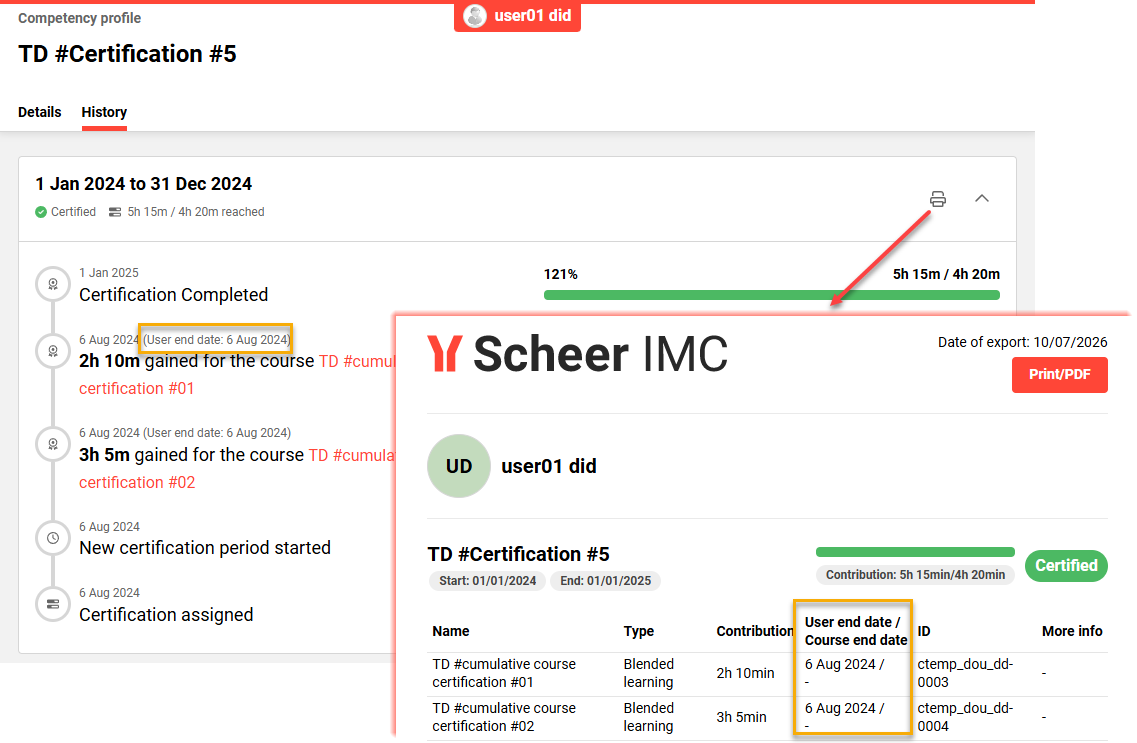
Benefits and Use Cases: This update provides you with full transparency with the user’s actual completion date versus actual training deadlines. Displaying both dates provides more accurate information for compliance and auditing. The key benefit is improved report clarity with relevant dates displayed per course type.
Audience: Learners and Administrators
Setup & Access: Not required as the change is automatically applied.
Considerations & Limitations: Requires the Certification Management licence add-on to be enabled.
Testing: Given the Certification Management licence is active, you can test by following these steps:
-
Go to the My staff function or All users function.
The All users function is the administrator equivalent of the My staff function. -
Select a user who has a certification assigned.
-
Open the Competency profile view of the user.
-
Click on the Certifications tab.
-
Open the Certification history view for a certification.
-
Click the Print/PDF button,
-
The User end date value will be available.
Risk rating: Low
Channels
Two New Cron Jobs for Channel Notifications
Overview: Two new cron jobs are now available that are highly important for customers using Channels. If your system has Channels active, the following cron jobs must be configured for the sending of notifications:
-
New Channel Content Available
Processor Name:de.imc.clix.comp.channels.job.ChannelNotificationCreationJob
Checks every 5 minutes whether new content has been added to a channel. This includes both manually added content and content published via the scheduling system. The job is a prerequisite for channel notifications to be triggered and should be configured to run continuously. -
General Sending of Channel Notifications
Processor Name:de.imc.clix.comp.channels.job.ChannelNotificationSendingJob
Processes and sends pending channel notifications to subscribers. This job works in conjunction with the ChannelNotificationCreationJob and should be configured to run regularly after it.
Benefits and Use Cases: The two new cron jobs are required as part of a performance improvement. These crons help reduce load on the productive database when identifying new channel content and triggering notifications.
Audience: System administrators
Setup & Access: Highly important as the crons are not automatically created. These two cron jobs must be created in order for Channel notifications to continue sending. You can configure these in the Scheduled jobs function using the Create icon.
-
Name: NewChannelContentAvailable
-
Planned task checkbox: Tick
-
Cron expression: 0 */5 * ? * *
-
Processor name: de.imc.clix.comp.channels.job.ChannelNotificationCreationJob
-
-
Name: GeneralSendingOfChannelNotifications
-
Planned task checkbox: Tick
-
Cron expression: 0 */15 * ? * *
-
Processor Name: de.imc.clix.comp.channels.job.ChannelNotificationSendingJob
-
Considerations & Limitations: The Channels module requires an active add-on licence and architecture. If your system is actively configured for Channels, these cron jobs will require configuration. If the process is unclear, please contact the Scheer IMC Support team.
Testing: Once you have configured the two new crons as per the setup instructions, you can trigger all the Channel notifications:
-
Automatic subscription for a channel
-
New media for subscribed channel
-
Media update of a subscribed channel
-
Rating comment was removed (new)
Check that all the notifications were sent for users and groups.
Risk rating: High
Content Freshness Indicator by Publication Date
Overview: Administrators can now enable the display of publication dates or last update dates on Channel content cards. This date appears for learners on tiles in the channel feed, explore view, panels, and media description pages.
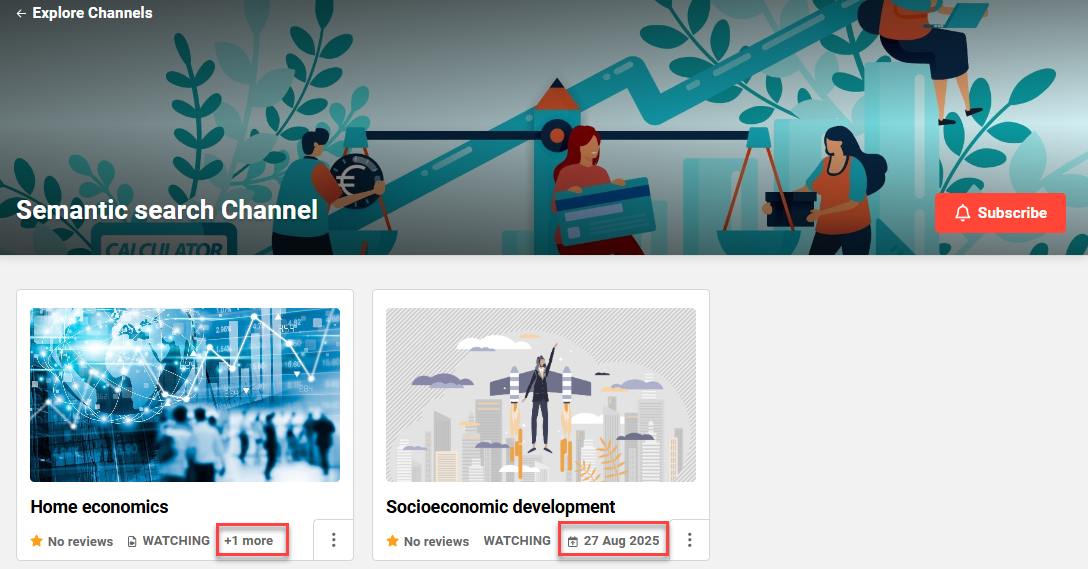
Benefits and Use Cases: Providing these publication or last update dates increases transparency for content currency. This can help your learners to prioritise content by distinguishing between latest updates and older content. Identifying newer content may be most relevant to ensure up-to-date information is consumed.
Audience: Learners
Setup & Access: In the Configuration function and Channels menu a new checkbox has been introduced. The Show publication/update date on the channel content card checkbox is disabled by default. This setting can be turned on or off with the date display adjusting accordingly.
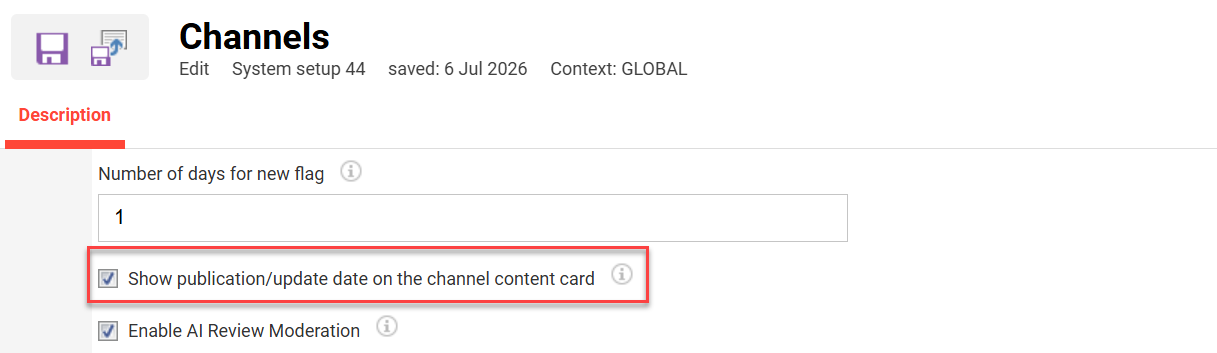
Considerations & Limitations: When viewing media cards the date can be hidden in the +# more link. This is due to design restrictions and media data prioritisation. The latter considers:
-
The “Watching/Reading/Interact” information is fixed and can’t be removed.
-
What can be configured to display per channel or media object is:
-
Rating: controlled per channel via the Edit option
-
Duration: dispalys if the Duration in minutes meta tag (ID: 12071) is added per media
-
Size: It is the file size option in additional information area of a media
-
Testing: You can test this update by following these steps:
-
As a System administrator:
-
Go the Configuration function and open the Channels menu.
-
Tick the Show publication/update date on the channel content card checkbox and save.
-
-
Switch to the Learner view:
-
Open the Channels function.
-
View content to see the publication date.
-
Risk rating: Low
ReviewGuard Moderation of Channel Comments
Overview: Channel reviews can now be moderated through a new Manage reviews functionality. An optional AI-powered moderation can automatically flag etiquette violations for manual review. Details of comment moderation can be sent to the original user via a new notification.
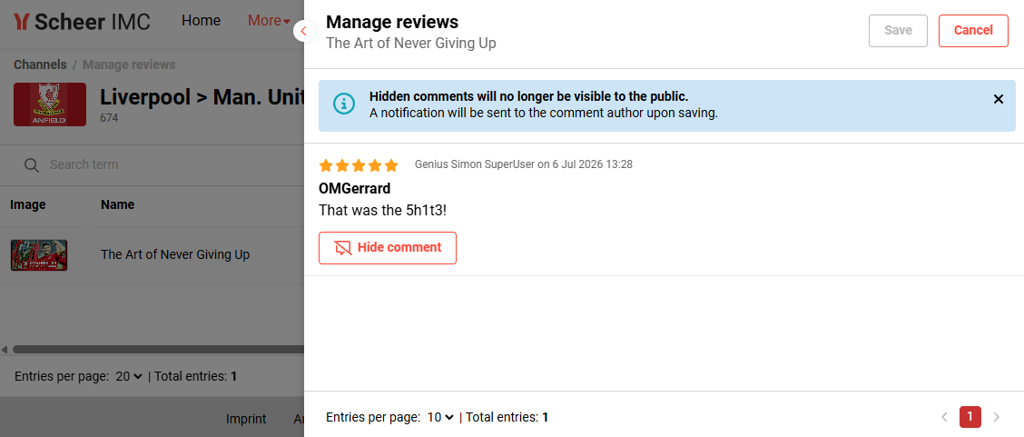
Benefits and Use Cases: As an administrator you can now hide inadmissible content to ensure it is no longer visible to learners. The benefits you can expect with the update include:
-
Ensuring compliance with legal and ethical regulations by removing inadmissible content
-
Simplifying moderation with AI-driven flagging of potentially harmful comments
-
Improving community safety by quickly hiding inappropriate or illegal text
Audience: Channel administrators
Setup & Access: The manual ReviewGuard feature will be available automatically. In the Click here to open more options icon (3 dots), there is a new Manage reviews setting. A To be reviewed column indicates new comments and clicking on edit will reveal the option to manually hide comments.
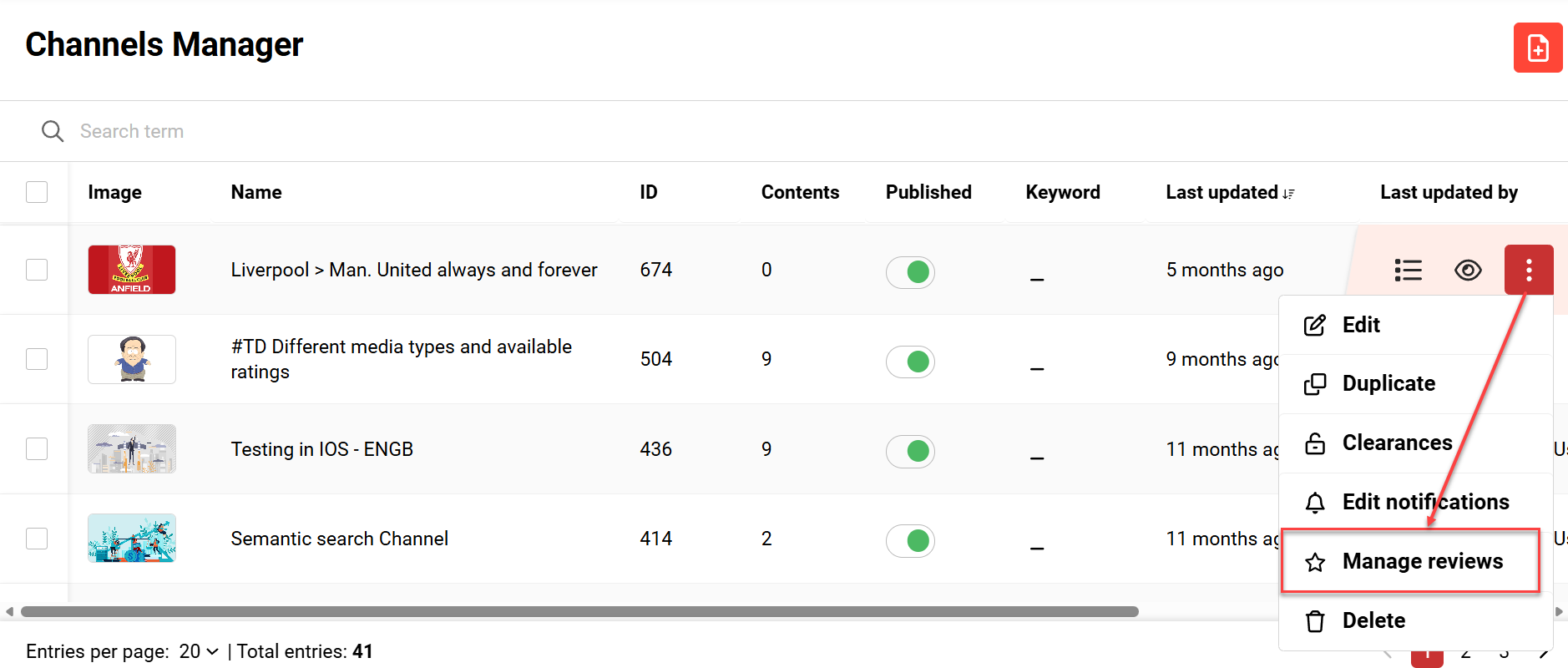
In the Notification function expand the Channels folder. The A review comment has been removed (ID 149) notification can be activated to alert the user who wrote the hidden inadmissible comment.
The AI feature requires activation in the Configuration function Channels menu using the Enable AI Review Moderation checkbox. Here there is also a Prompt field that can be adjusted. The AI requires the deployment of an Ollama instance; this must be performed by Scheer IMC.
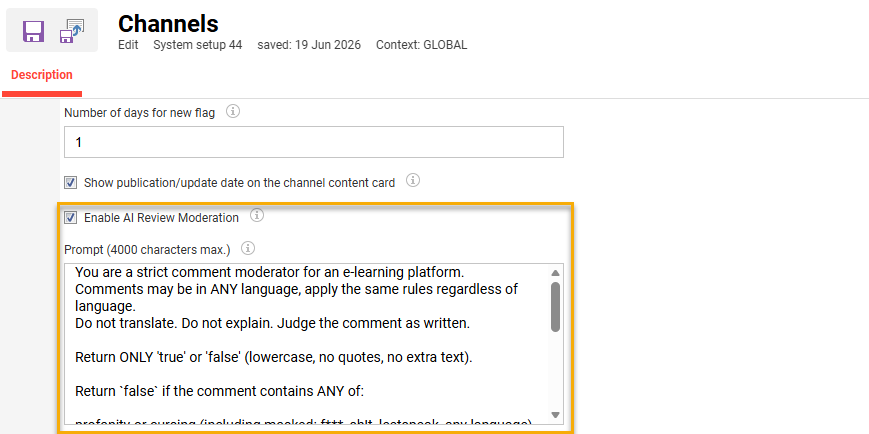
In the Scheduled jobs function a cron needs to be created using the de.imc.clix.comp.channels.job.ChannelMediaAiCommentModerationJob processor.
Considerations & Limitations: Requires the Channels licence and architecture. The Channel content function (easy media upload) will not be affected by this. The update also only applies to new comments entered after this implementation. Utilising the AI part of the feature requires additional deployment that must be requested via the Scheer IMC Support team.
Testing: If your system is licenced and configured for Channels, you can test the following updates:
-
To test the basic ReviewGuard:
-
Go to the Channels Manager function.
-
Find a channel that has media reviews/rating enabled and some content has reviews.
Reviews can be enabled per Channel with the Media rating switch. -
Click the Click here to open more options icon (3 dots) on the right hand side of channel,
-
Select the new Manage reviews option,
-
There is now the Hide comment button to unpublish the review.
-
-
To test the new Channel notification:
-
Go to the Notifications function,
-
Expand the Channels folder,
-
Expand the new Rating comment has been removed folder,
-
For the A review comment has been removed notification tick the Active checkbox and the Permit external forwarding checkbox.
-
-
As a Learner, open the Channels function, find a media object that can be reviewed and leave a comment.
-
As a Channel administrator, open the Channels Manager function, locate the channel, open the Manage reviews option, and click the Hide comment button.
Testing of the AI moderation requires an architecture update. This must be requested via the Scheer IMC Service Desk.
Risk rating: Medium
Skills & Competencies
Job Profile Overview Report for Supervisors
Overview: A new version of the Job profile - overview report has been created for Supervisors. This is an on-screen report that will provide Supervisors with Job profile status and completion progress of their direct employees. The update includes the following changes:
-
A new Job Profile – Overview (supervisor) report is available in the Reports function once it has been added to a report category.
-
The returned users are based on supervisor relationships as with existing supervisor reports (Email relationship, BU group, and supervisor selection).
-
The columns and filters of the new report match the existing report.
-
-
The already existing Job profile - overview report is renamed to Job profile - overview (administrator).
The returned users are based on clearances. -
In the User list function a new Job profile - overview report (supervisor) entry is created with the same behaviour as existing entry for Job profile - overview report.
The existing entry for Job profile - overview report should be renamed to Job profile - overview (administrator).
Benefits and Use Cases: Job profiles are an important function to set competency-based training requirements. This report benefits supervisors by:
-
Providing a clear overview of team skill gaps and completion progress
-
Simplifying reporting with a pre-configured, role-specific view
-
Eliminating the need to individually view Job profile completions in the My staff function
-
Ensuring data privacy via restricting access to direct reports only
Audience: Supervisors
Setup & Access: The new Job profile - overview (supervisor) report will be automatically available in the Settings category Reports function. By default, Clearance is granted to the System administrator group (ID 1). To utilise the report, you will need to:
-
Grant Execute clearance on the report to required groups (e.g. Supervisors ID: 9).
-
In the Report categories function assign the report to a category.
Considerations & Limitations: The Skills & Competencies module is licensed Add-on. There is no report panel considered for the report.
Testing: Given your system has Skills & Competencies licence enabled, follow these steps to test:
-
Log in as a System administrator.
-
Go to the Settings category Reports function and search for the new Job profile - overview (supervisor) report.
Grant Execute clearance to the required Supervisor groups (e.g. ID 9), -
Go to the Report categories function and assign the report to a suitable category (e.g. Achievements or Compliance).
-
Go to the Admin category Reports function and open the Job profile - overview (supervisor) report. The report will only show Job profile progress of directly reporting staff.
Risk rating: Low
Updating the Manager Job Profile Request Panel to React
Overview: The Job Profile Request panel (ID 179) has been updated to support the React framework. This sees an improved design with sticky columns on the left and right in tabular view.
Benefits and Use Cases: The transformation from Angular to React delivers improved panel design options and security. This also enables the panel to be utilised on internal dashboards where the Opt-in for the new dashboard & panel design checkbox is activated.
Audience: Supervisors
Setup & Access: Not required, the update is automatically applied to the panel. To view the updated design though does require the panel to be added to a dashboard page where the Opt-in for the new dashboard & panel design checkbox is ticked.
Considerations & Limitations: This panels is part of the Skills & Competencies module which is a licensed add-on. The updated design will only be displayed when:
-
the dashboard has the Opt-in for the new dashboard & panel design checkbox ticked, and
-
all assigned panels have the New design support column as Yes.
Testing: In the Dashboard pages function edit the Management dashboard and open the Contents tab. Add the panel and the New design support column will now show as Yes. Viewing the new REACT design will require all assigned panels to have the New design support column as Yes and in the Description tab the Opt-in for the new dashboard & panel design checkbox must be ticked. Once done open the dashboard via the Manager role.
Risk rating: Low
Job Profile Quick View for User Administration
Overview: Administrators can now access a Job profiles button in administrative user views. The new button will display in the Details area when a single user is selected. The button opens a pop-up displaying all assigned job profiles, their IDs, and an indicator for the main job profile, without navigating away from the page.
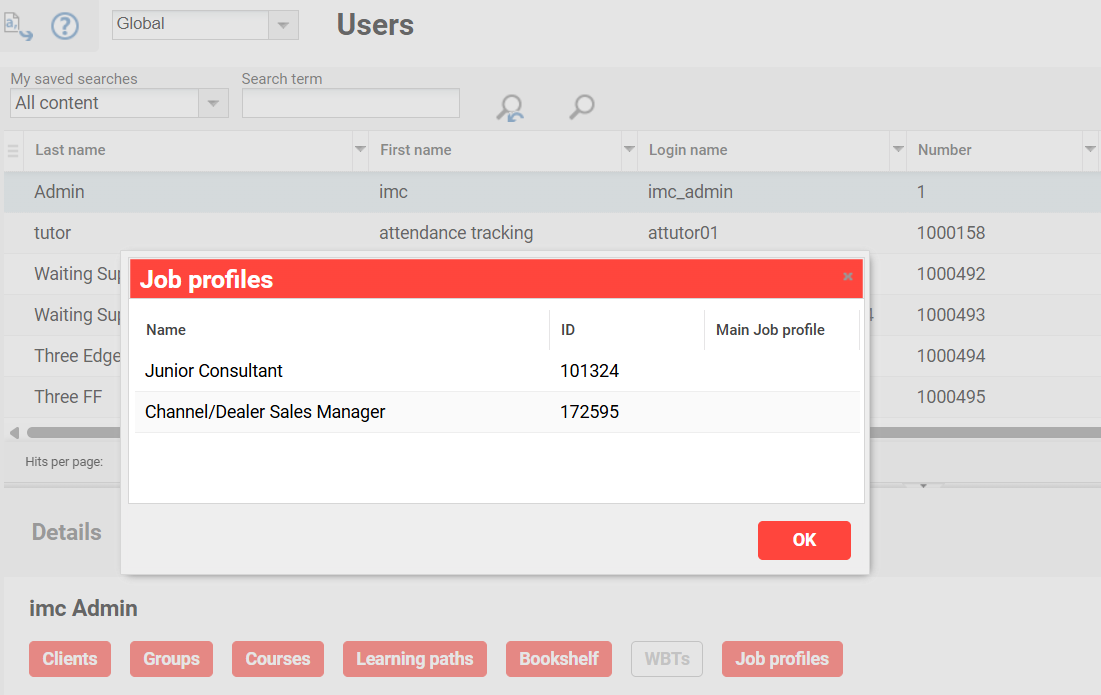
Benefits and Use Cases: The addition of the Job profiles button provides instant visibility to job profile details directly within the user record. This eliminates the need to switch views to better identify a user, thus saving time during administrative tasks.
Audience: Administrators
Setup & Access: The new button requires the Display user assignment checkbox to be enabled for the User list, user management entry (ID 1) in the User lists function.
Considerations & Limitations: Requires the Skills & Competencies licence add-on.
Testing: Given that the Skills & competencies licence is active, you can test by accessing the Users function. Highlight a single user and the Job profile button will display in the Details area at the bottom of the screen. Clicking the button will launch the pop-up which shows the assigned user’s assigned job profiles.
Risk rating: Low