The CSV User Import function creates or updates users using an import file.
Example: import.csv
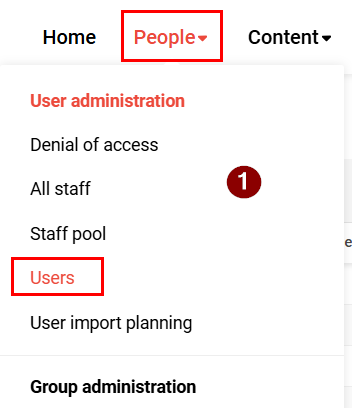
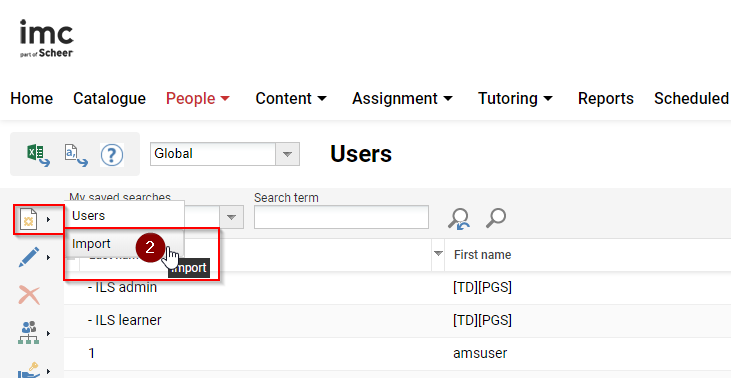
Select the navigation point User administration → Users (1). Select the New icon in the toolbar and click on Import (2).
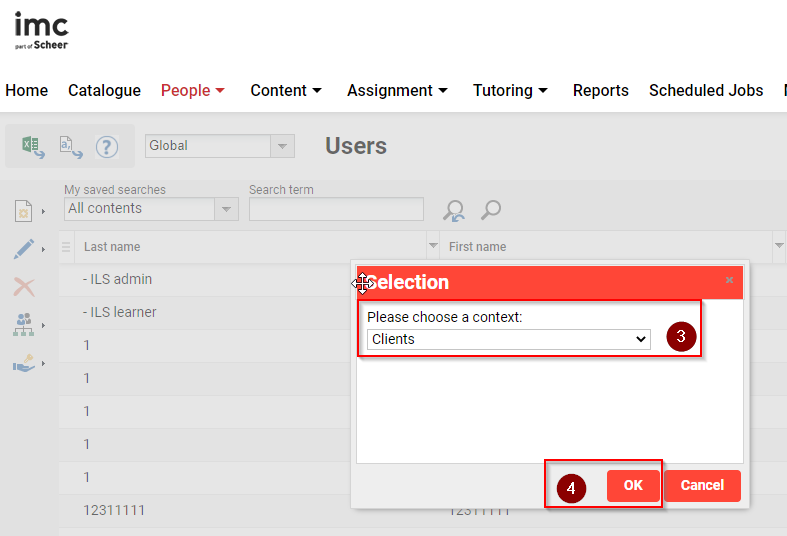
If you are using a multi-client system, you must select the client (3) for which the users are to be imported in the next (4) step and confirm this.
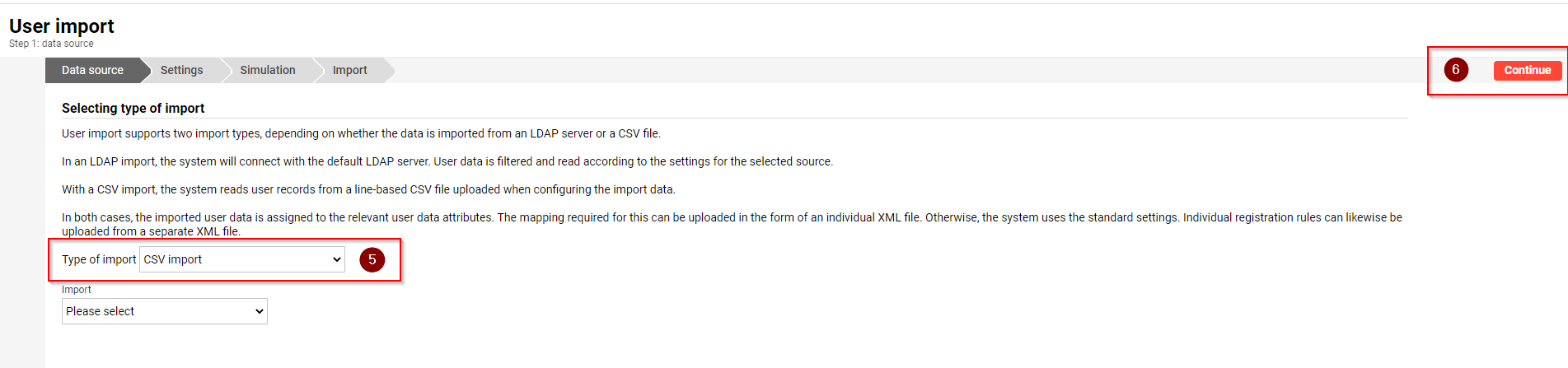
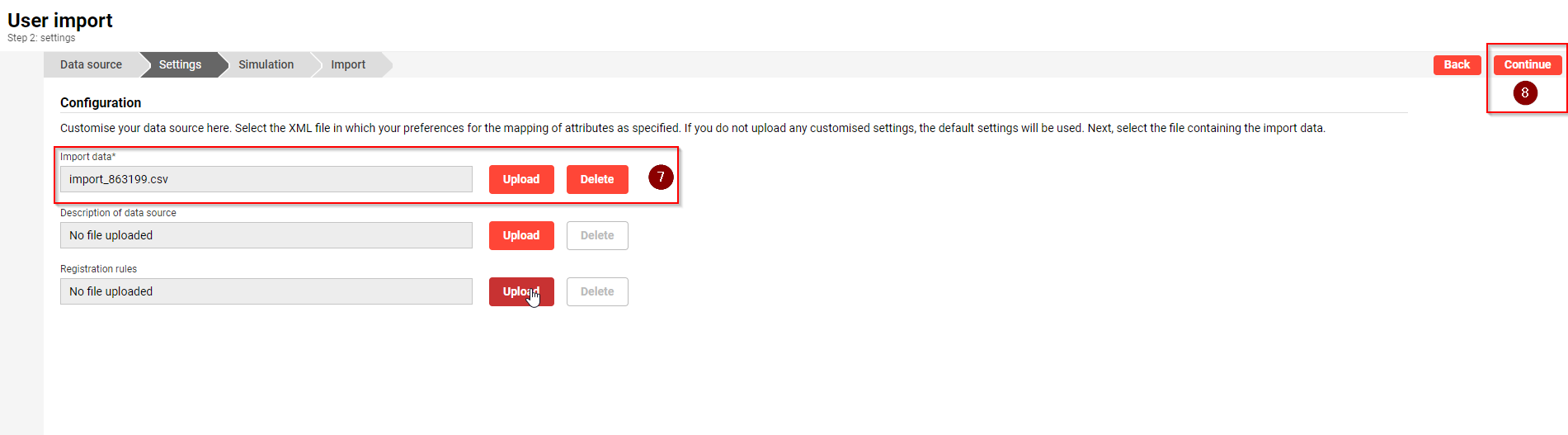
Now select the Type of import CSV Import (5) and confirm this selection with Continue (6). In the next step, you must upload your CSV import file (7) and then confirm this selection with Continue (8). After the automatic check (9) of the import file, continue (10) to the simulation.

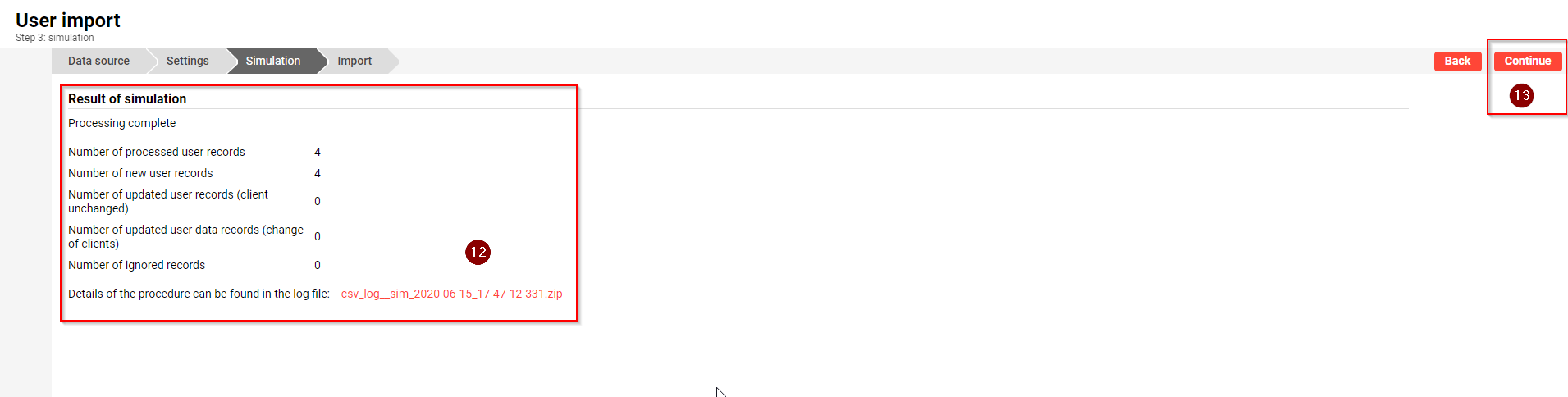
Start the simulation (11) to ensure that the content of your .csv file makes the desired changes. After the simulation is finished, you can check the simulation log (12) for errors and switch to the final import (14) by clicking on Continue (13).