
The Integration and Connector updates cover updates, or new possibilities, where the imc Learning Suite LMS communicates with external software. These updates are listed by their category below:
Integration Updates
Integration updates are listed below:
OIDC Implement login_hint Parameter in IDM
Overview: This implementation enables the OpenID Connect login process to accept and forward the login_hint parameter. The system allows you to pass the contained e-mail address to the login screen automatically, where it will be pre-filled.
Benefits and Use Cases: More efficient login as the user does not have to input the e-mail again.
Audience: All users
Setup & Access: Nothing to configure in the imc Learning Suite.
Considerations & Limitations:
-
The verification page might still be shown to a user, although the user has a valid IDP session, but no LMS session. This cannot be prevented but mitigates entering email address twice, by adding the login_hint parameter, once the user is forwarded to the IDP.
-
The overall process will stop, once the user verification results in the user not being provisioned at the LMS. An external dashboard page will be shown to explain the procedure to the user, but the user will need to start the process again.
-
The implemented invitation process does not provide any error handling. Regardless the API outcome, the user will be redirected to the external dashboard.
-
The verification page will be only introduced for exactly one customer URL. Other URLs that access the same system will not be affected.
-
Invitation API attempts will be stored in a database table, but are not viewable in the UI. This data is only consulted during testing and support requests.
Testing: Requires an active OIDC connection
Risk rating: Low
Connector Updates
Connector updates are listed below:
Flexible Webex Attendance-based Course Conclusion
Overview: You can now determine course completion based on each participant’s total attendance time across all Webex meetings contained within a course. The attendance requirement is configured at the course level, enabling administrators to define the minimum overall attendance percentage that a learner must achieve to successfully complete the course.
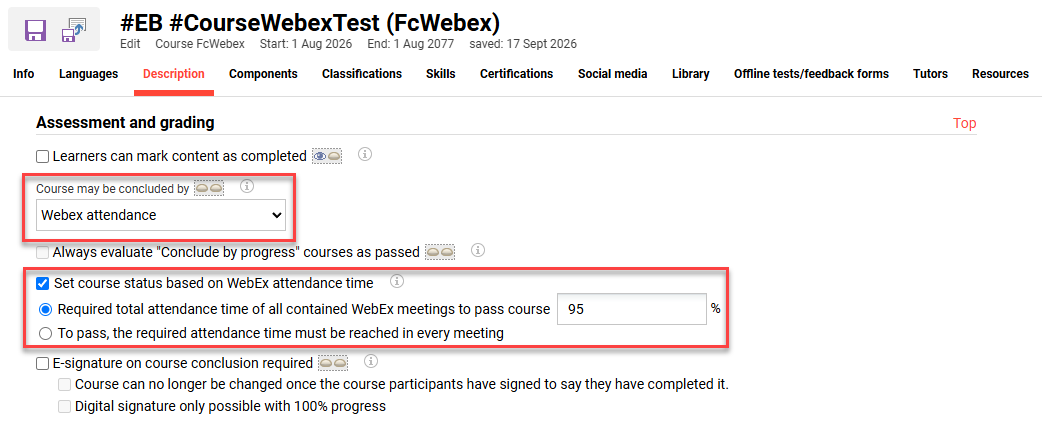
The new settings allow entering the required participation percentages for individual sessions or as a total across all meetings in a course folder. Once configured, the system evaluates the learner's cumulative attendance across all Webex meetings and automatically determines whether the learner has passed or failed the course.
Benefits and Use Cases: As an administrator, you can automate course completion based on Webex attendance. This can be done by defining a required participation percentage for individual sessions or total across all sessions within a course folder. Benefits of this update include:
-
Efficiently automates completion based on actual participation time to save time
-
Supporting both session-specific and cumulative attendance requirements
-
Ensuring accurate tracking by summing multiple logins and breakout room time
Audience: Course administrators
Setup & Access: Administrators can configure this completion method directly within the course settings. The following configuration options will be introduced:
-
Course may be concluded by meta tag (ID 10080): Webex attendance
-
Set course status based on Webex attendance time meta tag (ID 11899):
-
Required total attendance time of all contained Webex meetings to pass course: __%
-
To pass, the required attendance time must be reached in every meeting
-
Administrators can specify the minimum attendance percentage required for successful course completion. When this setting is enabled, the configured percentage becomes the sole criterion for determining the learner's completion status based on Webex attendance.
Considerations & Limitations: Participation time is provided by Webex about 10-30 minutes after the meeting conclusion. Webex meetings components need to be placed in folders to allow the conclusion based on total participation time of all meetings in a course.
Testing: Providing that Webex is enabled, you can test this update by:
-
Adding the Set course status based on Webex attendance time meta tag (ID 11899) to required course types and course templates.
-
Create a course from the course template:
-
Create a Webex media object in the Components tab with a short run time.
-
Set the Course may be concluded by meta tag (ID 10080) to Webex attendance.
-
Tick the Set course status based on Webex attendance time meta tag (ID 11899) and set the Required total attendance time of all contained Webex meetings to pass course field to 90%.
-
Complete the other required meta tags and click the Save icon.
-
-
In the Participant administration function of the course, enrol a participant.
-
Have the participant attend the course when the Webex meeting is scheduled and running.
-
Check the Participant administration function of the course 30 minutes after the Webex meeting conclusion. Check that the participant has been concluded.
Risk rating: Low
Unified Scheduling Workflow for Proctored Tests
Overview: As a learner, you can schedule, reschedule, and cancel proctored tests directly within your learning path with a newly integrated workflow. This update now allows supervisors to also view and manage these sessions on behalf of learners, ensuring a consistent scheduling experience for all roles.
Benefits and Use Cases: The unified scheduling workflow provides benefits including:
-
Eliminating workflow fragmentation by unifying learner and supervisor scheduling actions
-
Reducing administrative complexity through a single, integrated system for test management
-
Ensuring a seamless transition for existing scheduled sessions through automated migration
Audience: Learners and Supervisors
Setup & Access: Requires a switch to the AddAdHocProcess.
Considerations & Limitations: Requires the ProctorU integration connector and ProctorU licence. Only possible for tests, which have been scheduled after the new ProctorU integration (AddAdhocProcess) has been deployed.
Prerequisite: Switch to AddAdHocProcess
Testing: Only applicable for customers using ProctorU.
Risk rating: Low
Test Scheduling Manager for ProctorU Live+
Overview: Supervisors are now enabled to manage the schedules of students for live proctored exams using an in-built scheduling feature. This update enables:
-
Scheduling, cancelling and rescheduling for single or multiple learners simultaneously
-
Scheduled time, scheduling status, time zone, and the scheduling timeframe are displayed
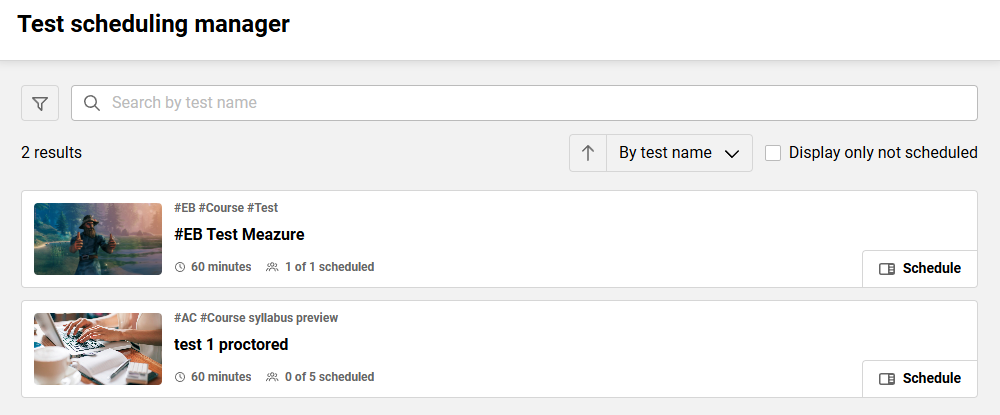
Previously, only students could schedule exams via an external scheduling page.
Benefits and Use Cases: The benefits of this update for test managers include:
-
Better control over test timing with a seamless user experience
-
Time savings through bulk scheduling for multiple learners
-
Full visibility of exam details and statuses in the supervisor view
Audience: Test administrators
Setup & Access: This requires the configuration of a new menu in the navigation. In the Navigation function, create a new menu in the desired category and location. In the Menu type* field select “Default menu” which will then introduce the Default menu* field. Click the Default menu* field to launch the pop-up window and add the Test scheduling manager (manager_test_scheduling) option. Finish by setting an identifier (e.g. test_scheduling_manager), naming the menu for each required language, and defining the access rights.
Considerations & Limitations: Requires the ProctorU integration connector and ProctorU Live+ licence. Scheduling and rescheduling actions performed on ProctorU can not be logged, instead only the scheduling actions performed in the imc Learning Suite are recorded. In reports, the scheduling status can be checked.
Further limitations on the Meazure Learning side include:
-
Scheduling conflicts are not detected when scheduling before an existing appointment with overlapping test session time.
-
Cancellations <6h before the Live+ session are not possible.
Testing: Providing your system has the ProctorU connector and licence, as a System administrator you need to create the new Test scheduling manager menu as described above in Setup & Access. Once created, logout and then log back in to view the new menu. Any available exams will display along with a scheduling option.
Risk rating: Low
LinkedIn Learning Content Import now Uses Modern Import Interface
Overview: The LinkedIn Learning content import now opens in the Learning Suite's current import interface, the same one the Generic Content Importer uses. Previously it ran as a separate application. Now it is part of the main imc Learning Suite interface, so it gets the same updates and improvements as the rest of the platform.
Benefits and Use Cases: Replacing the old /eci import with the new /ui/import delivers the following benefits:
-
Consistent look and feel: The LinkedIn Learning import now looks and behaves like the other pages of the modern interface.
-
Theme fixes: Custom themes now apply correctly, which fixes display problems with dark themes.
-
Improved accessibility: Content cards use the latest, more accessible components.
Audience: Administrators and Content managers
Setup & Access: You do not need to set anything up as the change applies automatically. If the URL of the front-end app of the content importer field (Configuration → Content importer service) is empty, the previous Content Importer wizard is still used, exactly as before.
Considerations & Limitations: Requires the LinkedIn Learning connector and a LinkedIn Learning licence. The old import address (/eci) is no longer available and does not redirect to the new one. Normally, users reach the import through the Media function, so this doesn't affect them. Bookmarks that point straight to the old address (for example /eci?typeId=…&source=linkedin) will stop working and should be replaced by going through the Media function.
Testing: In the Media function, choose the Add LinkedIn Learning option, search, then select a template. The import will open in the new interface (/ui/import).
Risk rating: Low