
In addition to the featured highlights, there are many more innovations and improvements to discover in the product core. Core updates are listed by their category in the tables below:
Catalogue Management
Custom Fields for Catalogues and Folders
Overview: Administrators can define custom fields and metadata for the main catalogue and individual folders. New API endpoints also enable external systems to manage these fields, including extended sorting and filtering options.
Benefits and Use Cases: Administrators will be able to better describe catalogues and insert fields required by external systems. Key benefits of this update include:
-
Improving content discoverability through custom data elements at the catalogue level
-
Increasing flexibility for categorising and structuring training content
-
Supporting external UI integrations via dedicated API metadata access
Audience: Technical administrators
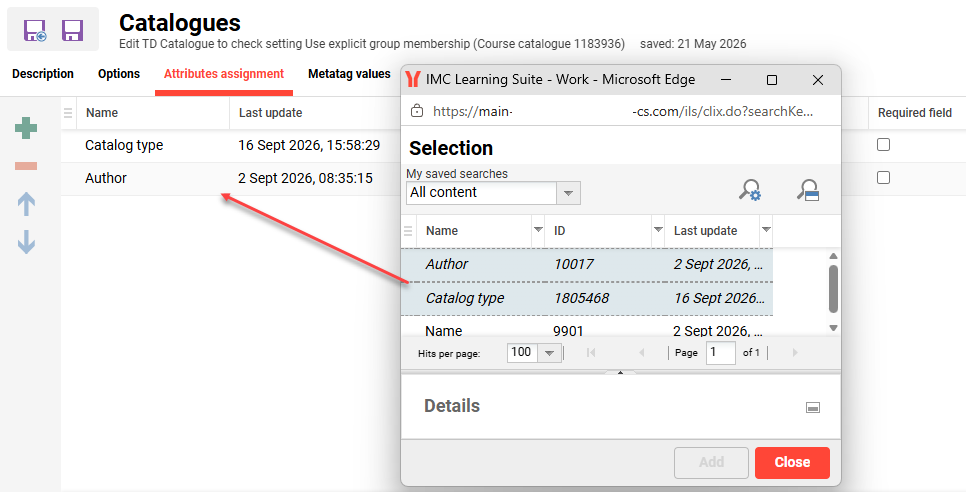
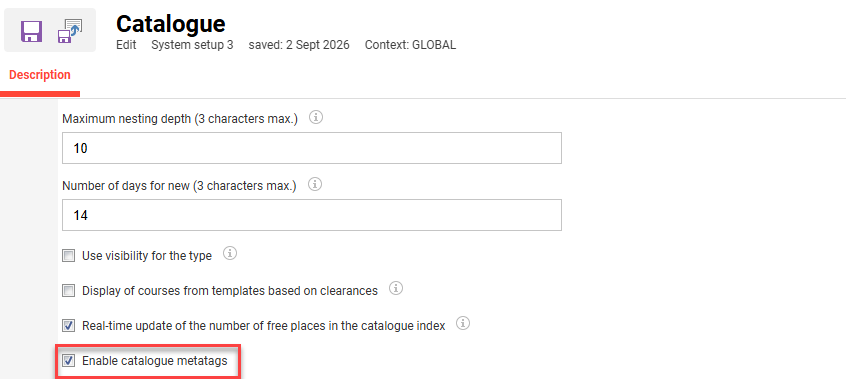
Setup & Access: This update must be activated in the Configuration function Catalogue menu by ticking the Enable catalogue metatags checkbox. This will update catalogues with the Attributes assignment tab and Metatag values tab. Here, meta tags along with their values can defined per catalogue.
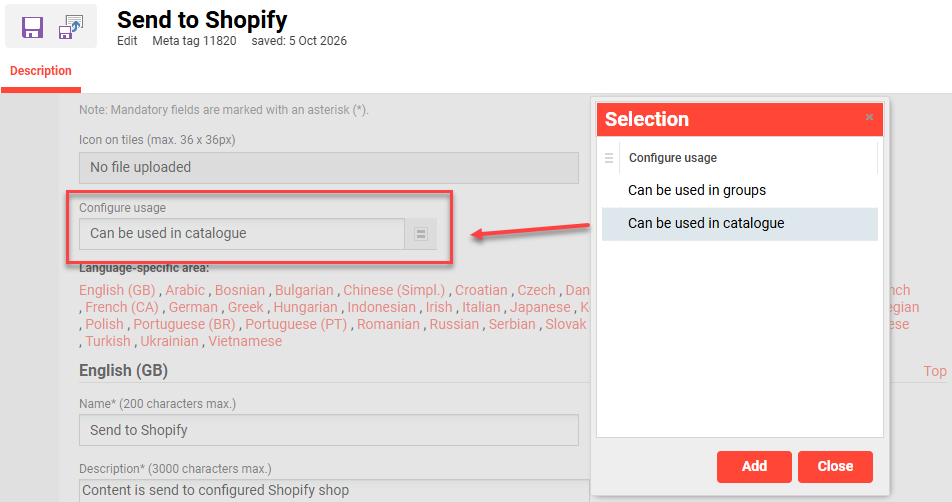
For a meta tag to be selectable, it also requires activation via a new setting in the meta tag. When editing a meta tag, a new Configure usage field must be set to Can be used in catalogue.
Considerations & Limitations: Creation of a special search API is not yet considered. Encryption of catalogue folders has also not been considered. When a meta tag is flagged as mandatory ("is_mandatory" set to 1), then all sub-catalogues require the meta tag to be filled.
Testing: You can test this update by:
-
In the Meta tags function, edit some meta tags to mark as Can be used in catalogue.
From an API point of view this will set a useforcatalog flag to 1 indicating the meta tag becomes eligible for assignment to catalogues. -
In the Admin Catalogues function, edit a main catalogue and assign the updated meta tags in the Attributes assignment tab.
Risk rating: Low
Certificate Management
New Date-only Placeholders for Export Templates
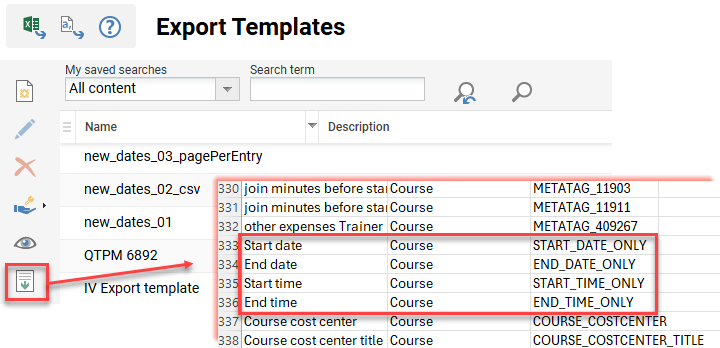
Overview: The Export templates function has been updated with new placeholders START_DATE_ONLY and END_DATE_ONLY. These placeholders enable the display of course and learning path dates without time information. The placeholders can be inserted into export templates and form letters.
Benefits and Use Cases: Administrators can now utilise the new placeholders in export templates to:
-
provide a clean and standardised format,
-
ensure professional formatting where only the date is relevant.
-
eliminate formatting errors and inconsistencies caused by manual workarounds.
Audience: Administrators
Setup & Access: The placeholders are available for download via the Download placeholders icon. The placeholders can be added to existing export templates and certificates.
Considerations & Limitations: This update is purely for Export template placeholders. Equivalent placeholders exist already for Certificates which are $COURSESTARTDATE_ONLY$ and $COURSEENDDATE_ONLY$.
Testing: As an Administrator, open the Export templates function and follow these steps:
-
Click the Download placeholders button.
Open the file and the new placeholders will be displayed in the list. -
In MS Word, create a new export document using .docx format.
Insert the new placeholders, along with other required placeholders, into the template. -
Create a new export template and upload the .docx file.
-
Go to the Participant administration function of a date-dependent course.
-
In the Participant list tab, click the ERP export button and select Export based template option.
-
In the pop-up select the previously uploaded .docx template and click the OK button.
-
Open the downloaded export template.
View the placeholder values to ensure the date has no time stamp.
-
Risk rating: Low
Configuration Framework
Editability of the robots.txt for SEO
Overview: You can now edit the robots.txt of your learning platform directly in the administrative interface, without a support request and without a deployment. The content is also available through the public endpoint /ils/restapi/openlms/robots, which requires no authentication.
Benefits and Use Cases: Many customers with public facing implementations utilise the SEO functionality. This helps search engines crawl through site content to improve searchability of the LMS. The key benefits of the update allow you to:
-
control which parts of your platform search engines crawl,
-
change the rules yourself at any time,
-
keep test or stage systems out of search results, and
-
point crawlers to your sitemap so that relevant pages appear in search results.
Audience: System administrators
Setup & Access: The feature requires a one-time configuration per system.
Action is required if you use a custom robots.txt today.
-
Before version 14.30.0.0, the API gateway served either a default file shipped with the gateway or a file stored in the configuration server under
gateway/robots.txt. As of version 14.30.0.0, the gateway fetches the content from the learning platform configuration, and the file in the configuration server is no longer used. -
Existing content is not migrated automatically. If you do not enter your directives in Configuration > Platform > Robots.txt content, the platform serves the default content, which disallows all crawling. Public platforms that rely on search engine visibility lose their indexed pages over time.
To migrate, follow these steps:
-
Copy the content of your current
robots.txtfromhttps://your-domain.com/robots.txtbefore the upgrade. -
After the upgrade, open Configuration function Platform menu, then choose Edit current option, and paste the content into the Robots.txt content field.
-
Save the configuration, then open
https://your-domain.com/robots.txtand verify that the platform serves the expected content.
To automate the configuration, use the platform configuration endpoints GET, PUT, and DELETE on ils/restapi/lms/systems/configurations/platform. These endpoints require a super user.
|
Path |
Configuration > Platform > Edit current > Robots.txt content |
|---|---|
|
Permission |
Administrator with configuration rights; super user for the configuration API |
|
Default when unconfigured |
|
|
Scope |
Global, or per stage; the stage value takes precedence |
|
Effective after save |
Yes |
|
Verification |
Open |
Considerations & Limitations: As mentioned above, action is required if you currently use a custom robots.txt. The feature only configures how external web crawlers treat public URLs. It does not create, change, or delete learning records, results, or audit-relevant data, and it does not change any qualified process.
Further considerations and limitations include:
-
The configuration is global per platform. Client-specific content is not supported: one
robots.txtapplies to one domain. -
URLs inside the file must be relative to the platform URL, not absolute.
-
The validation checks the format of each line. It does not check whether a directive is meaningful for a specific crawler, and it accepts directives outside
User-agent,Allow,Disallow, andSitemap. -
Your content replaces the default content completely. The platform does not merge your directives with the default.
-
A
robots.txtfile instructs crawlers, it does not restrict access. Crawlers can ignore it, and URLs that are linked from other sites can still appear in search results. To protect content, use access rights. -
If the learning platform is not reachable, the request to
/robots.txtreturns a server error so that crawlers stop.
Testing: If you are using SEO features and the robots.txt file, follow these steps:
-
Copy the content of your current
robots.txtfromhttps://your-domain.com/robots.txtbefore the upgrade. -
After the upgrade, open Configuration > Platform, choose Edit current, and paste the content into the Robots.txt content field.
-
Save the configuration, then open
https://your-domain.com/robots.txtand verify that the platform serves the expected content.
Risk rating: Medium
Content Management
AI Image Generation: Switch to Token-based Counting
Overview: Adaption of the AI image generation service to now count tokens. This reflects the changes of the subscription for the image generation model gpt-image-1-mini.
Benefits and Use Cases: The AI image generation can be enabled for media, courses and learning paths. The update delivers a more exact billing and customers have the advantage, that up to 5x more images can be generated in the demo phase.
Audience: Content administrators
Setup & Access: The change is automatically applied. AI image generation requires the AI services to activated in the Clients function. This can be done by clicking the Settings button and opening the AI services settings option.
Considerations & Limitations: There is no UI available for customers to track token usage. This information can be requested via Scheer IMC. The image generation model gpt-image-1-mini replaces dall-e-3.
Testing: Not required as there is no visible change within the system.
Risk rating: Low
Media Pages: Implementing Customer Usability Feedback
Overview: With IP 14.29 there was large updates to media pages. With IP30, further enhancements have been introduced based on usability testing feedback. These updates streamline navigation and improve readability in the media pages. The updates include:
-
Cleaner progress display: The "X out of Y elements" text count next to the playlist progress bar has been removed to avoid confusion between mandatory and optional learning items, displaying progress purely as an accurate visual percentage.
-
Persistent syllabus navigation: A dedicated Back to course button is now always visible in the header (including when accessing content directly via deep link), enabling quick return to the course syllabus.
-
Improved playlist discoverability: The Open Playlist header button has been increased in size (minimum height 36px) for higher visibility, easier interaction, and improved accessibility.
-
Responsive default playlist display: On large screens (>1280px), the playlist is expanded by default to give immediate visibility over course contents, while remaining collapsed on smaller screens (≤1280px) to preserve viewing area. Users can toggle the playlist at any time.
Benefits and Use Cases: When your learners consume training content via the media pages player, they receive an intuitive, distraction-free interface that clearly indicates their learning progress. The player also allows seamless navigation between individual learning elements and the course syllabus.
Audience: Learners
Setup & Access: The changes are applied automatically for designs that have the Activate the new media pages checkbox ticked.
Considerations & Limitations: Only available for the new media pages.
Testing: Not required
Risk rating: Low
Media Pages: Full Course Preview from Backend
Overview: Media pages were recently migrated from XHTML/JSF to React to deliver learners significantly improved UI/UX. Pages updated include standard media (links, files, forums, feedback forms) and provider-specific types (SCORM, xAPI, LTI 1.1/1.3, MS Teams, WebEx, LinkedIn Learning, and others). This implementation now also updates the backend UI/UX for administrators previewing courses in the Courses function.
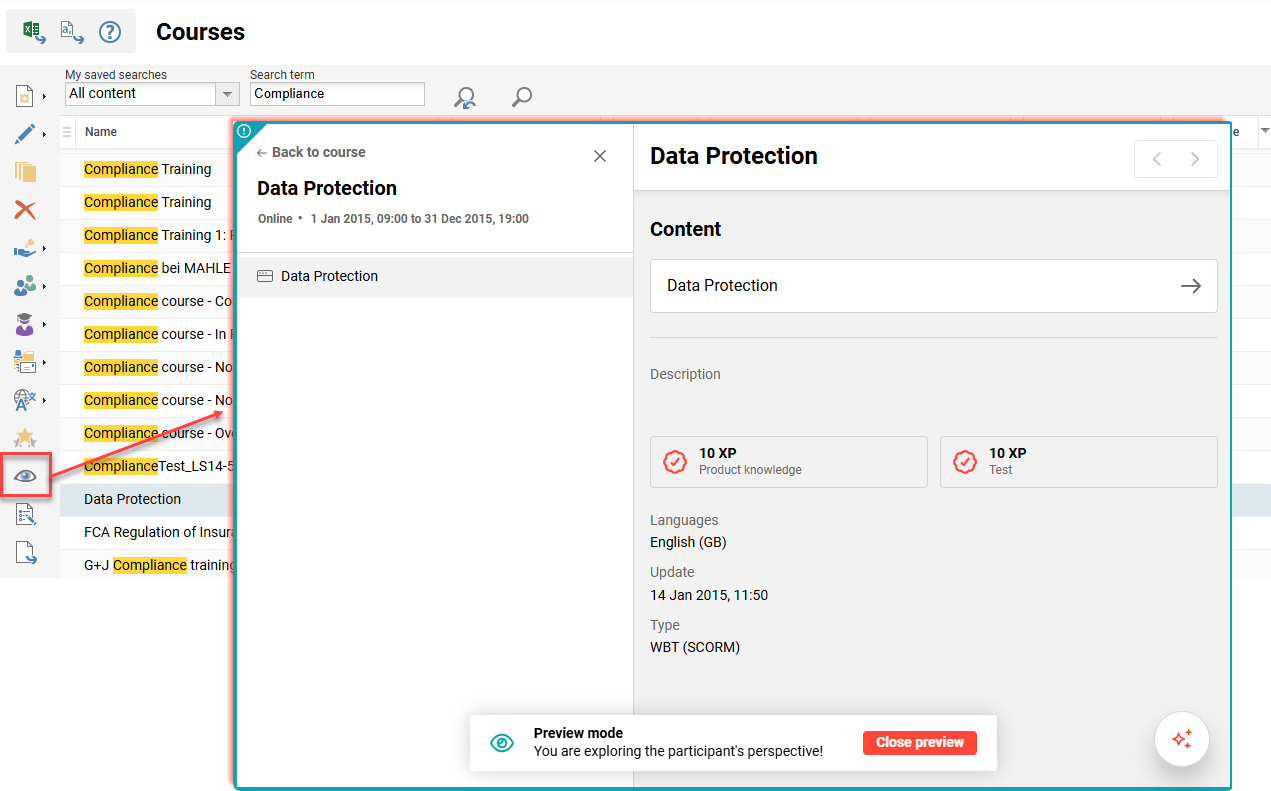
Benefits and Use Cases: Users accessing media pages from the Courses function can now expect a consistent, modern interface for previewing and managing all media types. The key benefits you can expected from this update include:
-
Enhanced security by replacing the legacy XHTML/JSF rendering stack
-
Consolidation of all media entry points under a unified, maintainable React architecture, reducing long-term technical debt
-
Ensuring full coverage of both standard and provider-specific media types, minimising gaps in the learner and back-office experience
Audience: Administrators
Setup & Access: The change is automatically applied for designs that have the Activate the new media pages checkbox ticked.
Considerations & Limitations: None
Testing: As a course administrator, you can test this update by:
-
Going to the Courses function.
-
Highlight a course with media assigned and click the Preview button.
-
Open a media component to see the updated view.
-
The view will match the learner’s view.
Risk rating: Low
Course Management
Easy Course Creation: Modernised User Interface
Overview: The Easy Course Creation (ECC) function design framework has been migrated from Angular to React. This introduces a modernised user interface, whilst maintaining the core functionality. The migration also addresses several minor usability issues including:
-
Added a text-based aside stepper to improve the navigation between the workflow steps
-
Aligned visual layout and interaction patterns with our updated UI standards to create a more consistent and polished experience
-
Optimised responsiveness and layout behaviour to ensure better performance and usability on different screen sizes
-
Resolved some minor issues
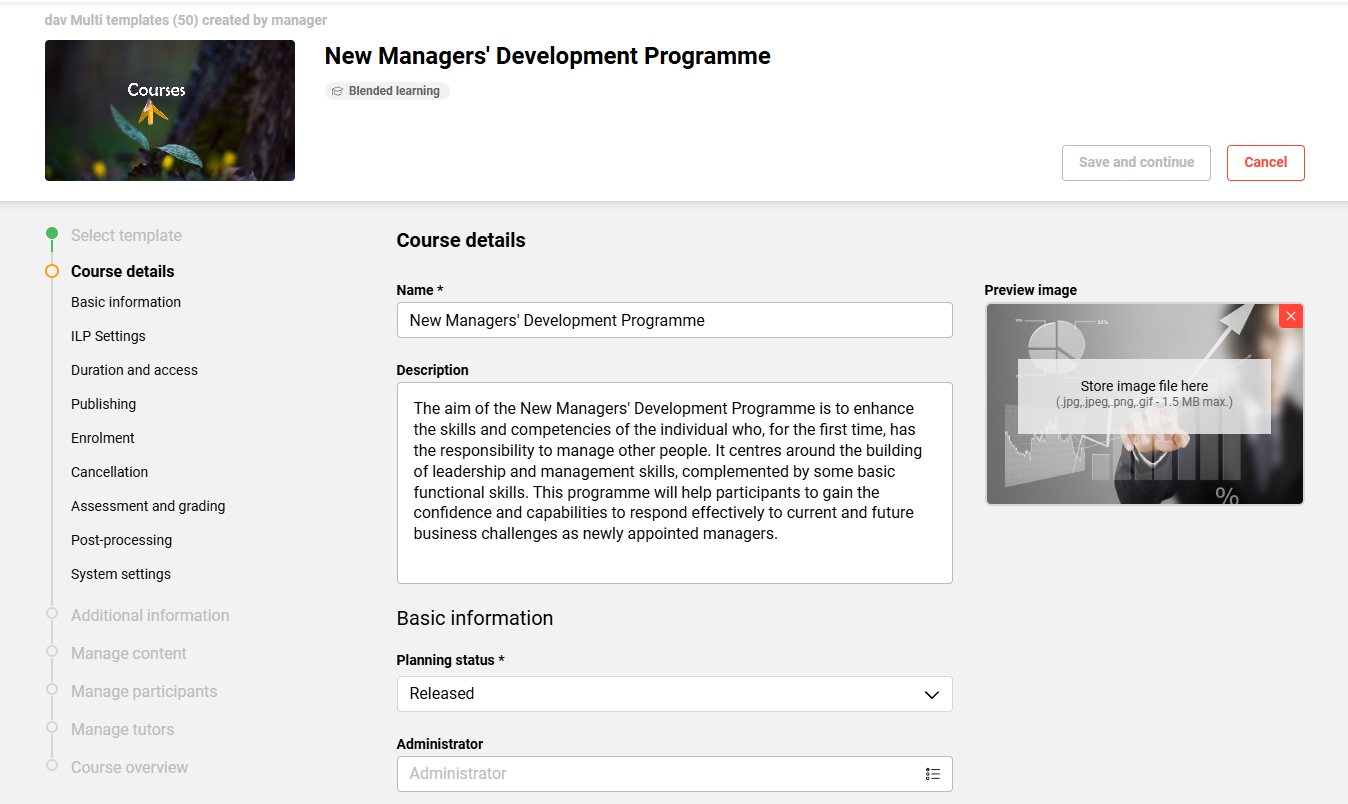
Benefits and Use Cases: Users benefit from a more intuitive and consistent user experience, with improved usability and smoother interactions. The familiar functionality remains available, allowing users to continue their existing workflows with minimal disruption.
Audience: Course administrators
Setup & Access: Requires editing the design to tick the Activate new Easy Course Creation checkbox.
Considerations & Limitations: These changes will be available from IP30.1.
Testing: As a System administrator, you can test this update by:
-
Going to the Design function:
-
Edit your design
-
Tick the Activate new Easy Course Creation checkbox
-
Click the Save and close icon
-
-
Open a new session in a different browser
-
Open the Easy Course Creation function
-
Note: This could have a different name in your system
-
Create a new course from a template and the updated design will be displayed
-
Risk rating: Medium
Easy Course Creation: Multi-language Support
Overview: The Easy Course Creation function will now support multilingual course creation and management. This means that course templates with multiple languages will now display when creating a course. Likewise, further languages can be added and you can maintain language-specific content. This removes the reliance on the Courses function for advanced course editing.
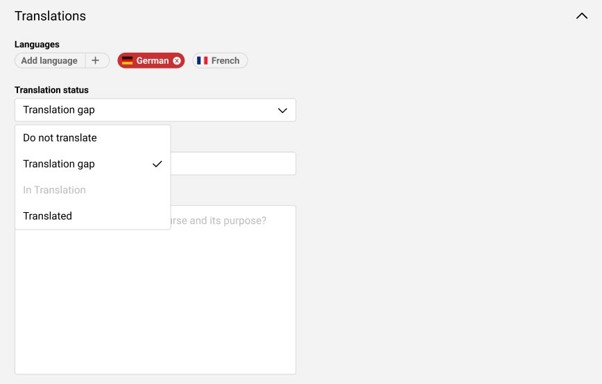
Benefits and Use Cases: Course managers often need to create and maintain multilingual courses whilst out of the office. With this update to the Easy Course Creation function, course managers benefit from:
-
Improved accessibility as the simplified course creation workflows are mobile friendly
-
Efficient creation and maintenance localised course content on a simple user interface
-
Consistent language and translation configuration across both course management interfaces
Audience: Course administrators
Setup & Access: Providing the workflow is assigned to the navigation, this update requires that desired languages are available in the course template and that the Usable for course creation workflow checkbox is ticked.
Further migration considerations include:
-
No migration or customer action is required. Existing courses and course templates retain their current language configuration and translation statuses.
-
Multilingual course templates that previously could not be used in Easy Course Creation function, can now be selected in the manager flow.
-
Existing multilingual courses that previously could not be edited in Manage Courses function, can now be opened and maintained.
-
Existing single-language courses remain unchanged and can optionally be extended with additional languages.
Considerations & Limitations: This update will be available in IP 14.30.1. Multilanguage support is only available for the manager course creation and editing flow. The workflow must be assigned to a navigation menu. External course creation by learners remains single-language and does not support multilingual course creation or editing.
Testing: Providing that the Easy Course Creation function is configured, you can test the update by the following steps:
-
In the Course templates function:
-
Edit an existing course template that utilises multiple languages.
-
In the Description tab, check that the Usable for course creation workflow is ticked.
If not, tick the checkbox and click the Save and publish button.
-
-
In the Easy Course Creation function:
-
The course template that was previously updated will be available to select.
-
Select the updated course template to create a new course.
-
The course creation will display the additional language fields.
-
-
In the Manage courses function:
-
Edit an existing course with that only has a single language.
-
It will now be possible to add further languages.
-
Risk rating: Low
Easy Course Creation: Multiple Predefined Templates are now Available
Overview: When configuring course creation workflows, you can now predefine multiple course templates in the Entry point step. This enables your administrators to choose from the most relevant course templates when creating a new course. Previously, predefining a template was limited to a single selection which was restrictive during course creation.
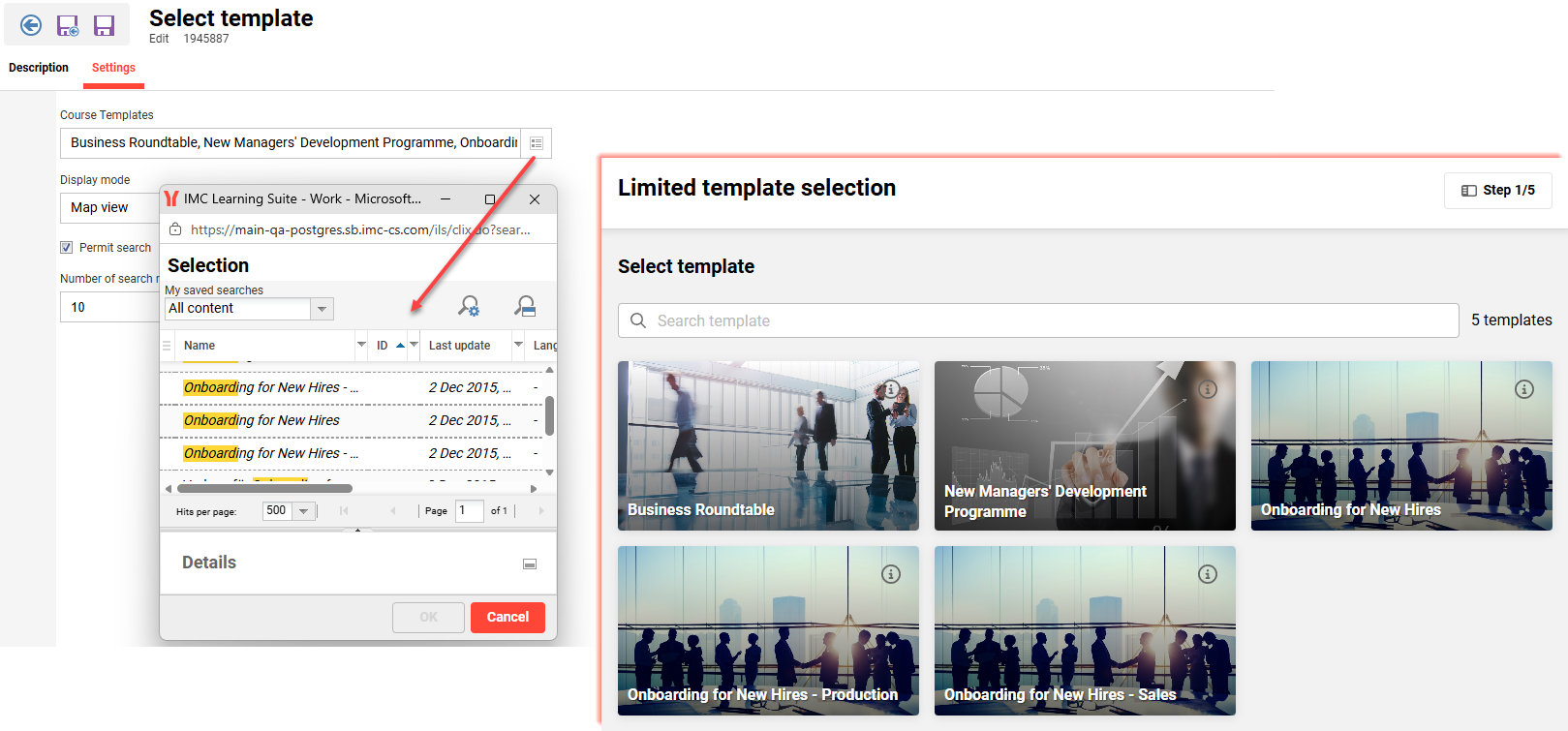
Benefits and Use Cases: This update provides your course administrators with greater flexibility to select a suitable course template from a predefined list. Having a choice was previously only possible when there were no predefined templates, but this required manual searching through all available course templates. Allowing a predefined selection of multiple templates tailored to the workflow also provides better control.
Audience: Course administrators
Setup & Access: This update possibility is applied automatically. In the Course Creation Workflow function, create or edit a workflow and go to the Entry point tab. Edit the Select template option and go to the Settings tab. In the Course Templates field, you will now be able to select multiple templates.
Considerations & Limitations: No impact. As an administrator, you decide whether to change existing setups with multiple templates or leave current configuration as is.
Testing: To test this update, you can follow these steps:
-
Go to the Course Creation Workflow function, create or edit a workflow, and go to the Entry point tab. Edit the Select template step, go to the Settings tab and add multiple templates in the Course Templates field.
-
Go to the Navigation function and create a new menu. In the Menu type* field select “Default menu” and in the Default menu* field select the Simplified course creation option. This will present a Use field and a Workflow field. Select the Created option for the use and then choose the updated course creation workflow. Name the menu, enter an identifier, set restricted access rights to the System administration group, and save.
-
Sign out and log back in to enable the new navigation menu. Open the new menu and there will be multiple templates to select from.
Risk rating: Medium
Approval History Visibility for Learners
Overview: Learners can now be provided visibility of the full approval history and current status of their course requests. This is possible via an update to the Learning status function. Administrators can configure the visibility of approval stages and comments per multi approval workflow.
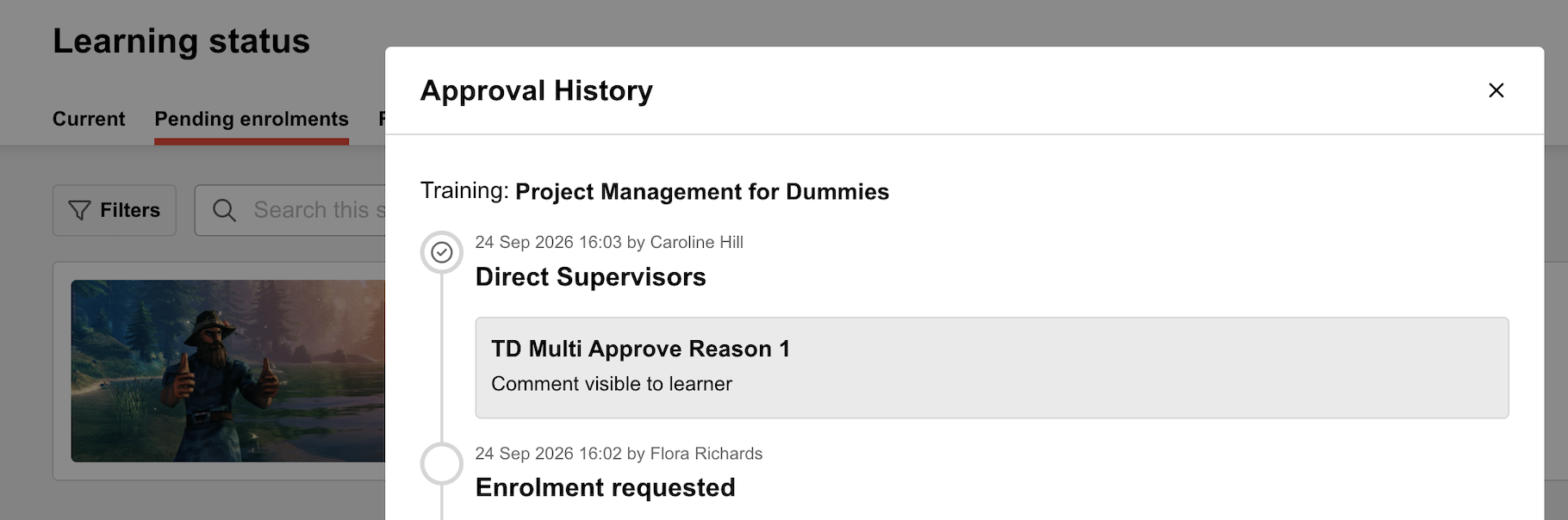
Benefits and Use Cases: Learners often need to request access to courses that require multiple levels of approval. Benefits of providing learners visibility of the request status or history include:
-
Increasing transparency by allowing learners to track their approval stage
-
Reducing administrative inquiries through direct access to status updates
Audience: Learners
Setup & Access: This update is dormant by default and requires activation. To enable this view, you need to follow these steps:
-
In the Configuration function Learning area settings menu, tick the Show multi approval history in Learning status checkbox.
-
In the Multi approval workflow function, edit the workflow, and in the Description tab tick the Display of comments to the learner in the approval history of this workflow checkbox.
Considerations & Limitations: None
Testing: To test this update, you will need to complete these steps:
-
Activate the new setting in the Configuration function Learning area settings menu.
-
In the Multi approval workflow function create or edit a workflow and tick the Display of comments to the learner in the approval history of this workflow checkbox.
-
A course will be required that utilises the Multi approval enrolment type with the workflow updated in the previous step.
-
Assign the course to a catalogue, or directly assign to a learner’s personal syllabus.
-
Log in as the learner, locate the course either in the catalogue or Learning status, and request the course.
-
Log in as the first approver to approve the first step of the request. This could be performed by the Messages function or a Booking requests panel.
-
Log in as the learner again and access the Learning status function. In the Pending enrolments tab, locate the course and click the Approval history button.
Risk rating: Low
Supervisor Ability to Enrol Staff on Courses within a Learning Path
Overview: An update in the My staff function Learning status view, now allows supervisors to enrol their staff members to courses within their learning paths. This is possible by viewing the staff member’s Learning status and opening their learning path view. Any course in the syllabus with a self-enrolment workflow can be commenced by the supervisor.
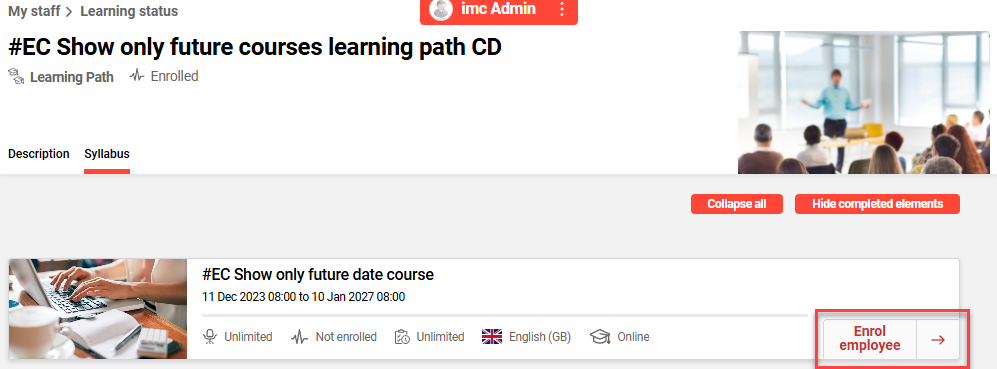
Benefits and Use Cases: Supervisors often need to be involved with subsequent enrolments of courses within their staff’s learning paths. For example, where courses require payment or when there is a choice of date required. This update enables supervisors to directly trigger enrolments and even directly perform payments. By providing direct access this can also remove the need of additionally assigning courses of the learning path syllabus to catalogues.
Audience: Supervisors
Setup & Access: This change is automatically available.
Considerations & Limitations: Only employees that are already enrolled on the learning path can be enrolled to courses or course templates within a learning path by their supervisor.
Testing: As a supervisor, you can test this update by:
-
Going to the My staff function.
-
Locating a staff member that is enrolled on a learning path.
-
Clicking on the staff member to open their Learning status view.
-
In the Current tab, click the Filters button and for Type filter select the Learning path option.
-
Open a learning path and look in the syllabus.
-
Look for a course or course template with self-enrolment enabled and no current enrolment.
-
An Enrol or Request button will be available.
Risk rating: Low
Unified React Media Pages for Course Room Library Content
Overview: All library media items added to courses can now be viewed through React-based media pages. This delivers a unified playback experience to syllabus components for all content types. A breadcrumb navigation also delivers a safe, reversible activation path.
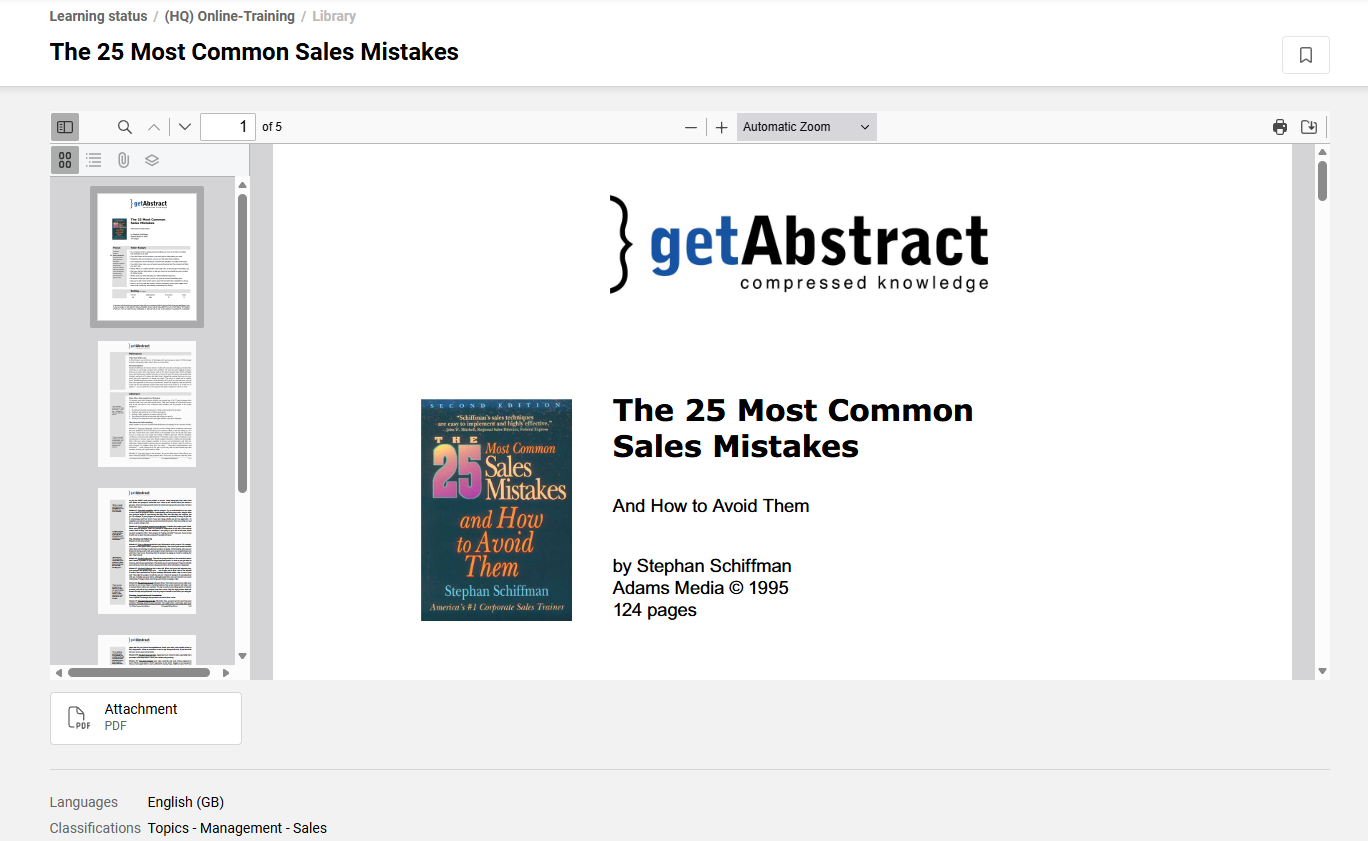
Benefits and Use Cases: Learners previously accessing media content via the Course Room Library would receive inconsistent rendering depending on the media type. Benefits of this update include:
-
Eliminating fragmentation between legacy and React-rendered content
-
Reducing maintenance overhead
-
Improving learner navigation through the new breadcrumb concept
-
Low-risk adoption to utilise the React pages with a checkbox in the design to turn on or off
Audience: Learners
Setup & Access: Activation of new media pages is controlled in the Design function. Edit the design linked to your client and tick the Activate the new media pages checkbox.
Considerations & Limitations: None
Testing: To test the update, you need to log in as a System administrator and follow these steps:
-
Go to the Design function, then edit the design linked to your client, tick the Activate the new media pages checkbox, and click Save.
-
Next, as a learner you will need to open a course that has various content assigned to the library. This content will be displayed in the new React view and there will be breadcrumb.
Risk rating: Low
Dashboard Management
External Dashboard Pages to React
Overview: External dashboard pages have been updated to support the redesigned React-based panels. Additionally, a newly introduced External Page type provides an enhanced editor with grid-based layout capabilities and newly supported panels, such as the slider and in-page panels. The update brings external dashboards in line with internal dashboard functionality.
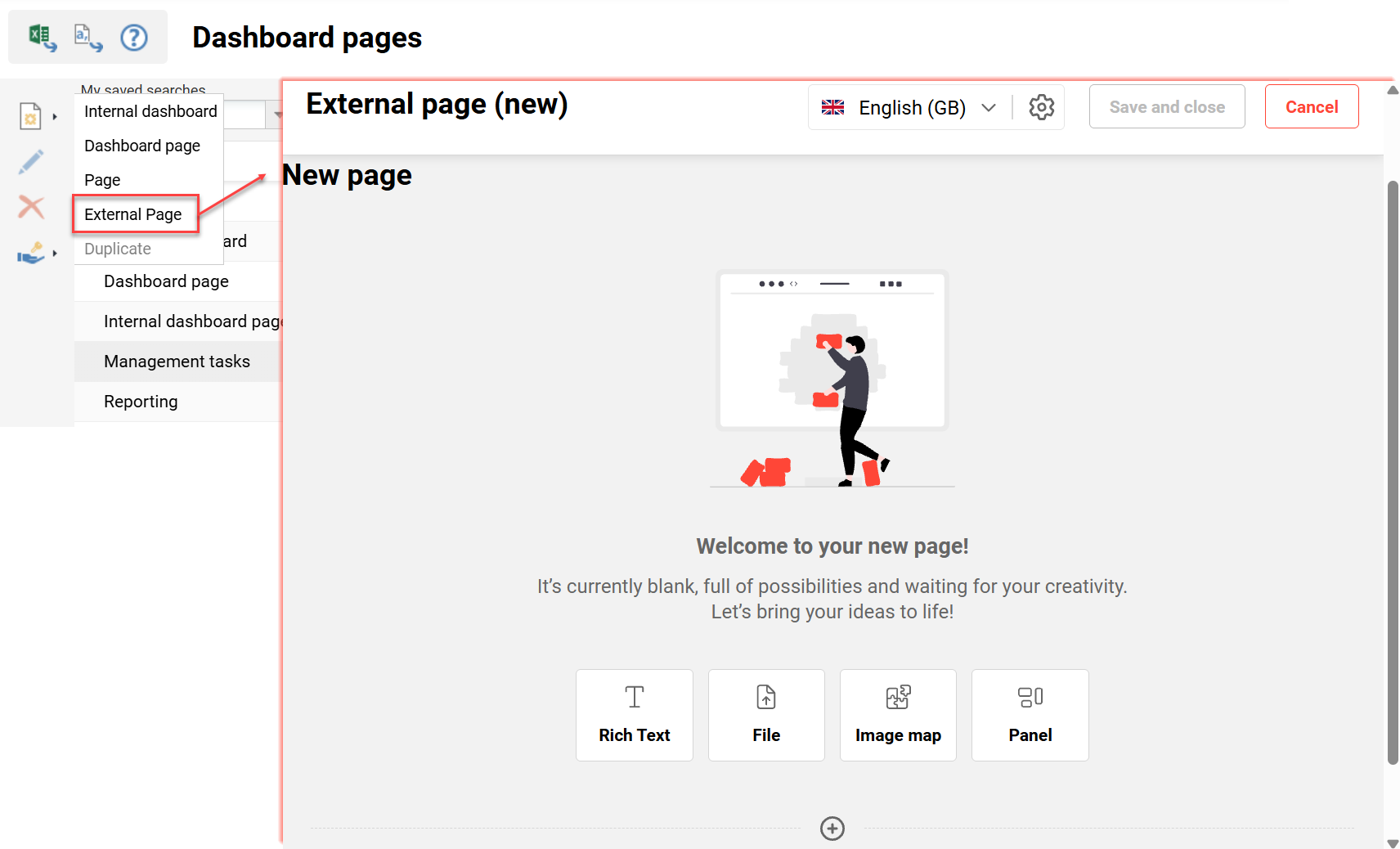
Benefits and Use Cases: Administrators can now opt-in to use React-based panels on existing dashboard pages, or recreate dashboards with the newly introduced External Page type. Benefits of the updates include:
-
Existing Dashboard pages (external) can be upgraded via opt-in, enabling React adoption without a full rebuild.
This delivers improved designs and security. -
The new “External Page” type makes creating external pages more flexible and intuitive.
External Pages support additional panels, enabling richer page designs (In-Page Panels & Slider Panel).
Audience: System administrators
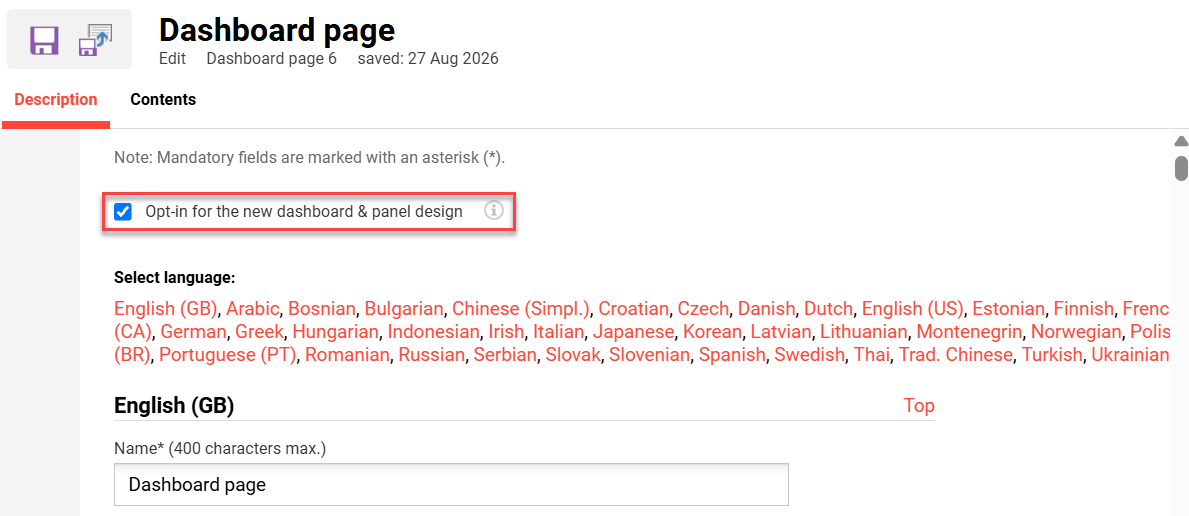
Setup & Access: The new options will be automatically available in the Dashboard pages function for configuration. When editing an existing Dashboard, there will be two differences. Firstly, when creating a new dashboard there will be a External Page option. Secondly, when editing an existing dashboard page it will be a Opt in for the new dashboard & panel design checkbox to enable the React design.
Considerations & Limitations: Migration of existing dashboards to use React is not automatic. Instead, existing dashboards must be manually adapted to utilise the new design.
-
External dashboards (opt-in) do not support the new editor or grid layout.
-
In-page panels and the Slider panel are not available for opt-in dashboards.
-
Feature parity between opt-in dashboards and External Pages is not fully aligned (External Pages offer more capabilities).
-
Panels: Header, Teaser, Info are not supported in the new “External Page” type (-> new: Slider, Rich Text Panel)
-
Adjustments in HTML and CSS code are necessary for the use of Header, Teaser, and Info in React.
Testing: To test the updates, go to the Dashboard pages function and follow these steps:
-
External Page (new)
-
Click the Create button and select the External Page option.
-
Select the desired languages and name.
-
Create or assign panels as required.
-
Try the different column options.
-
Save the External Page and copy the Object ID.
-
-
Edit the Clearance of the new External Page and grant basic access rights to a client.
-
To view new External Dashboard copy the object ID and append to the URL in the browser (e.g. <domain>/ilp/pages/external-dashboard.jsf?menuId=1104&locale=en-GB&client=anonymous#/?dashboardId=#).
-
-
Dashboard page (opt-in)
-
Highlight and edit an existing Dashboard page. Once opened, tick the Opt in for the new dashboard & panel design checkbox and save.
-
Log out to view the external dashboard. Check the object ID in the URL to ensure it matches the dashboard page. If not, just replace the ID in the URL.
-
Risk rating: Medium
Panels to React
Overview: With this update, all remaining system panels have been transferred to support the React design framework. This brings the end to a large development project to transfer and redesign well over 100 panels. The following panels are now also transferred to React:
-
Homepage login (ID 160)
-
Booking request (ID 173)
-
Certification Set (ID 183)
-
Future recertification (ID 182)
-
Certifications (ID 178)
-
Report favourites (ID 156)
-
Job profile requests (ID 179)
-
Effectiveness check (ID 180)
-
Current Contents Provider Logo (ID 184)
-
Pending enrolments (ID 164)
-
Employee competencies (supervisor) (ID 174)
-
Employee competencies (HR) (ID 175)
Benefits and Use Cases: The transformation to React delivers improved panel design options and security. By now finalising the transfer of all panels, this enables all internal and external dashboard pages to utilise the new dashboard & panel design.
Audience: All users
Setup & Access: In the Dashboard pages function, the dashboard page requires the Opt-in for the new dashboard & panel design checkbox to be ticked. All panels, including those listed above, will now have the New design support column value of “Yes”.
Considerations & Limitations: When the Opt-in for the new dashboard & panel design checkbox is ticked, the panels with the old design will be listed in the administrator back office, but not be displayed to the learner frontend.
Testing: To test the updated panels you can follow these steps:
-
Go to the Dashboard pages function and Edit the internal dashboard that you want to test.
-
In the Description tab tick the Opt-in for the new dashboard & panel design checkbox.
-
In the Contents tab add the updated panels.
-
In the pop-up window add the New design support column.
-
All panels will now display Yes in the New design support column.
-
Add the desired panels to the dashboard and close the pop-up.
-
-
In the New design support column the panels will now show as Yes.
-
Click the Save & close button once done.
-
-
Next, access the internal dashboard via the linked navigation menu. The panels will be displayed in the React design.
Risk rating: Low
Homepage Login Panel
Overview: The Homepage login panel (ID 160) has now been updated to support the React design framework. This was a complex update to ensure all existing functionalities, authentication methods (including local authentication, IDM etc), full accessibility, and all configuration options remain. Some noticeable updates include:
-
Improved visual hierarchy of the main login actions
-
Improved placement of “Forgot your password?” directly connected to the login action
-
Added show/hide password functionality
-
Improved form readability with stronger field labels
-
Better spacing and alignment for easier scanning
-
Improved overall accessibility and interaction clarity
Benefits and Use Cases: Learners, instructors, and external users access the learning platform via external dashboards and need a clear, modern, and accessible way to authenticate. This update improves both the user experience and underlying security.
Audience: System administrators
Setup & Access: The update to the panel is automatically available. To utilise the updated React design, you need to edit the external Dashboard page and tick the Opt-in for the new dashboard & panel design checkbox.
Considerations & Limitations: -
Testing: It is highly recommended that you thoroughly test this update to ensure all authentication methods remain working. To do so, go to the Dashboard pages function and edit your external dashboard page that contains the Homepage login panel. Tick the Opt-in for the new dashboard & panel design checkbox and click the Save icon. In a different browser, access the homepage of your LMS and login with each authentication method.
Risk rating: Medium
Page Editor: Advanced Panel Configurations
Overview: The Pages option in the Dashboard pages function has been updated with advanced panel configurability. With this update, you can now configure panels directly within a page, without switching to the Panels function. In the page editor, when hovering over a panel and selecting the Settings icon will open a panel configuration drawer. The drawer header shows the panel name, the panel type, and the panel ID, together with the Save and Cancel buttons.
Each drawer can contain different tabs, depending on the options that the selected panel supports. Panels without further options, such as Task Management, show the Details tab only:
|
Tab |
What you configure |
|---|---|
|
Details |
The panel name, description, keywords, title, and displayed info text. Most panels add the switch Hide panel when there is no content to display |
|
Content displayed |
The content that the panel selects, such as learning objects, learning modes, and the learning view |
|
Settings |
The display options of the panel, such as the view type and the number of cards per row. |
|
Content |
The items that the panel shows |
This release adds the configuration drawer to the following panels:
-
Badge (ID 177)
-
Bookshelf (ID 105)
-
Catalogue panel (ID 171)
-
Channel (ID 185)
-
Courses (ID 172)
-
Current Contents (ID 184)
-
Experience Tracks panel (ID 186)
-
Homepage login (ID 160)
-
News (ID 100 & ID 103)
-
Pending enrolments (ID 164)
-
Quick Links (ID 188)
-
Slider (ID 187)
-
Task management (ID 181)
-
Top contents (ID 114)
Benefits and Use Cases: Administrators can now configure an expanded range of panels directly within the (new) page editor. Supporting optional titles for greater layout flexibility and a more streamlined setup process. Key benefits of this update include:
-
Configuring a panel where you see it, so you no longer switch between the page and the panel administration for a layout change.
-
Reaching every supported panel through the same drawer, with the same tab structure and the same save behavior.
-
Keeping control over the appearance per screen size, which reduces the follow up corrections after a page goes live.
-
Operating the configuring drawer with the keyboard and with a screen reader.
-
Reducing administrative effort by minimising the clicks needed to manage page elements.
Audience: System administrators
Setup & Access: No migration is required as the change is automatically applied. Existing panels, pages, and panel settings remain unchanged, and no data conversion runs during the update. To use the drawer, access pages that have been created with the page editor.
The drawer is part of the Page editor and is available while editing:
-
Administrators need the rights for page editing. In the Quick Links panel, the navigation items that an administrator can select are limited to the navigation items that this administrator is allowed to see.
-
Video slides in the Slider panel come from the media library, so the videos must exist there before you add them to a slide.
-
Change interval for the slider panel can be set in the configuration manager and in slider panel configurations. If both are filled, the slider panel configurations are used - otherwise the interval from the configurations manager is taken as fall back value.
Considerations & Limitations: Classic dashboards keep their existing configuration path. Further considerations include:
-
The drawer covers the panels listed above. For any other panel, you continue to use the panel administration.
-
The panel administration stays available for the panels listed here. The drawer adds a second path to the same configuration, it does not replace the existing one.
-
A configuration that you save in the drawer applies to the panel itself. Every page that uses this panel shows the change.
-
Field limits apply: the number of cards per row accepts values from 1 to 9, and the slider height and the slider interval accept positive numbers only.
-
The Slider panel ignores the interval from the system settings.
Testing: To test this update, you need to go to the Dashboard pages function and either create or edit a Page. Add one of the panels mentioned above, hover over the panel and click the Settings icon. The new configuration drawer will display where changes can be directly made.
Risk rating: Medium
Notification Engine
Kafka Optionality and Preventing Lost Emails
Overview: The imc Learning Suite now stores every system e-mail in the database before sending, a dedicated scheduler picks the e-mail up, composes it and sends it over SMTP. Apache Kafka is not part of the delivery path, so you can run the Learning Suite with or without Kafka.
-
This applies to all system e-mails: enrolment and booking mails, notifications, appointment and iCal invitations, registration mails and ad hoc mails from administrators.
-
If an e-mail cannot be sent, the system retries it automatically after a configured delay. After the last attempt, the entry keeps the status
failedtogether with the reason why it could not be sent. If the application stops while an e-mail is being processed, a recovery worker releases the entry so that the next run picks it up.
If in anyway you want to use e-mails in your own systems, you must enable Kafka mailing. The Learning Suite then provides the information to Kafka after the e-mail has been sent successfully.
Benefits and Use Cases: Benefits of the update include:
-
E-mail delivery does not depend on Kafka. A broker outage, a missing schema registry or an installation without Kafka no longer stops your users from receiving e-mails.
-
No e-mail is lost without a trace. Every e-mail is persisted before the first send attempt, so a restart, a redeploy or a failed attempt does not discard it.
-
Failures become visible. Failed entries keep the error reason, so your support team can tell why an e-mail did not arrive instead of searching log files.
-
Transient errors resolve themselves. The retry mechanism covers short outages of the mail server or the network without manual intervention.
-
Smaller infrastructure for installations that do not need event streaming. You only operate Kafka if you consume e-mail events.
-
Learning processes stay fast. Enrolment, booking and registration finish independently of e-mail delivery.
Audience: System administrators
Setup & Access: The Scheer IMC Hosting team applies the following properties in application.yml; this is not available to customers in the user administration.
-
E-mail sending:
|
Property |
Default |
What it controls |
|---|---|---|
|
imc.mail.batchSize |
20 |
Number of e-mails processed in one batch |
|
imc.mail.threadCount |
2 |
Number of threads that send e-mails in parallel |
|
imc.mail.maxRetries |
3 |
Number of send attempts before the entry becomes |
|
imc.mail.retryDelaySeconds |
60 |
Delay before a failed e-mail is retried |
|
imc.mail.ttlSeconds |
180 |
Time after which the recovery worker releases a blocked e-mail. Use |
|
imc.mail.recoveryPoolSeconds |
180 |
Interval at which the recovery worker runs. Applies to e-mails and to Kafka events |
-
Kafka e-mail events:
|
Property |
Default |
What it controls |
|---|---|---|
|
imc.kafka.mailEvents.enabled |
false |
Whether the Learning Suite publishes e-mail events to Kafka |
|
imc.kafka.mailEvents.batchSize |
50 |
Number of events processed in one batch |
|
imc.kafka.mailEvents.threadCount |
1 |
Number of threads that publish events in parallel |
|
imc.kafka.mailEvents.maxRetries |
3 |
Number of publish attempts before the entry becomes |
|
imc.kafka.mailEvents.retryDelaySeconds |
100 |
Delay before a failed event is retried |
|
imc.kafka.mailEvents.ttlSeconds |
100 |
Time after which the recovery worker releases a blocked event. Use |
Considerations & Limitations: The following limitations are to consider:
-
This feature configuration has no user interface. The configuration is performed via installation files only accessible to the Scheer IMC Hosting team.
-
The number of retries is limited. After the configured number of attempts, the Learning Suite stops and marks the entry as
failed. To send the e-mail, you can trigger the underlying action again. -
Errors that the mail server reports over SMTP behave as before. The e-mail appears in the system monitor with an failed status.
-
The settings apply to all e-mails of an installation. You cannot configure batch size, retry count or delay per e-mail type.
-
During a Kafka outage, e-mail events wait in the database and are published when Kafka is available again. Consumer side logic in your own systems is not part of the standard and remains a Technical Services topic.
-
Events reach Kafka only for e-mails that were sent successfully. Failed e-mails produce no event.
The following points relate to migration or impact to existing configurations:
-
New configuration properties are mandatory. The update adds properties to
application.yml,ils/application.propertiesandils/application-masterdb.properties. Without them the installation does not start correctly. The properties are listed in the IP14 Migration Notes under Mail and Kafka configuration, and they updated with 14.29.1.0. -
The defaults keep the current behaviour.
imc.kafka.mailEvents.enabledisfalse, so an installation without Kafka works after the update without further action. -
If you use Kafka for e-mail events, set
imc.kafka.mailEvents.enabledtotrue. The property is new. Installations that relied on the previous Kafka mail configuration must move to it. -
The meaning of the Kafka event changes. The Learning Suite now publishes the event after it has sent the e-mail, not before. If your consumer treats the event as a trigger to send the e-mail itself, adjust it to treat the event as a confirmation.
-
The update creates new database tables. The Learning Suite creates them during the update; you do not migrate data.
-
E-mail content stays unchanged. Templates, placeholders, recipients and the actions that trigger an e-mail are the same. Customisations with custom placeholders and custom notifications continue to work.
Testing: Testing is only required by customers wanting to utilise the Kafka events functionality.
Risk rating: High
Open API (Web Services)
Catalogue Search API
Overview: The catalogue API search results have been extended by including metadata of the additional meta tags in folders. This includes main catalogue folder and the child folders. As a meta tag can be assigned to the Catalogue context and to the Search Results context at the same time; the same meta tag definition appears in two different fields, depending on the type of the document it is written to:
-
Catalogue folders: as
catalogMetatag_<metatagId>on documents with mainTypeId 640 -
Components: as
metatag_<metatagId>on the corresponding content documents
For the Provider meta tag (ID 10069), assigned to both contexts, a folder document therefore carries catalogMetatag_10069 and a course document carries metatag_10069, both holding the value that is maintained on the respective object.
Benefits and Use Cases: Expanding the catalogue search API to include additional metadata enables external systems to capture information they may require.
Audience: Technical administrators
Setup & Access: The catalog index is addressed under the context path /ilp of the imc Learning Suite. The request is sent as a POST to /ilp/solr/catalogindex/query. The command identifier is passed as a query parameter of the URL, all further search parameters are passed in the request body as application/x-www-form-urlencoded.
Below is an example of retrieving folders and content in one request. A query that shall return both the matching folders and the matching content items therefore has to request both field patterns and, if applicable, facet on both fields:
POST /ilp/solr/catalogindex/query?cid=<searchCommand>
Content-Type: application/x-www-form-urlencoded
q=searchText:(compliance)
&fq=(mainTypeId:640 OR mainTypeId:3)
&fl=uniqueKey,componentId,mainTypeId,hierarchyPath,
 title,description,
 catalogMetatag_*,metatag_*,
 jsonResult
&facet=true
&facet.field=catalogMetatag_10069
&facet.field=metatag_10069
&facet.mincount=1
&rows=25
The wildcard notation catalogMetatag_*,metatag_* in the field list returns all meta tag fields that are actually present on the respective document. It is the recommended notation for a client that renders the additional attributes generically, because the client does not need to know the configured metatag IDs in advance. If only selected meta tags are to be displayed, the fields can also be requested explicitly, e.g. fl=componentId,title,catalogMetatag_10069.
Considerations & Limitations: Existing functionality of the catalog search index is not touched apart from the described extensions.
Testing: Requires API knowledge. The recommendation is utilising 2nd level support with a Scheer IMC Technical Consultant if interested.
Risk rating: Low
@self/contents (myLearning) API Extension
Overview: The following changes have been made to the Learning status @self/contents API:
-
Field Enhancements: Additional fields in the response.
i.e. courses and learning paths, like identification, secure, and other categorisations -
Search Enhancements: Additional Search, Sorting, and Filtering:
i.e. support of selected metatags and sorting parameters with corresponding pagination
-
SCORM Progress Calculation: Previously limited at the SCO level, now at the Page level.
Propagation of content progress for courses that only have one weighted content: Courses having only one content that delivers an individual progress (like SCORM WBTs) will directly show the progress of that content object instead of a 0% or 100% based on one item.
Benefits and Use Cases: The extension of this API better supports customers using the LMS in headless scenarios.
Audience: Technical administrators
Setup & Access: Not required
Considerations & Limitations: No logical changes (apart from the progress calculation)
Testing: Not required. This update is specific for customers with headless LMS scenarios.
Risk rating: Low
Organisation Management
Excluding Deputies from Business Unit Notifications
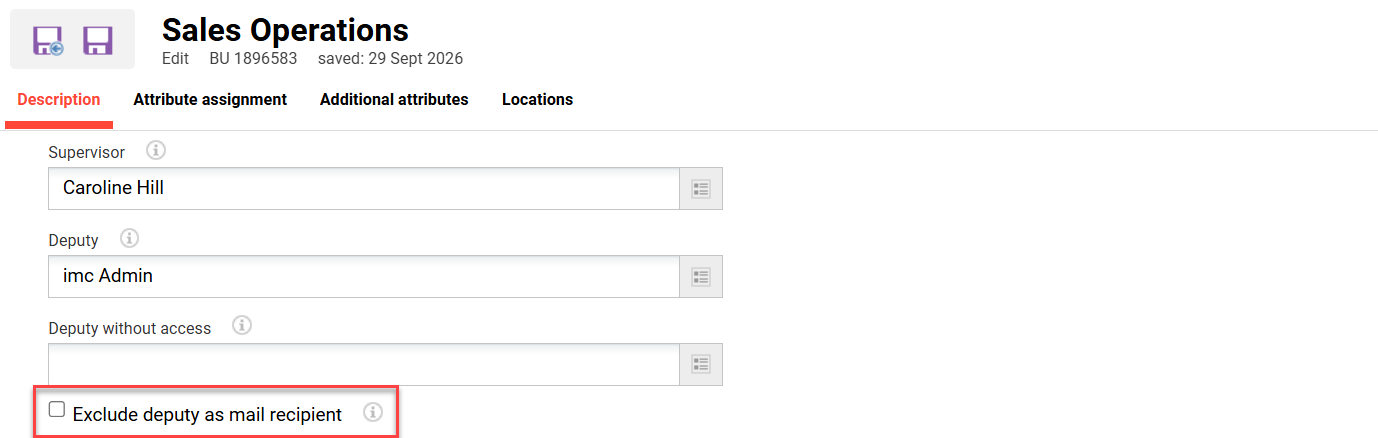
Overview: A new setting is available in BU groups to determine if deputies also receive notifications. The new Exclude deputy as mail recipient checkbox is available in every BU group. This can be used to ensure that only supervisors of desired groups receive notifications, preventing unnecessary communication to deputy roles.
Benefits and Use Cases: Administrators can now configure business units individually to exclude deputies from receiving automated enrolment mails and notifications.
-
Reduces e-mail volume for deputies by filtering out non-essential notifications
-
Enhances communication management within complex organisational structures
Audience: BU Supervisors and Deputies
Setup & Access: The new Exclude deputy as mail recipient checkbox is available automatically and unchecked by default. To prevent deputies receiving emails, go to the Organisational structure and groups function and edit the desired Business Unit groups. Tick the Exclude deputy as mail recipient checkbox and click the Save and back button.
Considerations & Limitations: The new setting is disabled per default, customers need to activate it manually in case the new behavior should be applied.
Testing: To test this update, you need to have a BU group with both a Supervisor and a Deputy. Edit the BU group and tick the Exclude deputy as mail recipient checkbox. Next, you need to trigger an enrolment message or notification for a user assigned to that BU group. Check that the deputy did not receive the email.
Risk rating: Medium
My Staff Multiple Enrolment Page Updates
Overview: The My staff function multi-enrolment workflow has been updated to introduce several usability improvements. The Multiple enrolment page now allows you to select employees from the My staff list, browse available courses, configure Enrolment options (such as fields for Identification and Due Date), and submit the enrolment in a single workflow. This eliminates the need to enrol users one by one.
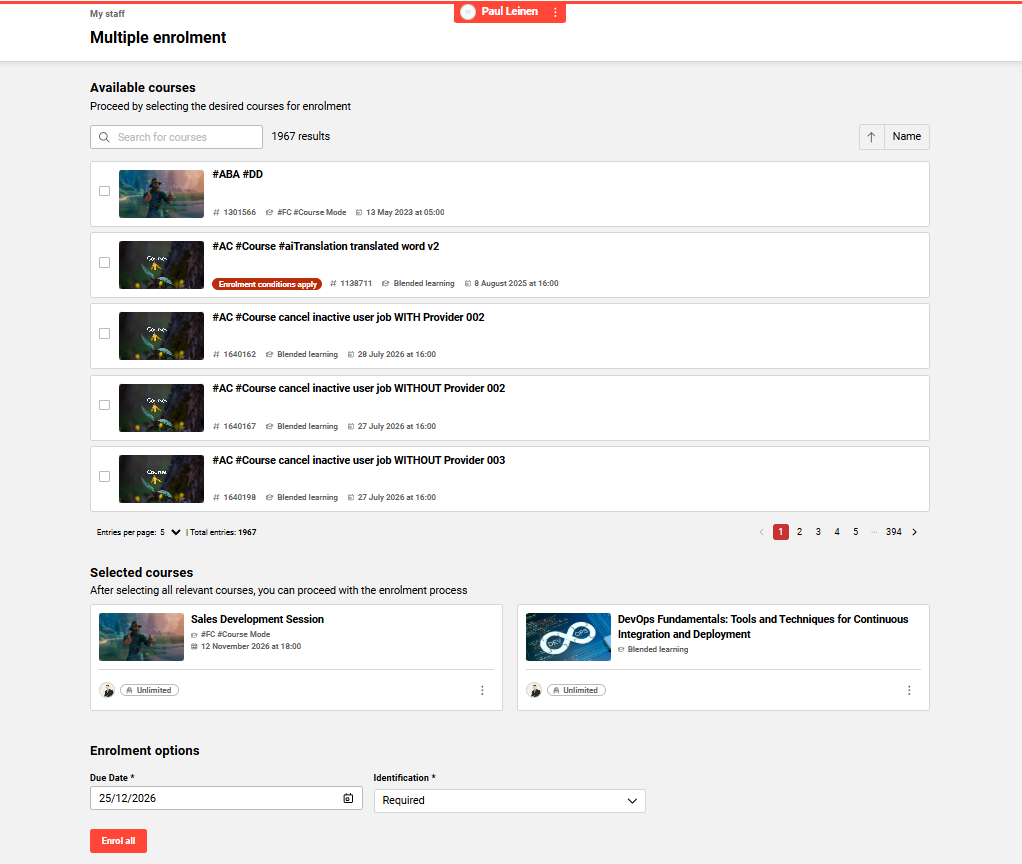
Benefits and Use Cases: Supervisors managing large number of employees, often need to perform bulk enrolments to multiple courses. The re-designed Multi-Enrolment page introduces several usability improvements that make bulk enrolment faster and more intuitive:
-
Paginated course list: The course catalogue now displays results in pages (5, 10, or 20 entries per page) instead of loading all courses at once, resulting in faster page rendering and easier navigation through large course catalogues.
-
Checkbox-based course selection: Courses are selected via an explicit checkbox rather than by clicking the entire card, reducing accidental selections and providing a clearer visual indication of which courses have been chosen.
-
Name sorting: A sort control allows supervisors to order courses alphabetically (ascending or descending) or keep the default system order, making it easier to locate specific courses in large lists.
-
Improved enrolment option dropdowns: Non-mandatory identification dropdowns now include an empty option instead of a separate clear button, providing a more consistent and standards-compliant form interaction.
-
Conditional price display: The user drawer displays the total price only when the selected course has a cost associated; otherwise, it shows a clean x users selected label, avoiding confusion for free courses.
Audience: Supervisors
Setup & Access: The changes are automatically applied.
Considerations & Limitations: None
Testing: As a supervisor, go to the My staff function and open the Multi-Enrolment page. It will now be possible for you to enrol multiple users to multiple courses simultaneously.
Risk rating: Low
Manager’s Resource Training Calendar Extension
Overview: Supervisors can now use advanced filtering in the training calendar (resource-based). These filters can include standard and custom user attributes or job profiles. A new search bar enables finding specific employees by name or username. Additionally, supervisors can download the calendar view as an Excel file and see a real-time counter of absent employees.
Benefits and Use Cases: The training calendar allows supervisors to gain a visual overview of their staff members' training schedules. Benefits of the update include:
-
Faster navigation and better oversight of large teams through advanced filters
-
Improved planning with a quick-glance counter of absent employees
-
Simplified reporting via the new Excel export functionality
Audience: Supervisors
Setup & Access: New filters must be manually configured via new user list.
-
Attribute filters can be controlled via the new Staff training calendar user list (ID 115).
-
The information on the tile can be controlled via the new Staff training calendar user list (ID 115).
-
Filters can be configured via the Configuration function Training Calendar menu using the Filters tab.
Considerations & Limitations: Improvements are available only for the Resource based Calendar. The permitted personal attributes for the user list excludes Image uploads and Email addresses.
Testing: Given that the resource-based calendar is in use, you can test via the following steps:
-
Go to the User lists function, edit the new Staff training calendar user list (ID 115), and add a new filter.
-
Go to Manager role and open the supervisor resource-based calendar.
-
Check that the new filter is available as assigned in Staff training calendar user list (ID 115).
Risk rating: Low
Process Management
Multi-provider Selection for Cancellation, Exemption and Approval Reasons
Overview: The Reasons for cancellation, exemption and approval function has become more flexible with the selection of multiple providers. The Provider selection field has changed from a single-select dropdown field to a multi-select pop-up window. This makes it possible to select any combination of providers for a certain reason.
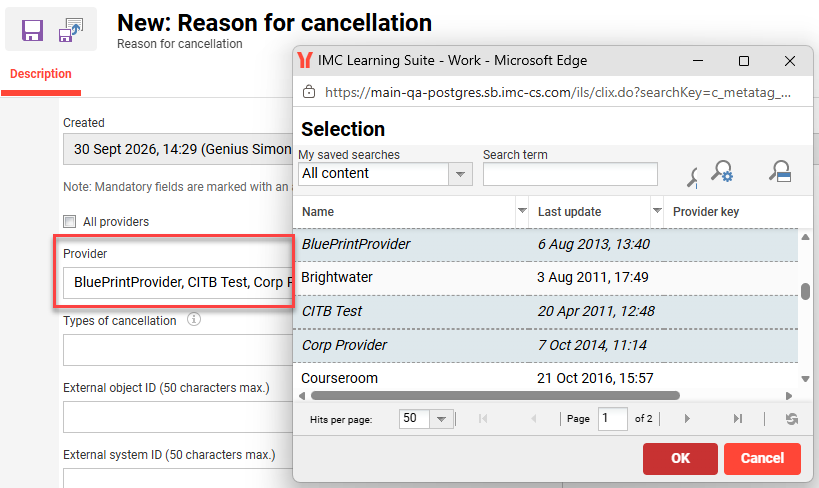
Additionally, there is a new All providers checkbox that when ticked disables the multi-select Provider select field. If no providers are to be assigned to a reason, the Provider selection field can be left blank and the All providers checkbox unchecked. This way, reasons can be assigned flexibly to any provider allowing each provider to receive only the reasons that are relevant to it.
Benefits and Use Cases: Administrators can now assign cancellation, rejection, exemption and approval reasons to multiple providers simultaneously via a multi-selection field. A global toggle allows for quick assignment to all providers, ensuring reasons are only visible where needed. Benefits of the update include:
-
Reducing administrative effort by eliminating duplicate reasons for different providers
-
Ensuring a cleaner user experience by displaying only relevant reasons to specific roles
-
Simplifying maintenance and improving data consistency across multi-provider reporting
Audience: System administrators
Setup & Access: Not required, the multi-select Provider field is automatically applied. Existing reasons can be edited where multiple providers are required.
Considerations & Limitations: There is no automatic merging of existing duplicate reasons. If the same reason is needed for select providers and courses with no provider, the reason needs to be duplicated then configured for this scenario.
Further information is available at Reasons for Cancellation, Exemption and Approval.
Testing: As a System administrator, you can test by going to the Reasons for cancellation, exemption and approval function.
-
Create or edit Cancellation reason and check that:
-
the Provider field is now multi-select and when clicked launches a new pop-up.
in the pop-up multiple providers can be added. -
the All providers checkbox is visible.
when checked, the Provider field is no longer selectable.
-
-
Create or edit a Cancellation reason that contains two providers.
-
Create a course for each Provider that has self-cancellation enabled.
Enrol a participant on each of the courses. -
Create a course for not linked to either Provider that has self-cancellation enabled.
Enrol a participant on each of the course. -
Login as the Participant and self cancel from the courses.
-
The cancellation reason will be available for two courses linked to the two providers.
-
The cancellation reason will not be available for the course not linked to either provider.
-
-
Risk rating: Low
Configurable Default for Required Prerequisites
Overview: A new setting has been introduced per client that can default new prerequisites as ‘Required’. This determines whether a prerequisite is defaulted as mandatory or optional during creation in course templates, courses, or learning paths.

Benefits and Use Cases: The benefits of being able to default prerequisites as “Required” include:
-
Reducing manual configuration effort by automating the selection of mandatory prerequisites.
-
Preventing critical errors where mandatory training requirements are accidentally left as optional.
-
Ensuring a more reliable compliance process and a smoother setup for administrators.
Audience: System administrators
Setup & Access: A new checkbox setting is available automatically and defaulted as unchecked. To access the setting, go to the Clients function and edit a client. Go to the Settings tab and in the Prerequisites section enable the Default value for ’Required’ checkbox on prerequisites checkbox.
Considerations & Limitations: Existing prerequisites are not effected. The Required checkbox is available only at the prerequisite sub-folder level. There is no separate checkbox for individual objects within the sub-folders. A sub-folder can contain Courses, Course templates, Learning paths, Learning path templates, and other supported objects. Therefore, the “Required” setting applies to the entire sub-prerequisite bundle and is all-or-nothing.
Testing: As a System administrator, you can test by:
-
Going to the Clients function and editing a client.
-
In the Settings tab, the Prerequisites section will contain the new Default value for ’Required’ checkbox on prerequisites checkbox. This checkbox will be unticked by default.
-
Tick the checkbox and click the Save icon.
-
-
Going to the Courses function and editing a course that has the Prerequisites tab enabled.
Create a new prerequisite set and the Required checkbox will be ticked.
Risk rating: Low
Reporting Engine
Catalogue Assignment Date in Reporting
Overview: The Catalogue Assignments report has been extended with two new dates. There is a now an Assigned on column and an Assignment date filter. These updates allow you to sort and filter report results by assignment date.
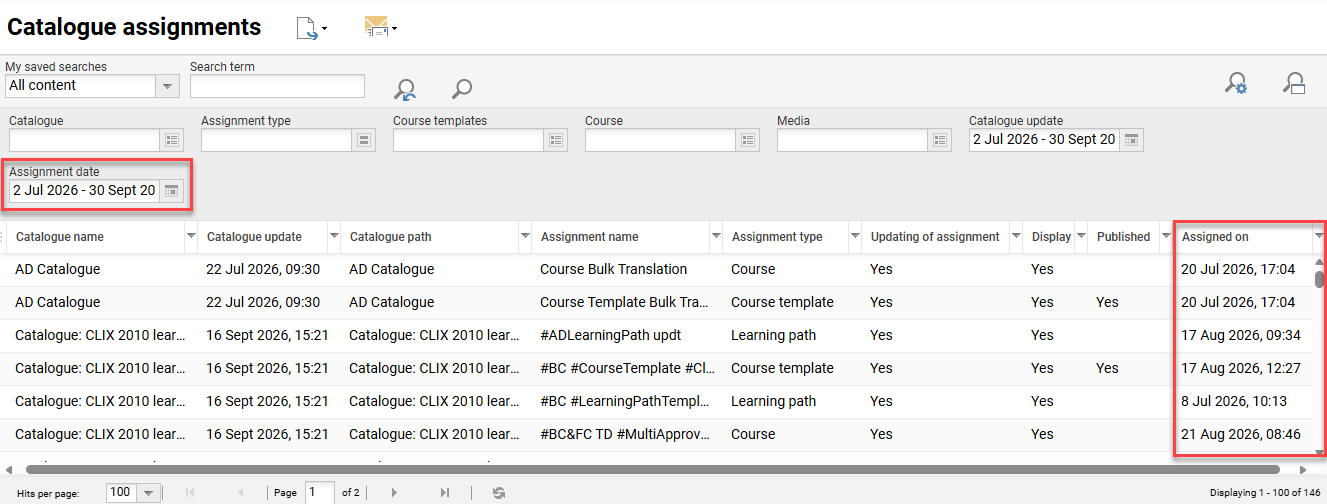
Benefits and Use Cases: Administrators can now view the exact date and time when content was assigned to a catalogue. The benefits of this update include:
-
Provides transparency on when courses were made available in the catalogue
-
Enables precise auditing of content publication timelines
-
Simplifies data management with dedicated time-period filtering
Audience: Report administrators
Setup & Access: Not required, the change is automatically applied.
Considerations & Limitations: All the content which has been assigned to the catalogue before the delivery of the feature would have Assignment date field as empty.
Testing: To test, you need to first assign some content to the catalogue and process the SOLR index. Next, go to the Admin role Reports function and open the Catalogue assignments report. Here you will see a new Assigned on column and an Assignment date filter. The newly added content will display a date in the Assigned on column.
Risk rating: Low
Test Results Report Includes Scores
Overview: The Test result reports now include a Score (test) column that shows the points a learner achieved in a test. You can find the column in two reports:
-
Test results (supervisor): as a backend report and in the frontend report panel
-
Test results (learner): as a backend report and in the frontend report panel
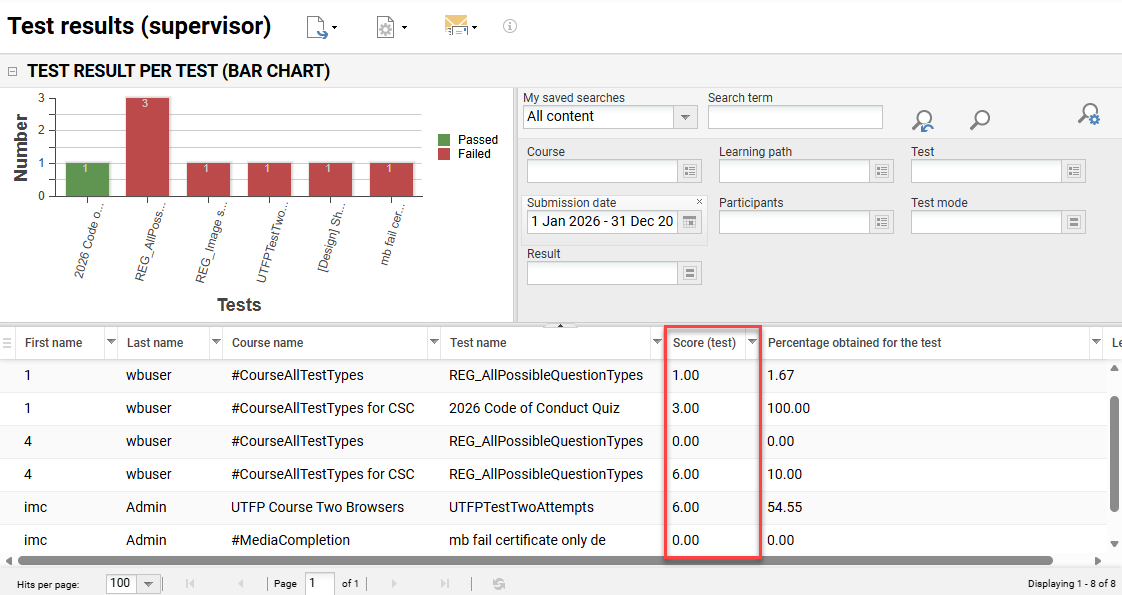
You can hide the column, move it, and sort results by it. Backend reports and frontend report panels show the same figures.
Benefits and Use Cases: This update allows your supervisors and learners to:
-
Read the points result of a test instead of the percentage alone.
-
Compare learners, dealers, and organisational units on a points basis, which makes qualification rates and average scores measurable.
-
Work with one set of figures, because the report panel on the dashboard shows what the backend report shows.
Audience: Learners and Supervisors
Setup & Access: The new Score (test) column has been added by default.
Considerations & Limitations: The following limitations must be considered:
-
The column shows the achieved points. It does not show the maximum achievable score.
-
The test player setting Show overall test score (pts.) does not control the column. Everyone who can open the report sees the points, regardless of what the test shows to the learner.
-
Control of score visibility per single test is not part of this implementation.
-
The change adds a column to two reports. It does not change how the system calculates, stores, or evaluates a test score.
Testing: You can test the update in the following two ways:
-
As a Learner, you can open the Test results (learner) report and look for the new Score (test) column. If you have completed a test as a learner, the column will populate. This report would normally be provided on a dashboard using the report panel.
-
As a Supervisor, you can open the Test results (supervisor) report and look for the new Score (test) column. When an employee has completed a test, the column will populate.
Risk rating: Low
Report Designer
German Translations for Learning Analytics Columns
Overview: The Learning Analytics semantic model has been with many key columns receiving German translations. By activating a deployment parameter, fields like subscription status and overdue indicators will display German labels and descriptions.
Column naming/translation has been updated for:
-
DimSubscriptionState[status_name_de]
-
DimLearningPathSubscriptionState[status_name_de]
-
FactPortfolio[Overdue_de]
-
FactPortfolioLearningPath[Overdue_de]
-
DimPrerequisiteStatusName[Name_de]
-
DimLearningPathPrerequisiteStatusName[Name_de]
-
FactPortfolioLearningPath[FinishedStatus_de]
-
DimPlanningStatus[Status Text_de]
Benefits and Use Cases: Administrators can now utilise German translations for key column contents in the Learning Analytics semantic model. Benefits of this update include:
-
Improving report accessibility for German-speaking users with native language headers
-
Ensuring terminology consistency across the imc Learning Suite
-
Simplifying data interpretation for local administrators and managers
Audience: Report administrators
Setup & Access: You cannot activate the German columns in the imc Learning Suite interface. Instead, you will need to follow these steps to request activation:
-
Contact your Scheer IMC consultant who will organise the deployment of the Learning Analytics semantic model with
german_columns=truefrom the Scheer IMC Hosting team. -
After the deployment, open your reports in Power BI and replace the English column with its German counterpart.
-
As of LA TOM application version 2.1.0, connecting as a Power BI user now requires an additional redirect URI to be registered on the Power BI Azure AD application:
https://localhost. This is because the application now uses a local HTTP listener for the interactive authentication flow.
Further configuration and migration consideration include:
-
Activation does not affect existing reports. The German columns are added next to the English columns, and the existing columns keep their names and values.
-
Activated workspaces store the additional columns in the dataset.
No action is required if you do not require the German columns. The parameter german_columns defaults to false, and a dataset deployed without it behaves as before.
Considerations & Limitations: Required the Learning Analytics licence. Further limitations include:
-
Only the columns listed receive a German counterpart. All other columns and tables stay English.
-
The translation covers the values of these columns, not the data itself. Course titles, catalogue names, and other content remain in the language in which you maintain them.
-
German is the only language the parameter adds.
-
The parameter applies to the whole dataset of a workspace. You cannot switch the language per user, per report, or per report page.
-
Existing reports do not change by themselves.
To show German values, you edit each report and swap the column.
Testing: To test this update you will need to:
-
Contact your Scheer IMC consultant who will coordinate the deployment of the Learning Analytics semantic model with the Scheer IMC Hosting team.
-
After the deployment, open your reports in Power BI and you will be able to replace select English columns with their German counterparts.
Risk rating: Medium
Testing & Assessment
Bulk Classification for Test Questions
Overview: The Test questions function has received an update to allow bulk assignment of classifications to questions. With a new Edit classifications option, you can apply classifications to all highlighted questions. You can now Save and Publish these changes immediately, which automatically creates new versions of the questions.
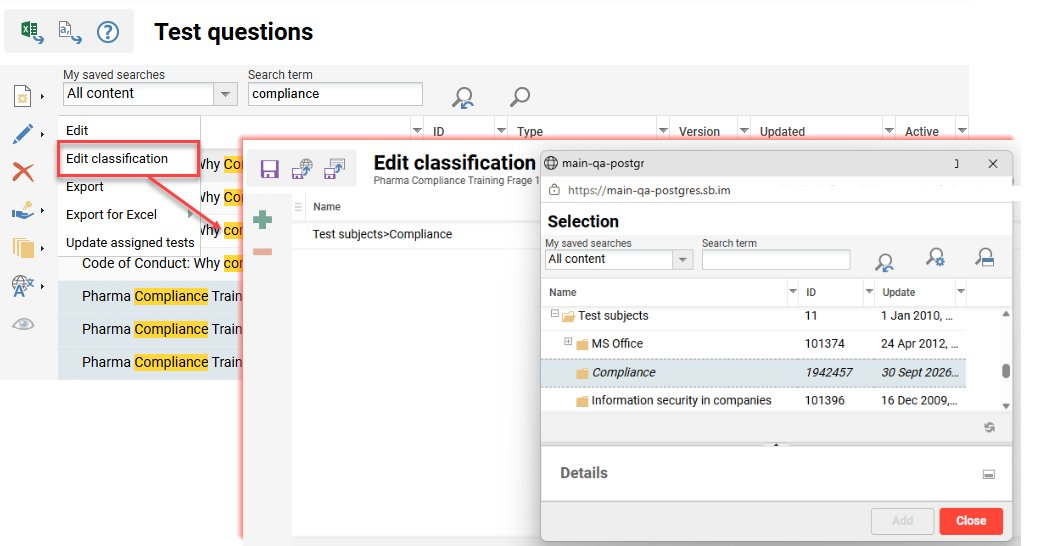
-
Admin should be able to Add/Remove classifications
-
When adding a classification via + button, a pop-up with all available classifications is opened and items can be selected and added; added classifications are present in the overview list.
-
When removing a classification via - button, classification is removed and no longer present in the overview list.
-
-
Admin should be able to decide if the classification is selected to all selected objects or not.
By default, when selecting a classification, the checkbox in the Assigned to all column is true. -
Admin should be able to select a classification from the overview list and see details about it in the dedicated Details section.
-
Admin should be able to use the Save, Save and Close and Save & Publish buttons.
-
Changes are saved accordingly and classifications are assigned correctly to all the selected tests questions.
-
Save/Save and Close will save a draft of the question/s.
-
Save & Publish will save a published version for questions/s
-
-
Admins cannot edit and are prevented if there is another user editing classifications the same questions (even if the same user tries to edit the same question) and also the reverted scenario.
Benefits and Use Cases: As an Administrator you can select multiple test questions and update their classifications at once. Test questions are most commonly classified for the purpose of using in a Test series. This is where a desired number of questions of a classification can be randomly selected that differ per participant. Further benefits of this update include:
-
Saving time by updating large question pools in a single action
-
Ensuring data consistency across multiple test questions
-
Simplifying version control with integrated publishing during bulk updates
Audience: Test administrator
Setup & Access: The new Bulk edit option will be automatically available for administrators that have ‘All’ access rights to the Test questions function.
Considerations & Limitations: Updating the classifications will require publishing of the test questions to a new version. This version will not automatically be applied to any tests where the questions are already assigned. To update within assigned tests, highlight the question, click the Edit icon and select the Update assigned tests option. Whether the test updates automatically in assigned courses depends on Update settings in the course and whether the course has already started.
-
Classifications must be assignable to Tests & Test Questions.
-
Only categories are shown on which the user has clearances
-
The new menu item is active by having access rights to the Edit button
Testing: As an administrator, you can test the update by accessing the Test questions function. Highlight multiple related questions, click the Edit button and select the new Edit classifications option. In the pop-up window add at least one classification. Click the Save button and the question will save as a draft version. Click the Save and publish button and a new version will be created.
Risk rating: Low
Clearer Distinction between Correct (Ticks) and Incorrect (Crosses) Answers
Overview: An update in the Test player function provides your learners with clearer visual feedback when reviewing answers. There is now a much clearer distinction between correct and incorrect answers. This change applies to Single Choice, Multiple Choice and Yes/No questions.
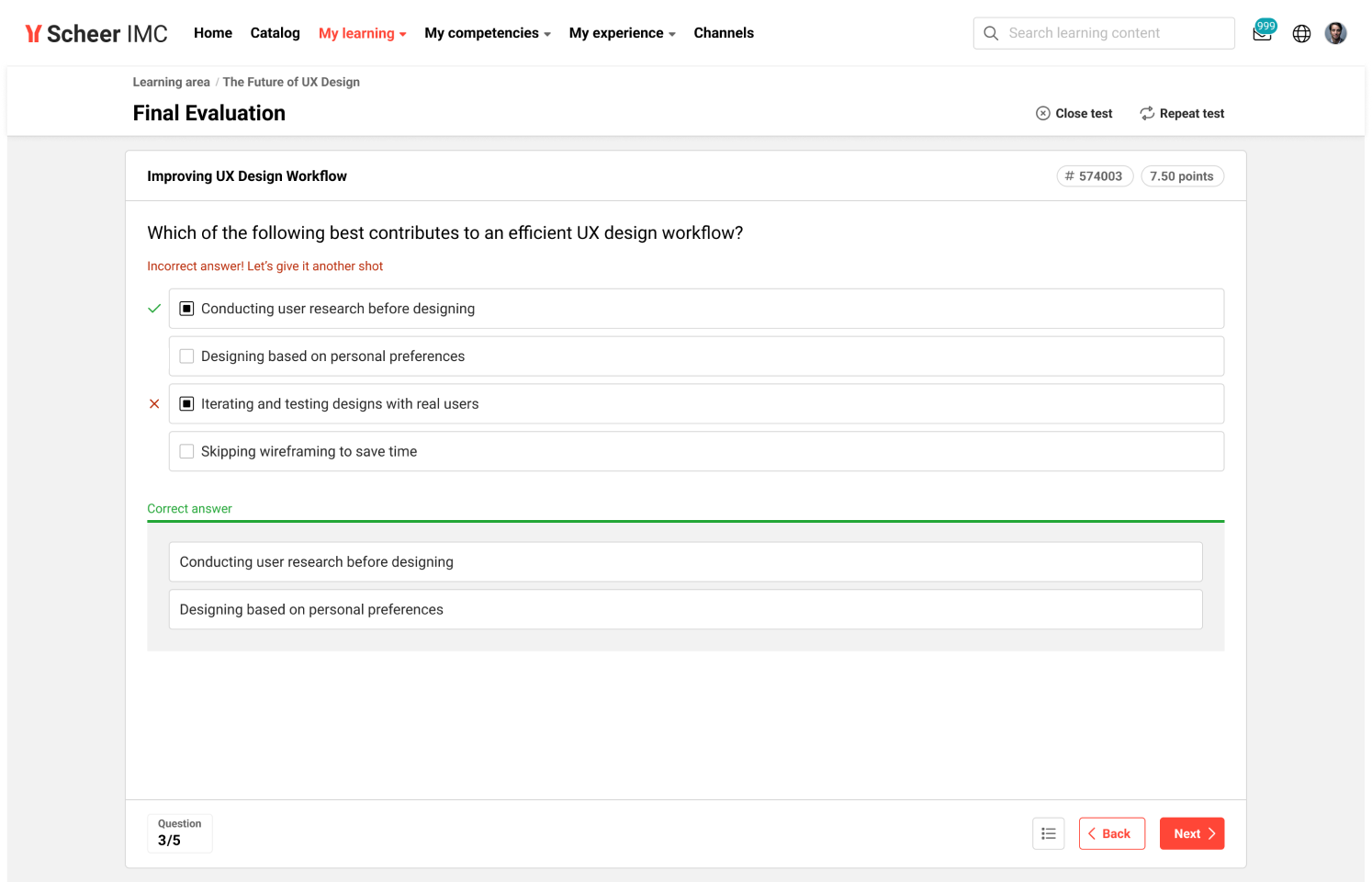
Benefits and Use Cases: Low stakes tests can be setup to enable your learners to immediately review answers after submitting. The update provides the following benefits:
-
Learners can intuitively distinguish between what they selected and whether answers were correct or incorrect.
-
Missed options in multiple-choice questions are clearly highlighted, helping learners quickly understand where mistakes occurred.
Audience: Learners
Setup & Access: The change is automatically applied. Viewing the change requires the Display answers checkbox in the Test Player to be ticked.
Considerations & Limitations: None
Testing: To the test this update, you will need to complete the following steps:
-
Create a Test:
-
Assign question types including Single Choice, Multiple Choice and Yes/No.
-
In the Test player tab tick the Display answer checkbox.
-
-
Create or Edit a Course:
-
Assign the Test to the Components tab.
-
Save the course.
-
Enrol a participant on the Course.
-
-
Log in as the Participant:
-
Open the course in My Learning.
-
Complete the Test questions and submit.
-
Review the answers to view the updated layout.
-
Risk rating: Low