
In addition to the core updates that are accessible to all customers, there are also innovations and improvements to the licensed add-on modules. These updates are listed by their category below:
On-the-Job Training
Learner can Select Assessor
Overview: It’s now possible for course participants to select a mentor to assess their On-the-job training task submissions. This workflow is enabled via a new setting within On-the-job training templates that activates a Select mentor button for the learner. The list of displayed mentors consists of the course Tutors with the On-the-job training checkbox ticked. Once a mentor is selected and confirmed, all On-the-job training task submissions are assigned to that mentor. The mentor choice becomes locked once the first task is started. Only if the mentor becomes inactive can the learner select a new mentor.
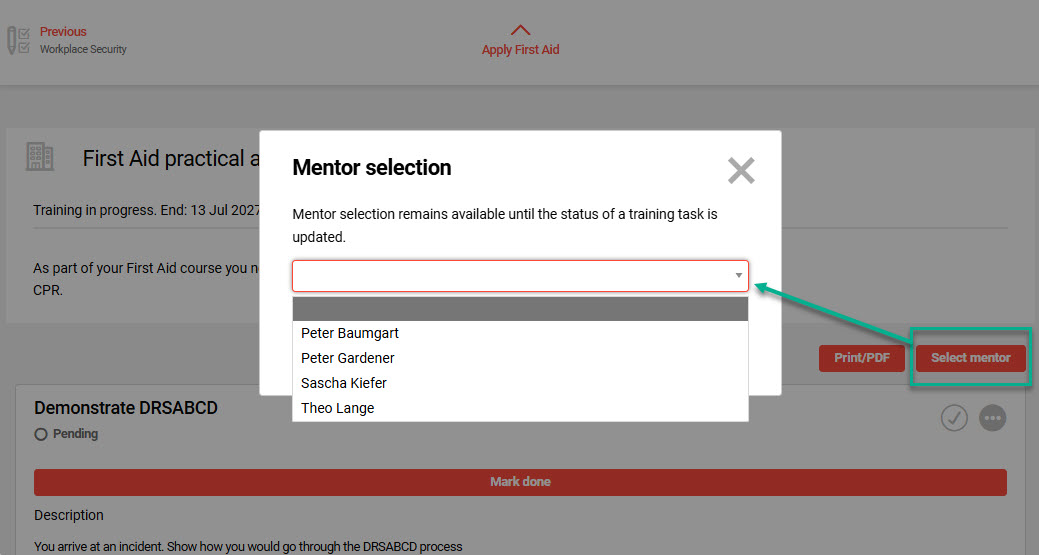
Benefits and Use Cases: There are many example scenarios where learners may need to select specific mentors to assess their On-the-job training task completion. For example, this could be due to location or skill set of the assessor. The key benefits of this update include:
-
Clear ownership of On-the-job training assessment responsibility,
-
Reduced admin effort through learner‑driven mentor assignment,
-
Controlled activation via an On-the-job training template setting, and
-
Enabling a single blended course with online theory and location-based task mentors.
Audience: Learners and Tutors
Setup and Access: No Migration needed and no impact to existing customers. The new Allow learners to select mentor checkbox is automatically available for all On-the-job training templates in the Description tab. This checkbox is ‘Inactive’ by default to ensure standard behaviour is not changed.
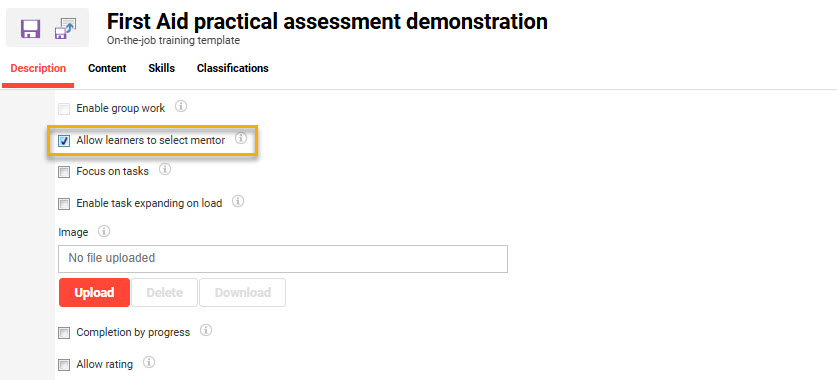
Considerations and Limitations: On-the-Job Training is a licensed add-on module. The Select mentor button is only available for On-the-job training within a course. This means that users who are assigned On-the-job training templates with the Allow learners to select mentor checkbox activated via the Staff pool or My staff functions cannot select mentors.
Testing: Providing the On-the-job Training is activated, you can test by following these steps:
-
In the On-the-job training template function either create or edit a template.
-
In the Description tab tick the Allow learners to select mentor checkbox.
-
Complete other fields and assign tasks as required, then click Save.
-
-
Next, the On-the-job training template needs to be assigned to a course.
-
In the Components tab add the On-the-job training template.
-
In the Tutors tab add multiple Tutors and tick the On-the-job training checkbox.
-
Ensure the course Planning status meta tag is set to Released and click the Save icon.
-
-
Open the Participant administration function for the course.
-
In the Participants tab add a new participant that you can login with to test.
-
Click the Save and close icon to complete the enrolment.
-
-
Login as the enrolled participant.
-
Open the course in the Learning status function or via the learner ‘Home’ dashboard.
-
Go to the Syllabus tab and open the On-the-job training.
-
There will be a Select mentor button that displays all Tutors that have the On-the-job training checkbox ticked.
-
Select a Mentor and start the first task.
-
It will now not be possible to select a different mentor.
-
-
Log in as the selected Mentor/Tutor:
-
Open the Mentored training modules function.
-
The learner’s submitted On-the-job training tasks will be visible and ready for assessment.
-
Risk rating: Low
Skills and Competencies
Skill Scale Display in Catalogue View
Overview: The Catalogue view of Skills within the course tile for learners has been updated. There is now a Client catalogue setting to either show or hide the skill scale in the Catalogue view. The course tile design has also been improved with a background to separate skills and truncation of the two lines for the level/point description.
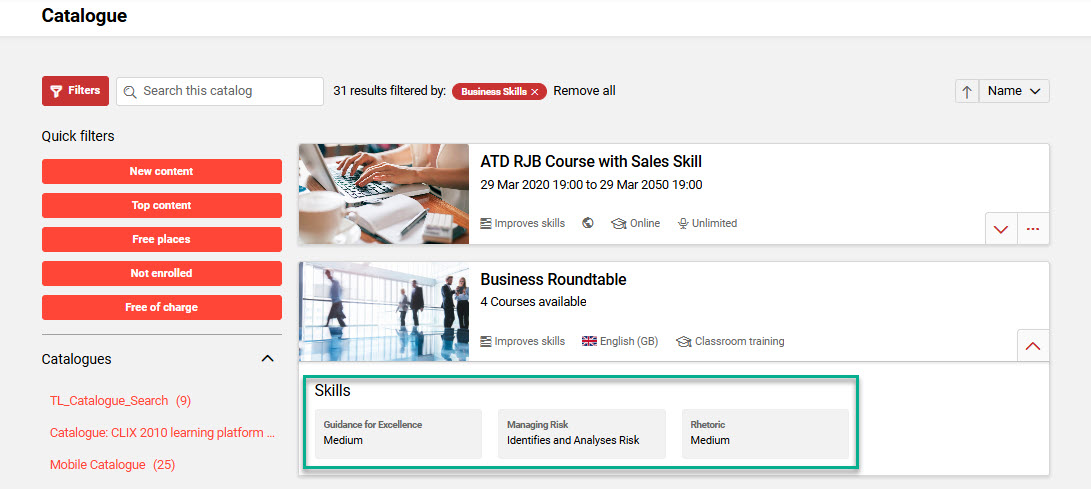
Benefits and Use Cases: With standard behaviour, if a Course has Skills assigned there is as a green bar and the text "Skill achieved" displayed in the Catalogue. This could cause confusion as the learner might think they already have achieved the skill and there is no need to take the course. The clearer display helps emphasise that the skills are only acquired through training completion.
Audience: Learners
Setup and Access: A new Show skill progress bar in catalogue view checkbox is automatically available in the Clients function Settings icon Catalogue settings menu. This setting is ‘Active’ by default to retain standard behaviour. You can update the display to hide the skill scale by simply unticking the Show skill progress bar in catalogue view checkbox.
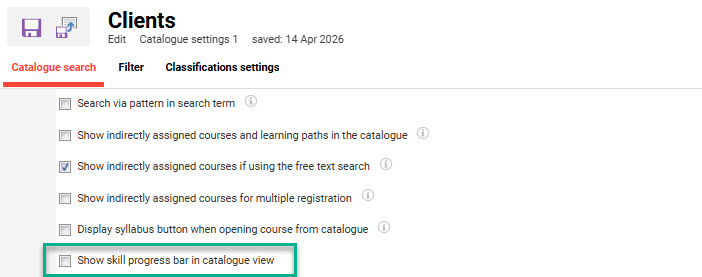
Considerations and Limitations: Requires the Skills & Competency Management add-on licence. There is no change to the Skills display in the Course room Description tab and Syllabus tab. Here, the Skills assigned to the course will still display the scales.
Testing: Given that the Skills & Competency Management add-on license is active:
-
As a System administrator, go to the Clients function.
-
In the Settings icon open the Catalogue settings option.
-
Untick the new Show skill progress bar in catalogue view setting.
-
Go to the catalogue and search for a course that awards a skill.
-
Check that the Skill scale is no longer displayed.
Risk rating: Low